

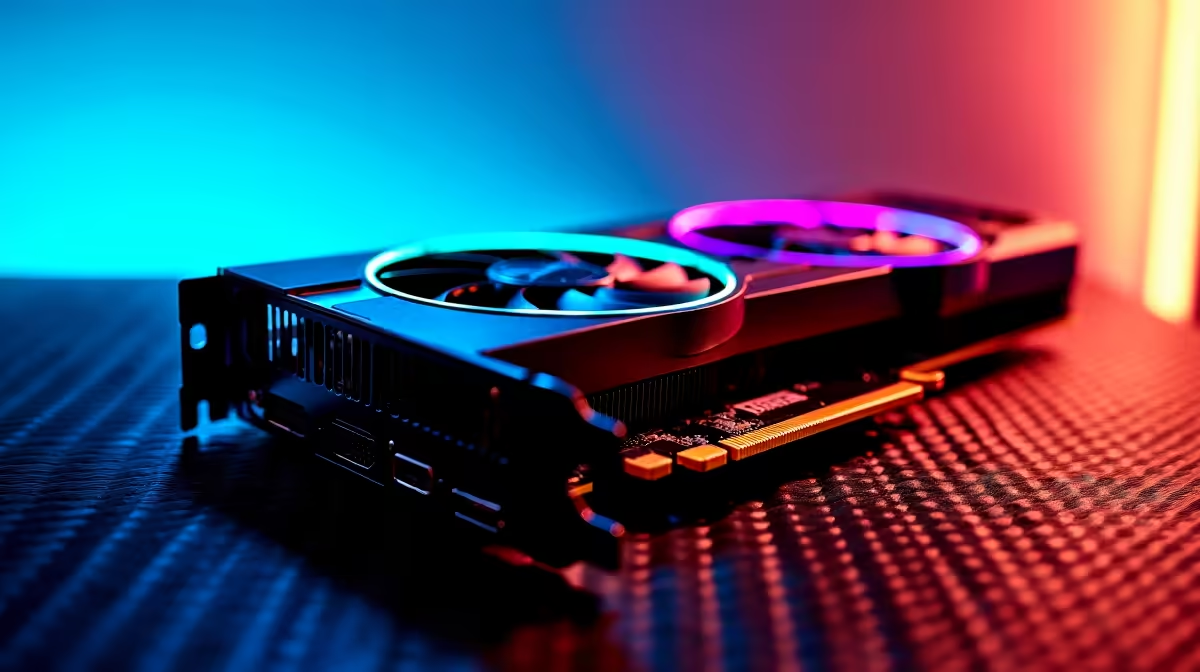
You just spent thousands of ZAR on a new GPU... only to face random stutters or black screens. Do not panic. Whether you are running competitive shooters or rendering heavy video files, driver bugs happen. Learning how to fix common RX 7700 XT issues in minutes is easier than you think. Let us get your gaming rig running perfectly.
Identifying the Root Cause of GPU Stutters 🚀
Before you box the card up for a warranty return, let us look at your software environment. When upgrading your graphics cards, leftover registry files from your old hardware often cause chaos. Your operating system gets confused between old and new instructions.
This conflict directly leads to massive frame drops... sudden crashes... and those dreaded driver timeout errors. Understanding this saves you hours of frustration.
Solving AMD Software Problems Quickly
The absolute most reliable solution is a clean software installation. Download a trusted free utility called Display Driver Uninstaller. Next, boot your computer into Safe Mode. This prevents Windows from interfering. Wipe the old display drivers completely... and restart your machine.
Once you are back on your normal desktop, install the latest AMD Adrenalin software directly from the official website. This simple ten-minute process solves about ninety percent of visual glitches. We use this exact rigorous method when building our best gaming PC deals in the Evetech workshop.
Power Delivery and Hardware Checks ⚡
Sometimes the issue is purely physical. Modern GPUs require a very steady power supply to boost clock speeds. If your power unit is ageing or underpowered, you will experience random reboots during heavy loads. Always ensure you are using two separate PCIe cables from the power supply... never daisy-chain a single cable.
Proper cabling ensures stable voltage delivery. If you are tired of building and testing hardware yourself, our pre-built PC deals are ideal. They come perfectly cabled and stress-tested right out of the box.
AMD Adrenalin Pro Tip 🔧
Inside the AMD software, disable Multi-Plane Overlay through the Windows registry if you experience flickering in browsers. Also, turn off Radeon Chill unless you specifically want to cap your frame rates to save on electricity.
Optimising Your Setup for the Future ✨
Keeping your entire system cool and updated is vital for long-term performance. Always monitor your internal temperatures while gaming. If your chassis lacks decent airflow, your card will automatically throttle its speeds to protect itself from overheating.
Are you a student or busy professional who needs mobility instead of a bulky desktop? You might want to look at our premium laptops. They offer incredible plug-and-play convenience without the hassle of manual upgrades.
For those sticking to the desktop master race, always keep a close eye on our daily specials. You can regularly grab high-quality power supplies and cooling fans to support your hardware without breaking your budget.
Ready to Find Your Perfect Match? Troubleshooting is great, but sometimes you just need a fresh start. If your older components are holding back your new GPU, we have you covered. Explore our massive range of PC components and upgrades and find the perfect parts to conquer your world.











