

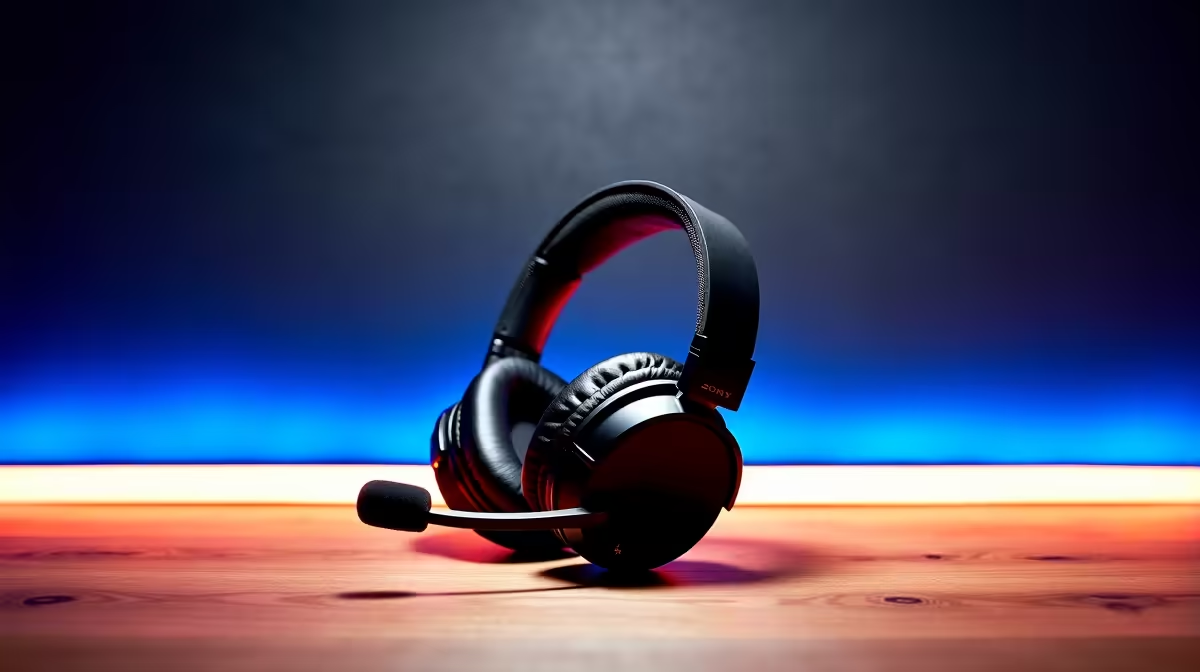
There is nothing worse than clutching a 1v2 in CS2, only for your squad to complain about a massive echo. Figuring out how to fix echo and feedback on gaming headsets is a rite of passage for South African gamers. Before you throw your gear at the wall in frustration, let us look at a few simple tweaks. You can get your comms crystal clear again without spending a cent.
Common Causes of Mic Echo and Audio Loops ⚡
Audio feedback usually happens when your microphone picks up the sound leaking from your earcups. This creates a nasty infinite loop. It is very common if you crank your volume up to the absolute maximum. It also happens when audio bleeds through a faulty or unshielded cable.
Whether you are gaming on a high-end rig from our best gaming PC deals or a budget setup, software settings are often the real culprit. Nobody wants to drop R2,000 on new audio gear if a quick settings change can solve the problem.
Quick Steps to Stop Audio Feedback
Let us start with the absolute basics. First, turn down your master volume. If your friends can hear themselves talking, your headset might just be too loud.
Second, you need to optimise your Windows sound settings. Right-click the speaker icon in your taskbar and open your sound control panel. Find your microphone properties. Ensure the "Listen to this device" box is strictly unchecked.
You should also adjust your microphone sensitivity. If your mic is set to pick up a pin drop, it will definitely pick up the explosions from your earcups. Lower the input gain in your system or game settings.
Another common trick is to check your audio drivers. Outdated motherboard audio drivers can cause weird routing issues. Download the latest drivers to keep everything running smoothly.
Sometimes the issue lies with your physical hardware setup. If you are plugging into the front audio ports of a pre-built PC, try the motherboard ports at the back instead. Front panel connectors can sometimes suffer from annoying electrical interference.
Discord Audio Pro Tip 🔧
If you are still getting feedback, open your Discord voice settings. Turn on Krisp Noise Suppression and enable Echo Cancellation. This software trick works wonders for filtering out background noise and stopping audio loops instantly.
Is It Time for a Hardware Upgrade? 🚀
If you have tweaked every setting and the echo persists, your hardware might be failing. Worn-out audio jacks or damaged cables are notorious for causing static and audio bleed. This is especially true for older notebooks and laptops where the single combo jack might be heavily worn out.
Investing in a dedicated USB headset can completely bypass your system onboard audio. USB connections handle digital signals... which drastically reduces the chance of analog interference. Wireless headsets are also a fantastic option to consider. They completely eliminate the risk of cable crosstalk.
You can easily find great options that will not break the bank. Just keep an eye on our latest tech specials to save some hard-earned ZAR. Upgrading your audio gear is often the ultimate way to resolve persistent mic issues permanently.
If you are ready to ditch the static, upgrading to premium gaming headsets with built-in noise cancellation is the best move. Your squad will thank you for it.
Ready to Upgrade Your Audio Arsenal? ✨ Clear comms win matches. If your old headset is holding your squad back, it is time for an upgrade. Explore our massive range of gaming headsets and find the perfect audio gear to conquer your next lobby.











