

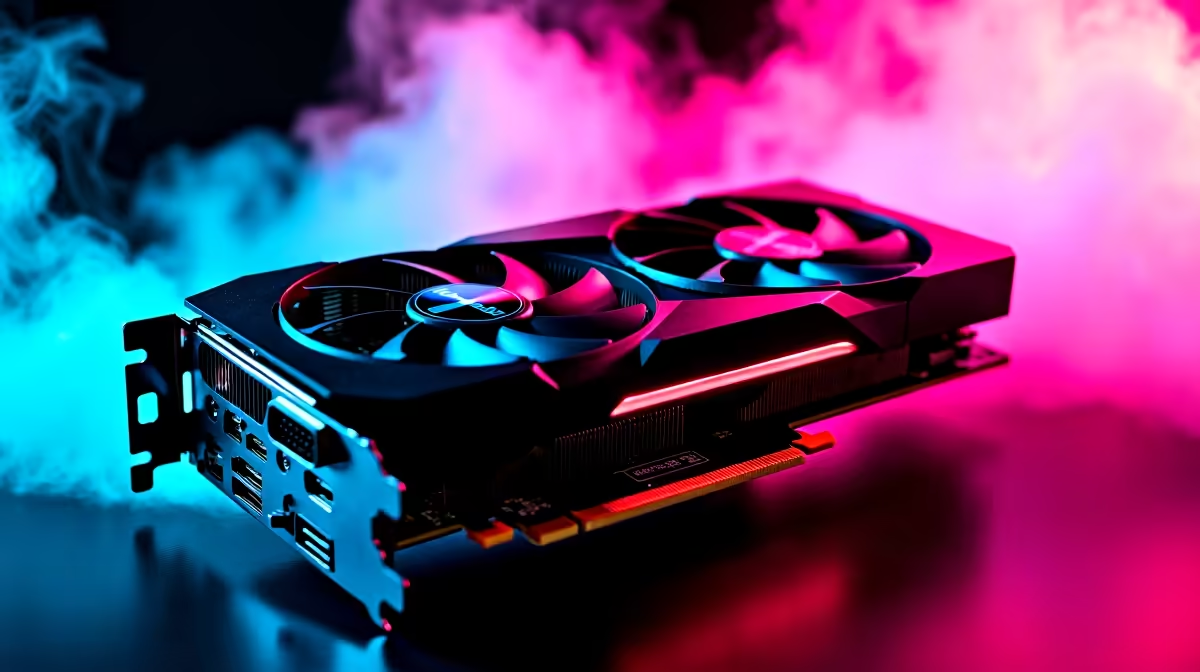
Stuttering on a Windows gaming PC is usually caused by four specific things: shader compilation on fresh driver or patch, VRAM overflow pushing textures into system RAM, a slow boot drive causing asset streaming lag, or background Windows services (usually Superfetch/SysMain) hogging disk I/O. Each step below takes 5-10 minutes.
🎨 Let shaders compile
If stuttering started right after a GPU driver update or game patch, it is shader compilation. Launch the game, stand still in a varied area (menu, then first map with action), and let it run for 10-15 minutes. Many modern games compile shaders in the background but do it opportunistically; explicit idle time helps. For Unreal Engine titles, go to the game's Settings → Graphics and look for "Pre-compile shaders" if available. Keep your GPU on the latest stable driver; old drivers cause shader mismatches that recompile repeatedly.
🧠 Match textures to VRAM
Stutters every 2-10 seconds during heavy scenes usually mean VRAM overflow. Open the in-game Statistics overlay (many games have one) or use MSI Afterburner to show VRAM usage. If it sits at 95%+ total, drop Textures one tier. Rule of thumb: 4GB = Normal, 6GB = High, 8GB = High, 10-12GB = Very High, 16GB+ = Ultra. Ultra textures on an 8GB GPU causes stuttering even when averaged FPS looks fine. Upgrading to 12GB or 16GB graphics cards eliminates this constraint.
Stuttering in Chrome plus games at the same time often points to a slow SATA SSD or HDD as the boot drive. An NVMe SSD upgrade cuts Windows I/O latency by 4-5x and removes a whole class of stutter. {{/TipBox}}
💾 Check boot drive speed
Run CrystalDiskMark on your boot drive. A healthy PCIe 3.0 NVMe should hit 3,000+ MB/s sequential read; PCIe 4.0 should hit 7,000 MB/s; a SATA SSD should hit 550 MB/s; an HDD sits at 100-160 MB/s. If numbers are way below spec, the drive is either near-full (keep 20% free for SSD garbage collection), failing, or throttled. Run CrystalDiskInfo to check health. A fresh NVMe SSD restores Windows responsiveness and eliminates texture streaming stutter in modern games.
⚙️ Disable problematic services
Press Windows + R, type services.msc. Find "SysMain" (formerly Superfetch). Right-click → Properties → Startup type = Disabled → Apply → Stop. On modern NVMe builds this service causes disk thrash that manifests as random stuttering. Also disable "Windows Search" if you do not use File Explorer search often. Together these two services account for 20-40% of random background disk I/O. Run Windows Game Mode ON, close Chrome during gaming, and test on the same gaming PC you already own for an immediate improvement.
{{CALLTOACTION}}











