

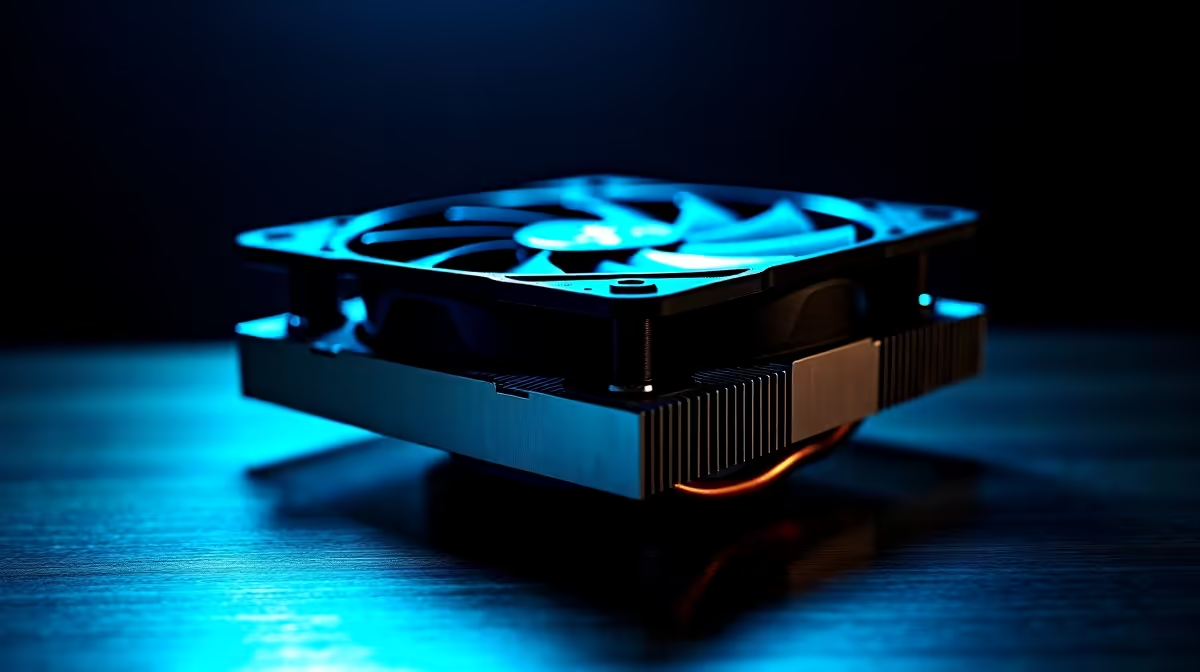
Loadshedding just ended, you boot up your rig, and suddenly your fans are spinning at maximum speed. You immediately start searching for how to fix tower cooler driver issues in Windows 11... but here is the twist. Standard air coolers do not actually use drivers! If your system is acting up, the culprit is usually motherboard software or a BIOS conflict. Let us get your temperatures sorted.
The Myth of the Air Cooler Driver 🔧
When you install a standard heatsink, the fan plugs directly into a 4-pin PWM header on your motherboard. The hardware controls the fan speed based on your CPU temperature. Because there is no USB connection or complex circuitry involved, the Windows 11 operating system does not require a specific driver to make it spin.
If you are getting a warning message on startup, it is likely a motherboard utility misfiring. Upgrading to premium CPU coolers will drastically drop your overall temperatures... but it will not fix a software glitch. You need to look closely at the background applications managing your hardware.
Motherboard Software and Chipset Conflicts
Programs like ASUS Armoury Crate, MSI Center, or Gigabyte Control Center are notorious for causing fan speed headaches. When these applications conflict with recent Windows 11 updates, they can completely lose control of your fan headers. This is a common issue we see even on the best gaming PCs when system software is not regularly updated.
To resolve this, head to your motherboard manufacturer's official website and download the latest chipset drivers. A clean installation of your motherboard control software often restores normal fan behaviour. Sometimes, sudden power losses from loadshedding can reset your motherboard settings, causing your fans to run at full speed by default.
BIOS Override Tip ⚡
If your Windows fan control software is glitching, uninstall it and set your fan curves directly in your motherboard BIOS. It is more reliable, uses zero system resources, and bypasses Windows 11 software bugs entirely.
What If You Have an AIO Liquid Cooler?
This is where things get slightly trickier. If you recently swapped from air to liquid cooling, your new All-In-One unit might actually need dedicated drivers. High-end AIOs plug into an internal USB header to power LCD screens, pump controls, and RGB lighting. If Windows 11 cannot read the cooler, you will need to open Device Manager, look for an "Unknown USB Device", and force a driver update.
Whether you are customising pre-built PCs or tweaking power profiles on high-performance laptops, keeping your USB and chipset drivers updated is crucial for stable, quiet cooling. Laptops in particular rely on highly specific manufacturer drivers to balance performance and acoustics.
Keeping Your System Cool and Updated 🚀
Airflow is the absolute lifeblood of any modern gaming rig. While you do not need to worry about fixing non-existent tower cooler drivers, you do need to keep your motherboard BIOS and Windows 11 environment perfectly healthy. Regular maintenance ensures your hardware runs at peak performance without dangerous thermal throttling.
If your current cooler is struggling to keep up with the intense South African summer heat, it might be time for an upgrade. You do not need to spend thousands of ZAR to get great temperatures. Keep a close eye on the latest tech specials to find high-quality cooling solutions at unbeatable prices.
Ready to Optimise Your Setup? Thermal throttling is the enemy of high frame rates. Whether you are looking for a beefy new air cooler or a complete system overhaul, Evetech has you covered. Explore our massive range of PC components and find the perfect hardware to keep your rig icy cold.











