

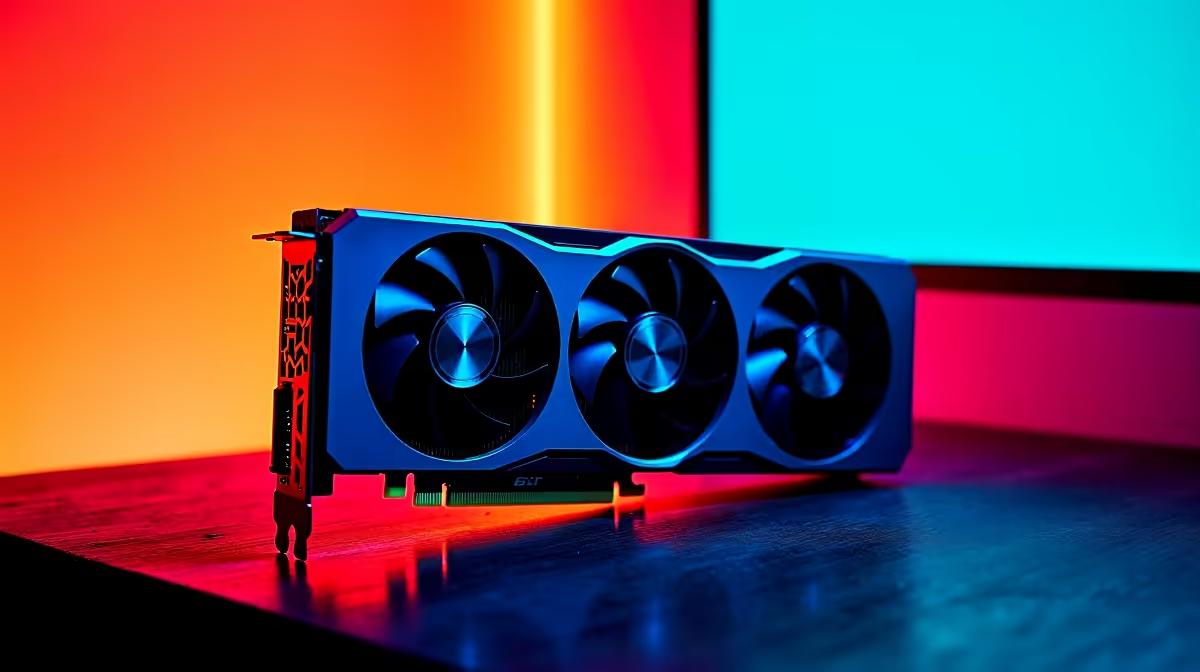
Dropping into a sweaty end-game circle in Fortnite with frame drops is a uniquely South African pain... especially when your ping is already fighting you. If you want that buttery-smooth competitive edge, learning how to get 144Hz in Fortnite on RTX 5070 is your first step to a Victory Royale. Let us break down exactly how to optimise your rig for peak performance.
Unleashing the RTX 5070 in Fortnite 🚀
NVIDIA's 50-series architecture brings serious firepower to the table. The RTX 5070 is built to chew through competitive titles with ease. However, raw power alone will not magically lock your frames. You need to balance your settings carefully. If you are still running an older GPU and want this level of performance, browsing the latest graphics cards is a smart move. For those already holding the 5070, your journey to 144Hz starts in the settings menu.
Optimise Your Fortnite Video Settings
To get a stable 144Hz in Fortnite on RTX 5070, you must prioritise frame rates over eye candy. Switch your rendering mode to Performance (Beta). This strips away unnecessary textures that bog down your system. Next, keep your 3D resolution at 100% but drop shadows and post-processing to low. If you are building a system from scratch to handle these exact settings, you can find incredible value by checking out the best gaming PC deals available right now.
Avoid the CPU Bottleneck 🔧
Here is a hard truth... your shiny new RTX 5070 cannot push 144 frames if your CPU is lagging behind. Fortnite is notoriously CPU-heavy in competitive modes. You need a modern processor to keep up with the GPU. If your current rig is bottlenecking your frames, it might be time to look at some pre-built PC deals that perfectly balance CPU and GPU power without breaking the bank.
NVIDIA Reflex Pro Tip ⚡
Always enable NVIDIA Reflex Low Latency in your Fortnite settings. Set it to 'On + Boost'. This forces your RTX 5070 to maintain higher clock speeds in CPU-bound scenarios, drastically reducing system latency and helping you hit that 144Hz sweet spot with zero input lag.
Complete Your 144Hz Setup
A stable 144Hz means nothing if your monitor is still stuck at 60Hz. Make sure Windows display settings are actually set to 144Hz. Right-click your desktop, go to Display Settings, Advanced Display, and select the correct refresh rate. For gamers who travel or face constant load shedding, taking this performance on the go is totally possible. Modern gaming laptops pack enough punch to match desktop performance, ensuring you never miss a match.
Getting the Best Value in ZAR ✨
Upgrading your setup to achieve 144Hz in Fortnite on RTX 5070 does not have to drain your wallet. With the right tweaks, your hardware will deliver exceptional results. Always keep an eye out for tech specials to grab the gear you need at prices that make sense for South African gamers. Every Rand saved is a Rand you can put toward a better monitor or faster RAM.
Ready to Dominate the Island? Achieving a locked 144Hz is the ultimate competitive advantage, but you need the right hardware to make it happen. Explore our massive range of gaming PC specials and find the perfect Evetech machine to secure your next Victory Royale.











