

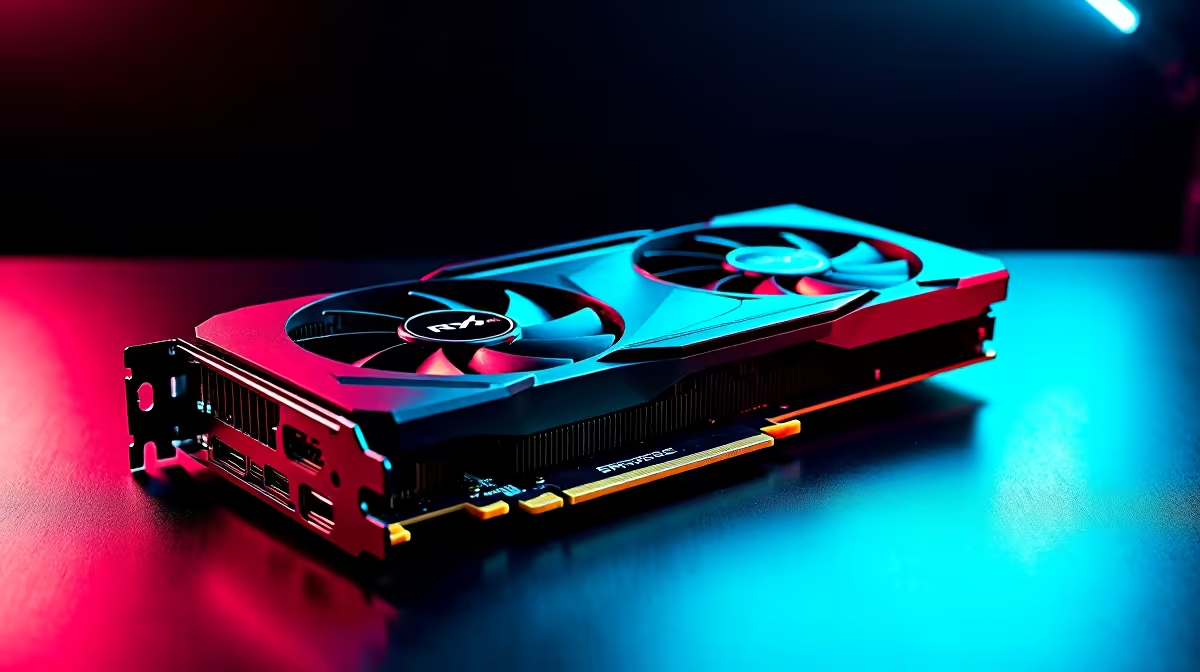
The AMD RX 9070 XT is a strong mid-to-high-range card for South African gamers, and Fortnite is well-optimised enough that 144Hz is absolutely within reach - but only if your settings are dialled in correctly. A few wrong options in the Fortnite video menu can halve your frame rate unnecessarily.
Quick Answer
To hit 144Hz in Fortnite on an RX 9070 XT, set your in-game resolution to your monitor's native 1080p or 1440p, enable Performance Mode (DirectX 12 or DX11), cap your frame rate at 144, lower shadows and effects to medium or low, and ensure your monitor is set to 144Hz in Windows display settings.
Step-by-Step: Configuring Fortnite for 144Hz on RX 9070 XT 🔧
Start outside the game. Go to Windows Display Settings → Advanced Display and confirm your monitor is running at 144Hz. Many SA gamers miss this step after a fresh OS install, leaving the monitor stuck at 60Hz regardless of GPU performance. Make sure your monitor is connected via DisplayPort or HDMI 2.1 - older HDMI versions may cap you below 144Hz at 1440p.
Inside Fortnite, navigate to Video Settings and apply these targets:
- Rendering Mode: Performance (lower GPU overhead, highest FPS ceiling)
- Resolution: Native (1920x1080 or 2560x1440 depending on your monitor)
- Frame Rate Limit: 144 (or Unlimited if you want to see your headroom)
- 3D Resolution: 100% (do not drop this - it blurs the image significantly)
- Shadows: Off or Medium
- Anti-Aliasing: Off in Performance Mode (it handles this differently)
- Textures: Medium (RX 9070 XT has enough VRAM to handle this)
- Effects & Post Processing: Low
With these settings, the RX 9070 XT should sustain well above 144fps at 1080p and comfortably hit 144fps at 1440p in most scenarios. Check your GPU options at Evetech if you're looking to upgrade to the RX 9070 XT or beyond.
FSR and Driver Settings to Boost Frame Rate 💡
The RX 9070 XT supports AMD FSR (FidelityFX Super Resolution). In Fortnite's Performance Mode, FSR integration is available - enabling FSR Quality mode can push your frame rates even higher while maintaining a sharp image. If you're at 1440p and sitting just below 144fps, FSR Quality at 1440p output is the cleanest option.
On the driver side, open AMD Software: Adrenalin Edition and ensure you're on the latest driver. Set Radeon Anti-Lag to Enabled - this reduces input latency specifically, which matters in a competitive shooter like Fortnite. AMD's Radeon Chill should be disabled for competitive play.
Frequently Asked Questions ❓
Q: Why is Fortnite still showing 60Hz even after changing settings? A: Check Windows Display Settings first. Your monitor refresh rate must be set to 144Hz at the OS level - Fortnite inherits this cap if Windows is still set to 60Hz.
Q: Does the RX 9070 XT support 144Hz at 1440p in Fortnite? A: Yes. With Performance Mode and the settings above, most scenes will sustain 144fps at 1440p. Demanding end-game scenarios may dip slightly, but average frame rates should remain above your 144Hz target.
Q: Should I use FSR or native resolution for competitive Fortnite? A: Native 1080p or 1440p without FSR gives the sharpest image and lowest latency. FSR Quality is a good middle ground if you need the extra frames - FSR Performance sacrifices too much visual clarity for a competitive environment.
Evetech stocks RX 9070 XT Gaming PCs and All Graphics Cards — browse current SA pricing and availability online.
Ready to Find Your Perfect Match? Explore relevant Evetech options, compare current South African pricing, and choose hardware that fits your setup. Shop now











