

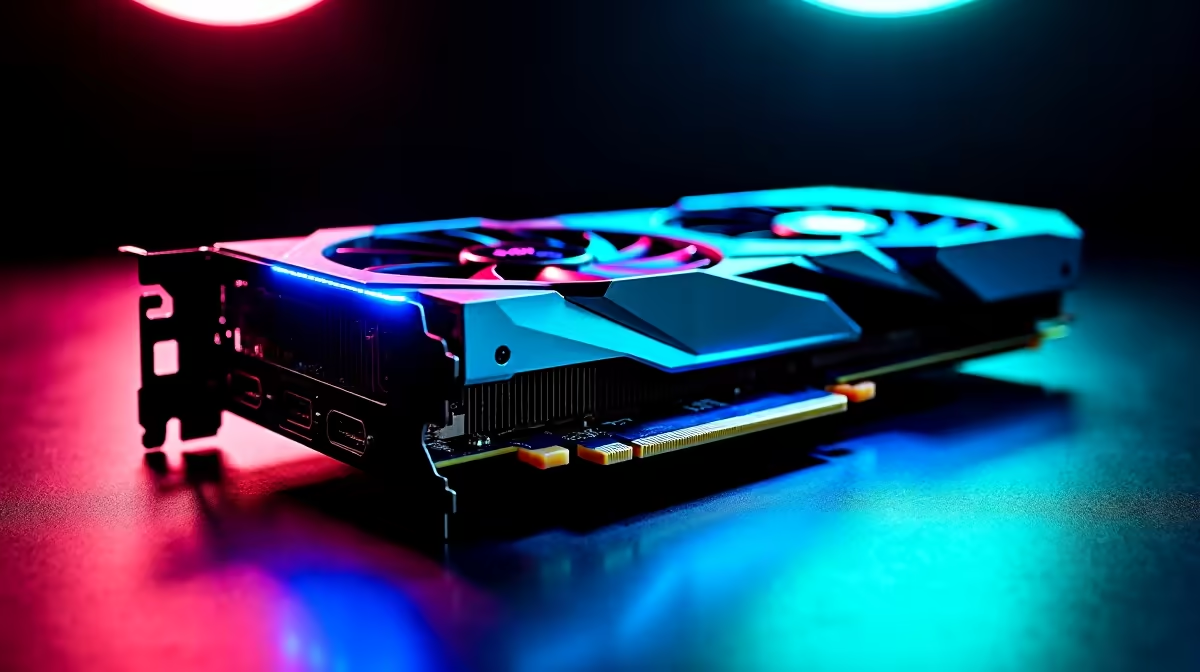
Installing a graphics card is one of the most beginner-friendly PC builds tasks - the process is straightforward, requires no specialised tools beyond a Phillips screwdriver, and takes about 10–15 minutes. Whether you’re upgrading from an older GPU or installing one fresh into a new build, this step-by-step guide covers everything from preparing your case to first boot.
Quick Answer
How do you install a GPU? Power off and unplug your PC, remove the PCIe slot cover bracket(s) from your case, release the PCIe x16 slot’s retention latch, align the GPU and press firmly until it clicks in, secure the bracket screw(s), connect the PCIe power cables, then boot and install drivers.
🔧 Before You Start: Preparation
Gather what you need:
- Phillips screwdriver (magnetic tip recommended)
- Your new GPU
- Any required PCIe power cables (check GPU packaging for power requirements)
- Anti-static precautions - touch a metal surface or the PC case before handling the GPU
Check compatibility first:
- Confirm your motherboard has a PCIe x16 slot (the longest slot on the board)
- Verify your PSU has sufficient wattage and the correct PCIe power connectors for your GPU
- Measure your case’s GPU clearance if you’re installing a large triple-fan card
Power off the PC completely and disconnect the power cable from the wall before starting. Do not rely on the power button alone - unplug from mains.
📊 Step-by-Step GPU Installation
Step 1: Remove the case side panel Most modern cases use thumbscrews on the rear panel. Slide or swing the side panel off to access the motherboard area.
Step 2: Remove PCIe slot cover brackets Look at the rear of the case, aligned with the PCIe x16 slot on your motherboard. Remove the metal bracket(s) covering the I/O cutout where your GPU’s display ports will sit. Dual-slot GPUs require two brackets removed; triple-slot cards require three. Keep the screws - you’ll reuse them.
Step 3: Release the PCIe retention latch At the far end of the PCIe x16 slot (away from the CPU), there is a small plastic retention latch. On most boards, pressing it sideways or down releases it. Some boards have a push-button style. Have this ready before inserting the GPU.
Step 4: Align and insert the GPU Hold the GPU by the heatsink shroud or backplate edges - avoid touching the gold PCIe contacts. Align the GPU’s PCIe connector with the slot, making sure the I/O bracket aligns with the case cutout. Press down firmly and evenly until you hear or feel a click as the retention latch engages. The GPU should sit flush with no gap on either side of the slot.
Step 5: Secure the bracket screws Use the screws from Step 2 to secure the GPU’s bracket to the case rear panel. Tighten until snug - do not overtighten on the thin bracket metal.
Step 6: Connect PCIe power cables Most GPUs require 8-pin (6+2 pin) PCIe power connectors from the PSU. High-end cards may use two 8-pin connectors or the newer 16-pin (12VHPWR) connector. Connect all required power cables - an unpowered GPU will not POST and may trigger a VGA debug LED on your motherboard.
Step 7: Close the case and connect display cable Connect your monitor’s DisplayPort or HDMI cable to the GPU’s outputs - not the motherboard’s video outputs. If you accidentally boot with the monitor connected to the motherboard’s HDMI, you may see a black screen even if everything is working correctly.
💡 First Boot and Driver Installation
On first boot, Windows will detect the GPU and may install a basic driver automatically. For best performance, download the latest driver from AMD or NVIDIA’s website:
- NVIDIA: Download GeForce Game Ready Driver from NVIDIA’s support page. Use DDU (Display Driver Uninstaller) in safe mode first if upgrading from a different GPU brand.
- AMD: Download Adrenalin Edition software from AMD’s support page. Same DDU recommendation if switching from NVIDIA.
After driver installation, reboot and verify the GPU is recognised in Device Manager under Display Adapters. Check GPU temperatures at idle (should be under 50°C for most cards) and under load using MSI Afterburner or HWMonitor.
❓ Frequently Asked Questions
My PC boots but shows no display after installing the GPU - what’s wrong? First, check that your monitor cable is connected to the GPU’s outputs, not the motherboard’s. Second, verify all PCIe power cables are fully connected to the GPU. Third, confirm the GPU is seated fully in the slot - try removing and reseating. If a debug LED shows VGA on your motherboard, the GPU is not being detected.
Do I need to uninstall old GPU drivers before installing a new card? If staying with the same GPU brand (NVIDIA to NVIDIA, or AMD to AMD), Windows driver updates typically handle the transition. If switching brands, use DDU (Display Driver Uninstaller) in safe mode to completely remove the old drivers before installing the new GPU, preventing driver conflicts.
How tight should the GPU bracket screws be? Finger-tight plus a quarter turn with the screwdriver is sufficient. The bracket’s job is to prevent the GPU from sagging at the rear - it doesn’t need to be clamped. Overtightening can strip the threads in the case’s rear panel.
Evetech stocks RTX 5090 Graphics Cards and RTX 5080 Graphics Cards — browse current SA pricing and availability online.
Ready to Find Your Perfect Match? Shop at Evetech











