

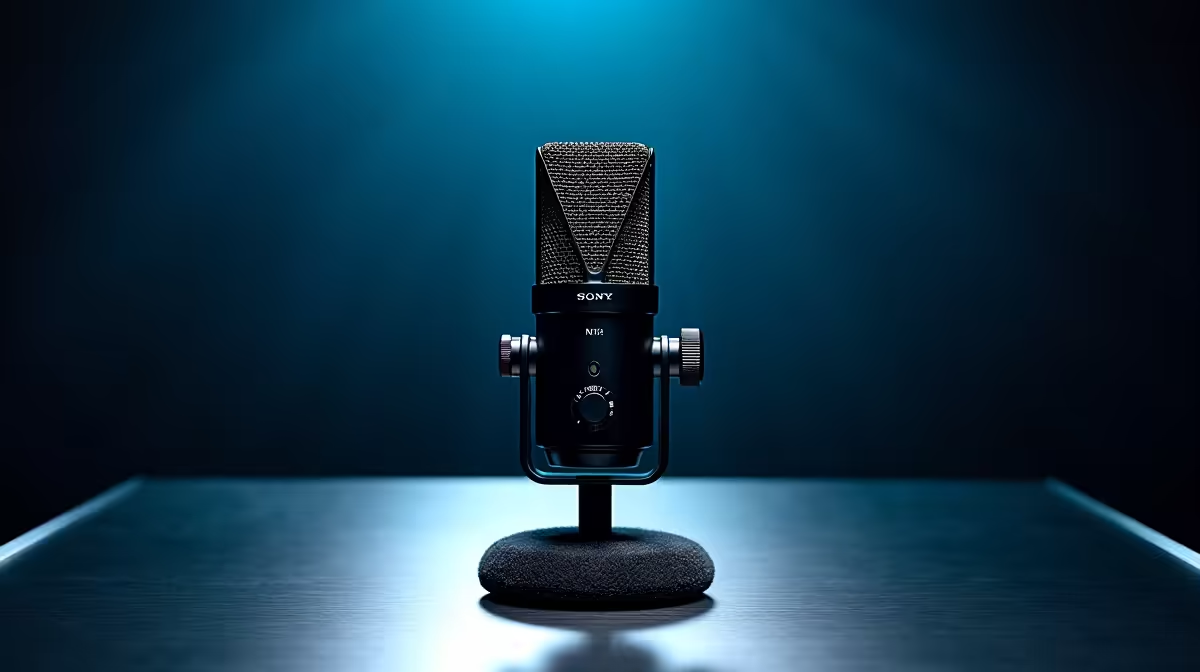
A cardioid microphone picks up sound from the front and rejects noise from the sides and rear - making it the go-to choice for streamers, podcasters, and home studio users across South Africa. Installing one correctly makes the difference between clear, professional audio and a muffled, room-echoing mess. This step-by-step guide covers USB and XLR cardioid microphone setups.
Quick Answer
For USB cardioid mics, plug into a USB port, set it as your default input in Windows Sound Settings, and position it 15–20cm from your mouth at a slight downward angle. For XLR mics, connect to an audio interface, set phantom power to 48V, and configure the interface as your input device. Acoustic treatment matters more than mic brand for final audio quality.
🎙️ Step 1: Mounting and Positioning Your Mic
Cardioid mics are directional - positioning is critical. Mount your mic on a boom arm or desk stand at roughly chin height, angled slightly downward toward your mouth (not pointed directly at your lips). This reduces plosive sounds ("P" and "B" pops). Position it 15–20cm from your mouth for a balanced tone - closer gives a bass-heavy "radio" sound, farther reduces clarity. Use a pop filter between you and the capsule to manage plosives. If your mic came with a shock mount, use it - it isolates the mic from desk vibrations that would otherwise rumble into your recording. A quality headset for monitoring playback helps you catch positioning issues in real time.
🔌 Step 2: USB vs XLR Connection
USB microphones: Connect directly to any USB port. Windows will detect it automatically. Go to Settings > System > Sound > Input and select your microphone. Adjust input volume so your voice peaks around -12dB to -6dB in recording software - never in the red. XLR microphones: Connect via a balanced XLR cable to an audio interface. Set phantom power (+48V) on the interface if your mic requires it (most condenser cardioid mics do). Connect the interface to your PC via USB. In Windows Sound Settings, select the audio interface as your input device, not the microphone directly.
⚙️ Step 3: Configure Software and Test
In your recording or streaming software (OBS, Audacity, Discord), set the input to your microphone or audio interface. Enable noise suppression filters (NVIDIA RTX Voice or Reaper's ReaFIR) to clean up background room noise. Avoid using Windows' built-in microphone enhancement features - they add processing that can make voices sound unnatural. Test by recording a short clip and listening back with headphones. Adjust gain so peaks sit between -12dB and -6dB. If you hear room echo, add soft furnishings or acoustic foam near your recording position - this is the single biggest audio quality upgrade available at zero cost.
Frequently Asked Questions
Do I need an audio interface for a cardioid mic? Only for XLR microphones. USB cardioid mics connect directly to your PC. XLR mics require an interface to convert the analog signal and provide phantom power.
Why does my cardioid mic pick up so much background noise? Cardioid mics still pick up sound from nearby sources, especially in reflective rooms. Move the mic closer to your mouth (increase gain to compensate for distance if needed) and reduce reflective surfaces in your recording environment.
What is phantom power and is it safe? Phantom power (+48V) is a standard DC voltage supplied by audio interfaces to power condenser microphone capsules. It is safe for all condenser mics and most ribbon mics designed for it, but can damage some older ribbon microphones - check your mic's specifications.
Evetech stocks RTX 5090 Graphics Cards and RTX 5080 Graphics Cards — shop online with fast delivery across South Africa.
Ready to Find Your Perfect Match? Build your complete streaming setup with Evetech - gaming PCs, peripherals, and audio gear for SA content creators.











