

Quick Answer
Installing an Intel Core Ultra 5 245K requires an LGA1851 socket motherboard (700-series chipset), proper thermal paste application, and a cooler rated for at least 125W TDP - the process is straightforward for beginners if you follow the steps carefully.
What You Need Before You Start
The Core Ultra 5 245K is Intel's Arrow Lake architecture chip that fits the LGA1851 socket, found on 800-series (Z890, B860) and select 700-series motherboards. Before installing the processor, confirm your motherboard has a compatible socket - it will say LGA1851 in the specifications. Do not attempt to install this CPU in an older LGA1700 board (12th, 13th, or 14th Gen Intel boards) - it will not fit and you risk bending pins.
Gather your tools before starting: a Phillips head screwdriver, quality thermal paste (a pea-sized application is standard), isopropyl alcohol and a lint-free cloth for cleaning surfaces if needed, and your CPU cooler with its mounting hardware. Anti-static precautions matter - touch a metal part of your PC case before handling the CPU to discharge any static electricity from your body.
For South African builders, this is a good point to note that Intel's LGA1851 socket uses a land grid array (LGA) design where the pins are on the motherboard, not the CPU. This means the CPU itself is relatively robust to handle, but the motherboard socket needs to be treated carefully - never touch the socket pins, and make sure no debris falls into the socket during installation.
Step-by-Step CPU Installation
Begin with your motherboard outside the case on a non-conductive surface. This gives you better access and visibility for all steps. Open the CPU socket by pressing down and lifting the retention lever on the side of the socket, then lifting the retention arm fully upright. The socket cover (a protective plastic piece) will either pop off automatically or can be gently removed by hand - save it in case you need to RMA the motherboard in future.
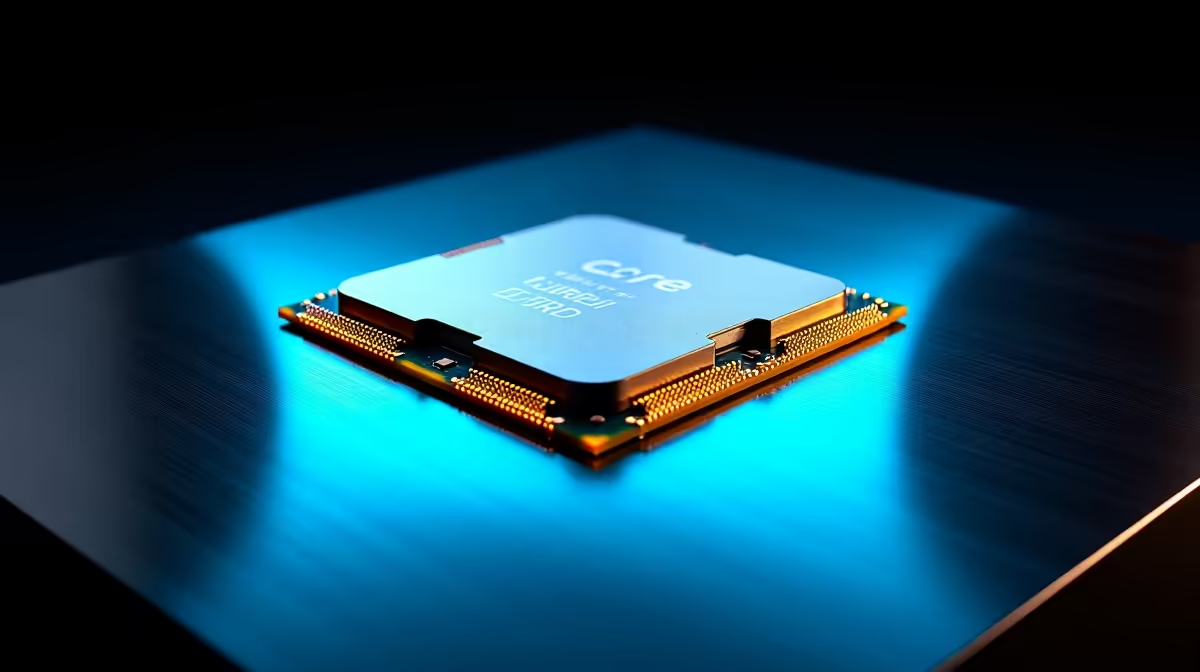
Remove the Core Ultra 5 245K from its packaging, holding it by the edges. Align the CPU with the socket using the two notches on the sides of the CPU that match corresponding keys in the socket. There is only one correct orientation. Gently lower the CPU straight down into the socket - it should drop in with zero force required. If you're pushing, stop and recheck alignment. Once seated, lower the retention arm and press it back under the retention bracket hook until it clicks.
Apply thermal paste to the IHS (integrated heat spreader - the silver top of the CPU). A pea-sized dot in the center of the IHS is the standard method. Do not spread it manually - the cooler mounting pressure will spread it evenly. Mount your CPU cooler according to its specific instructions, ensuring even pressure on all four corners of the mounting bracket. Connect the CPU cooler fan cable to the CPU_FAN header on your motherboard.
BIOS Setup and First Boot After Installation
After physical installation, connect your system and power it on. On first boot, press DEL or F2 to enter the BIOS. You'll want to do a few things immediately. First, enable XMP or Intel's equivalent memory profile (called XMP on Z890 boards) for your RAM if you purchased DDR5 above 4800MHz base speed - this ensures your RAM runs at its rated speed rather than the default slower JEDEC profile.
Verify that the BIOS recognises the Core Ultra 5 245K correctly by checking the CPU information screen. It should display the correct model name, core count (14 cores - 6 Performance + 8 Efficient), and base clock speeds. Update the BIOS to the latest version from your motherboard manufacturer's website if a newer version is available - Arrow Lake support has been progressively improved through BIOS updates since the platform launched.
For South African users doing their first build, this is also the moment to enable Resizable BAR in the BIOS if it's not already active by default. This feature significantly improves GPU performance and is supported by the Core Ultra platform alongside modern Nvidia and AMD graphics cards.
Frequently Asked Questions
Q: What cooler do I need for a Core Ultra 5 245K?
A: The Core Ultra 5 245K has a 125W base power with a maximum turbo boost power of around 159W. A 240mm AIO liquid cooler or a large air cooler like a twin-tower design is recommended for sustained loads. Budget builds can use a quality 120mm AIO or a good single-tower air cooler for light to moderate use. The stock Intel cooler is not included with K-series processors.
Q: Does the Core Ultra 5 245K need DDR5 RAM?
A: Yes. The LGA1851 platform exclusively supports DDR5 memory - DDR4 is not compatible. DDR5 prices have dropped in South Africa and the entry cost for a 32GB DDR5 kit is now comparable to DDR4 was two years ago, so this is less of a financial barrier than it once was.
Q: Can I install a Core Ultra 5 245K in a Z790 motherboard?
A: No. The Z790 uses an LGA1700 socket which is physically incompatible with the Core Ultra 5 245K's LGA1851 socket. You need a Z890 or B860 motherboard (800-series) or a compatible 700-series board that Intel officially updated with LGA1851 support - verify with the manufacturer's compatibility list.
Also at Evetech: Intel Core Ultra 5 | Graphics Card Deals
Ready to Find Your Perfect Match? Shop at Evetech











