

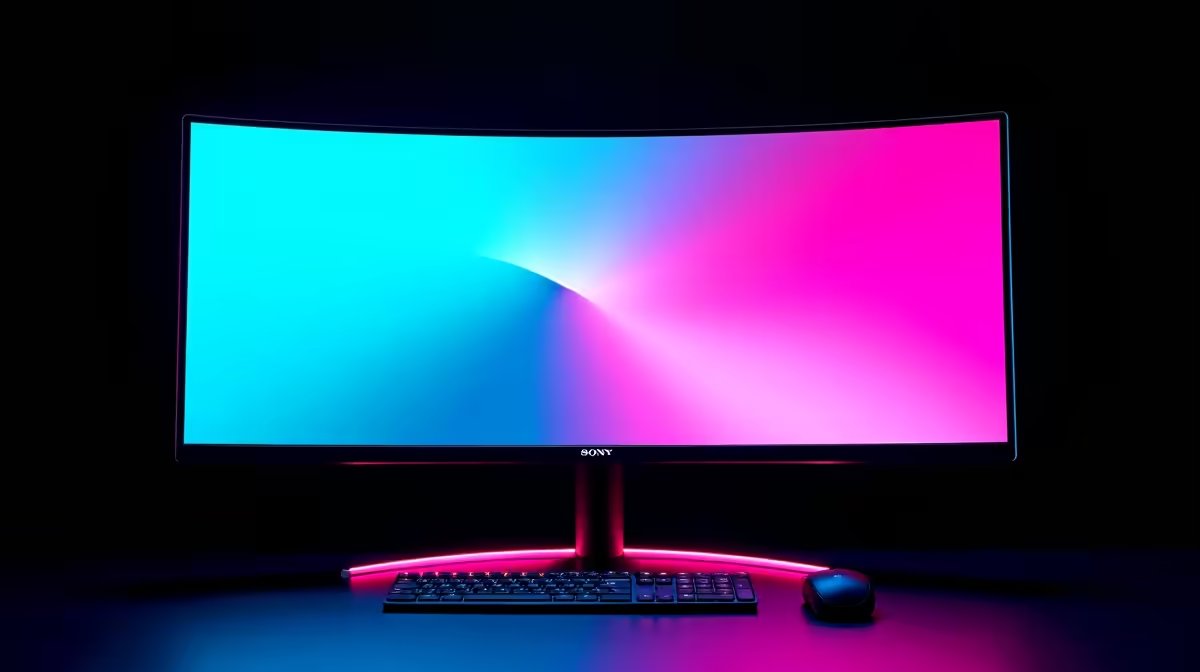
Curved monitors have become increasingly popular in South African gaming and productivity setups, offering improved immersion and reduced eye strain compared to flat panels - but they have specific placement requirements to deliver their benefits. This guide covers everything from unboxing to cable management for a clean, ergonomic curved monitor installation.
Quick Answer
Mount your curved monitor with the curve facing you (concave side toward your eyes), position it at arm's length (roughly 60–90cm), and ensure the centre of the screen is at or slightly below eye level. For ultrawide curved monitors (21:9 or 32:9), set your GPU's resolution output to match the panel's native resolution to avoid distortion.
📦 Step 1: Unboxing and Stand Assembly
Curved monitors, particularly ultrawides, are heavier and more awkward than flat panels. Unbox on a soft surface (the foam packaging works) to avoid scratching the bezel. Attach the stand neck to the base first using the provided screws or tool-free clips. Then attach the assembled stand to the monitor's VESA mounting point on the rear - most stands click in with a single downward press and lock. Do not lift the monitor by the screen panel; support it from the back and base. Browse Evetech's monitor range if you're still selecting your panel.
🖥️ Step 2: Placement and Ergonomic Positioning
The curvature of the monitor is designed to wrap your peripheral vision when positioned correctly. Place it at approximately arm's length - 60–90cm for 27-inch panels, up to 100cm for 34-inch ultrawides. Centre the screen at eye level or just below to reduce neck strain during long sessions. If you're using a monitor arm (recommended for desk space), ensure it's rated for the monitor's weight - ultrawide curved monitors often exceed 7kg. Use DisplayPort for the best refresh rate and HDR support; HDMI 2.1 works for up to 4K/144Hz but check your cable spec. Connect the cable to your GPU output and power on.
⚙️ Step 3: Display Settings and Calibration
In Windows Display Settings, confirm the resolution is set to the monitor's native resolution - curved monitors look distorted at non-native resolutions. Enable your monitor's game mode or HDR mode if supported. In your GPU control panel (NVIDIA Control Panel or AMD Adrenalin), set the refresh rate to the monitor's maximum. For curved gaming monitors, enable G-Sync or FreeSync if your GPU and monitor are compatible - this eliminates screen tearing on curved panels where tearing is especially noticeable. Adjust brightness to match your room's ambient light and reduce blue light settings for evening sessions.
Frequently Asked Questions
Does a curved monitor need to be centred on your desk? Yes. The curvature benefit only works when you're seated directly in front of the monitor. Off-centre seating makes the curve feel more distorted than a flat panel.
Can I use a curved monitor with a VESA wall mount? Yes, provided the monitor has VESA mounting holes on the rear (most do - 75x75mm or 100x100mm). Check the spec sheet before buying a wall mount bracket.
Do curved monitors cause eye strain? The opposite - curved monitors are designed to reduce eye strain by keeping the screen surface equidistant from your eyes across its width. The key is correct viewing distance and brightness calibration.
Shop Curved Monitors and All Monitors at Evetech for fast delivery across South Africa.
Ready to Find Your Perfect Match? Complete your monitor upgrade with a gaming PC from Evetech built to drive high-refresh curved panels.











