

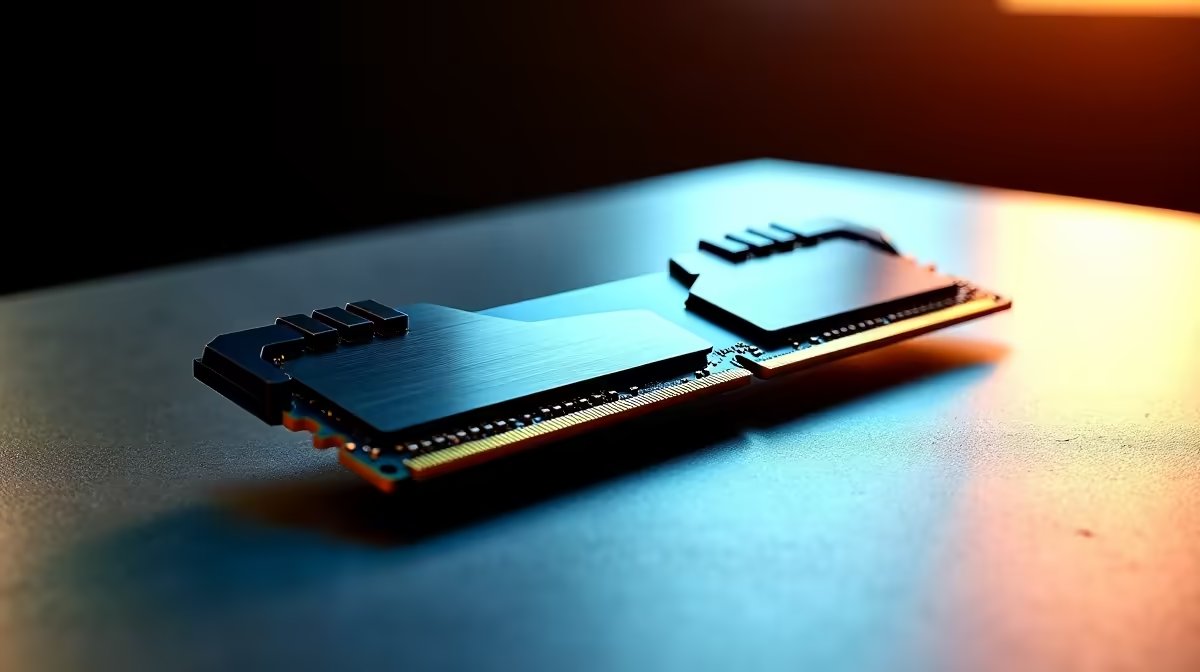
Why Installing DDR5 16GB Properly Matters for South African Gamers 🎮
Upgrading to DDR5 16GB RAM can instantly boost your gaming and multitasking power. But a sloppy install can cause frustrating errors or prevent your rig from booting. South African gamers know every millisecond counts—so let’s get your memory installed without a hitch. Whether you’re building from scratch or upgrading an existing PC, this guide ensures a smooth setup with tips that respect your local gear choices and budgets.⚡
For brand-new builds, explore Evetech’s best gaming PC deals to see how DDR5 fits top-tier rigs designed for max speed and reliability.
Understanding DDR5 16GB and Compatibility Checks 🔧
DDR5 is not just faster; it uses new architecture that needs motherboard and CPU compatibility. Before installation, check your motherboard’s QVL (Qualified Vendor List) to confirm it supports your chosen 16GB DDR5 sticks. South African suppliers typically list compatible RAM with popular AMD and Intel boards—keep this in mind when choosing.
If you missed it, reviewing the specs on Evetech’s PC components page helps lock in the right DDR5 module at competitive ZAR prices.
Key Compatibility Tips
- Confirm your BIOS version supports DDR5 modules—flash it if necessary.
- Match RAM speed with your motherboard’s maximum supported frequency.
- Use dual-channel installs by placing memory sticks in the correct slots (usually slots 2 and 4).
Step-by-Step Guide to Installing DDR5 16GB Without Errors
Here’s how to install your DDR5 memory confidently and avoid common pitfalls:
- Power Down & Unplug: Always disconnect your PC fully before handling components.
- Ground Yourself: Static discharge wrecks electronics; touch a metal part or wear an anti-static wrist strap.
- Open the Case & Locate RAM Slots: Refer to your motherboard manual—it usually has easy-to-spot slots close to the CPU.
- Insert the DDR5 Module: Align the notch on the RAM with the slot. Press down firmly on both ends until the clips snap into place.
- Double-Check Seating: RAM should sit flush and clip cleanly to avoid errors like failure to POST or blue screens.
- Power On & Verify: Boot into BIOS to confirm the new RAM is recognised at the right speed and capacity.
If you’d prefer a hassle-free option, consider acquiring a complete system pre-loaded with DDR5 from Evetech’s pre-built PC deals.
Pro Tip: Test Your RAM Stability
Run a memory diagnostic tool like MemTest86 after installation. It detects errors early and ensures your DDR5 16GB sticks perform reliably in intense gaming or editing sessions.
Extra Advice for South African Gamers Upgrading RAM
- Avoid mixing DDR4 and DDR5 RAM—it won’t work and may damage components.
- Buy DDR5 memory with a solid warranty from trusted local sellers like Evetech, who offer support and RMA services.
- For mobile gamers, check out laptops with DDR5 RAM tailored to high performance and portability.
Want the best deals going? Peek at Evetech’s specials regularly—they often bundle RAM upgrades with GPUs and other components for great savings.
Ready to upgrade your rig? Avoid installation errors and boost your gaming power—Shop now at Evetech for DDR5 RAM that’s tested and trusted locally.











