

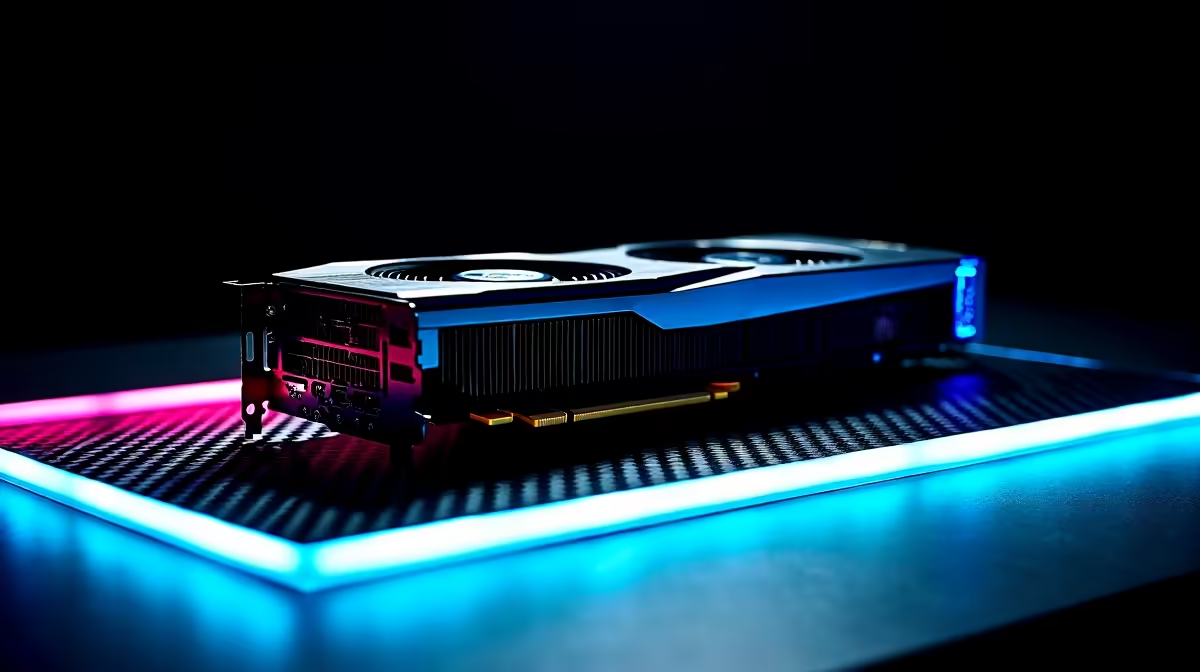
Installing an RTX 4060 is a straightforward process that most first-timers can complete in under 30 minutes with basic tools. The card uses a standard PCIe x16 slot and requires a single 16-pin power connector, making it simpler to install than many higher-end alternatives.
Quick Answer
How to install an RTX 4060: Power off and unplug your PC, remove the old GPU if present, seat the RTX 4060 in the PCIe x16 slot, connect the 16-pin power cable, secure the bracket, then boot and install the latest NVIDIA drivers. Total time is typically 20–30 minutes.
🔧 What You Need Before You Start
Gather these before opening your case:
- Phillips head screwdriver (medium size)
- RTX 4060 (and the adapter cable if your PSU uses older 8-pin connectors)
- A stable, static-free surface - an anti-static wrist strap is optional but good practice
- Your PC case manual or a quick look inside to identify the PCIe slot location
Check your power supply unit wattage before installation. The RTX 4060 has a 115W TDP and NVIDIA recommends a minimum 550W PSU. If your PSU is older or below 500W, a PSU upgrade should happen first.
📊 Step-by-Step Installation Process
Step 1 - Power down completely. Shut down Windows, then switch off the PSU via its rear toggle. Unplug the power cable from the wall. Press the power button once to discharge residual capacitor energy.
Step 2 - Open the case. Remove the side panel - usually two thumbscrews at the rear. Set it aside.
Step 3 - Remove the old GPU if present. Unplug the power connectors first, then unscrew the bracket screws at the rear, press the PCIe retention clip at the end of the slot, and gently pull the card straight out.
Step 4 - Remove PCIe slot covers. The RTX 4060 typically occupies two expansion slots. Remove the corresponding metal slot covers at the rear of the case by unscrewing or pressing the retention tabs.
Step 5 - Seat the RTX 4060. Align the gold PCIe contacts with the x16 slot and press down firmly and evenly until you hear or feel the retention clip click into place. Do not force it - if it is not sliding in smoothly, check alignment.
Step 6 - Secure the bracket. Replace the screws at the rear panel to hold the card firmly. A loose card can cause intermittent PCIe connection issues.
Step 7 - Connect power. The RTX 4060 uses a 16-pin (12VHPWR) connector. If your PSU has a native 16-pin cable, use it directly. If using the adapter from 8-pin connectors, ensure all adapter plugs are fully seated - a partial connection can cause system instability.
Step 8 - Close and boot. Replace the side panel, plug in power, and start your PC. On first boot, Windows may detect new hardware automatically. Install or update to the latest NVIDIA Game Ready Driver for best performance.
💡 Post-Install Checks
After booting, open Device Manager (right-click Start menu) and confirm the RTX 4060 appears under Display Adapters without error flags. Open NVIDIA Control Panel to verify the driver is active.
Run a brief benchmark or game session and check GPU temperature in a tool like HWiNFO64 or MSI Afterburner. The RTX 4060 should idle below 45°C and peak under load below 83°C in a well-ventilated case.
❓ Frequently Asked Questions
Do I need to uninstall old GPU drivers before installing the RTX 4060? If you are coming from an AMD GPU, yes - use DDU (Display Driver Uninstaller) in Safe Mode before swapping hardware. If upgrading from an older NVIDIA card, Windows will usually handle the driver update automatically, though a clean DDU run is still best practice.
What if my PC does not boot after installation? Check that the PCIe power connector is fully seated - this is the most common cause of post-install failures. Also confirm the display cable is connected to the RTX 4060, not the motherboard's integrated output. If the system still fails, reseat the card and check that the PCIe retention clip clicked.
Can I install the RTX 4060 in a mini-ITX case? The RTX 4060 has dual-slot and triple-slot variants depending on the cooler. Measure your case's GPU length clearance (most ITX cases support 250–300mm) and compare against your specific card's dimensions before purchasing.
Evetech stocks All Graphics Cards and Graphics Card Deals — browse current SA pricing and availability online.
Ready to Find Your Perfect Match? Shop at Evetech











