

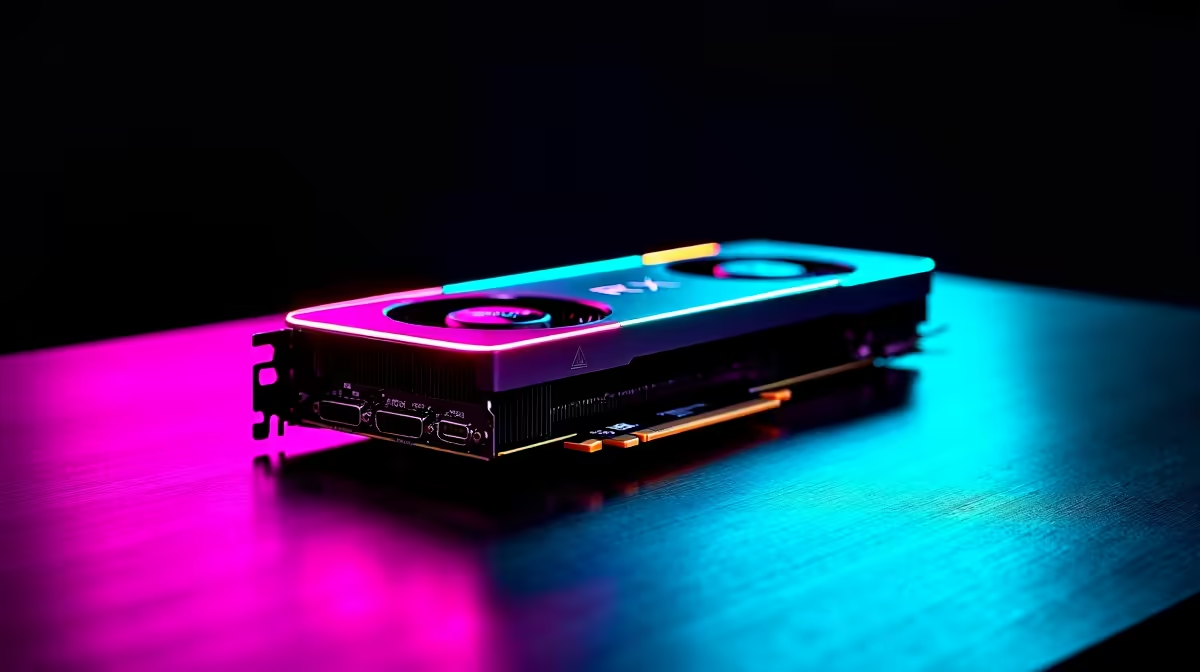
Just copped the latest RDNA beast and want to get it running before the weekend? Knowing how to install RX 9060 XT graphics cards properly is crucial to unlocking massive frame rates. Whether you are pushing 4K pixels or chasing high refresh rates in competitive shooters, slotting in your new GPU shouldn't feel like defusing a bomb. Let us get your rig sorted step by step. 🚀
Preparation for Your RX 9060 XT Installation
Before we crack open the case, you need the right tools and a solid foundation. Grab a standard Phillips-head screwdriver and ensure your power supply can handle the wattage. The RX 9060 XT is an incredibly efficient card... but it still needs reliable power.
If your current rig is looking a bit ancient, a simple GPU swap might not fix your bottleneck. Sometimes it is easier to grab one of the best gaming PC deals instead of pairing shiny new tech with a decade-old processor.
Always ground yourself to avoid static shock. A quick touch to an unpainted metal surface on your chassis does the trick perfectly.
How to Install RX 9060 XT Safely
Step one is removing your old graphics card. Unplug the PCIe power cables and press the plastic retention clip on your motherboard slot. Gently pull the old unit straight out. If you are starting fresh with a custom build... or even upgrading from one of our popular pre-built PC deals, the installation process remains exactly the same.
Line up your new AMD Radeon GPU with the top PCIe x16 slot. Push down firmly and evenly until you hear a satisfying click. Secure the metal bracket to the case with your screws so the card does not sag. Heavy graphics cards need proper support to protect your motherboard from bending over time. 🔧
Power Cable Pro Tip ⚡
Always use separate PCIe power cables from your PSU to your graphics card instead of daisy-chaining a single cable. This ensures stable power delivery and prevents unexpected crashes during heavy gaming sessions.
Powering Up and Software Setup
Now plug in your PCIe power connectors. Make sure the connections are completely flush. Boot up your system. The fans might spin loudly for a second... this is completely normal behaviour.
Head over to the official AMD website to download the latest Adrenalin drivers. Do not rely on Windows Update to optimise your graphics performance or deliver the best rich colour profiles.
While your drivers are downloading, you might realise your desktop setup needs more flexibility. Sometimes taking your games on the go is the better play for dodging load shedding. If so, browse our premium laptops for sale in South Africa to keep your gaming fully mobile.
Troubleshooting Your New GPU Setup
No display signal? Double-check that your monitor is plugged directly into the graphics card and not the motherboard IO shield. Also, verify that your power supply cables are fully seated.
If you are still hunting for the perfect components to complete your ultimate build, keep an eye on our weekly specials to save some hard-earned ZAR. Alternatively, if you are reading this guide to prepare for a future upgrade, you can buy graphics cards directly from our massive catalogue to find the exact model you need.
Ready to Dominate the Leaderboards? Now that your rig is pushing maximum frames, you need the right hardware to match your skills. Explore our massive range of gaming monitors and experience your new graphics card in all its high-resolution glory.











