

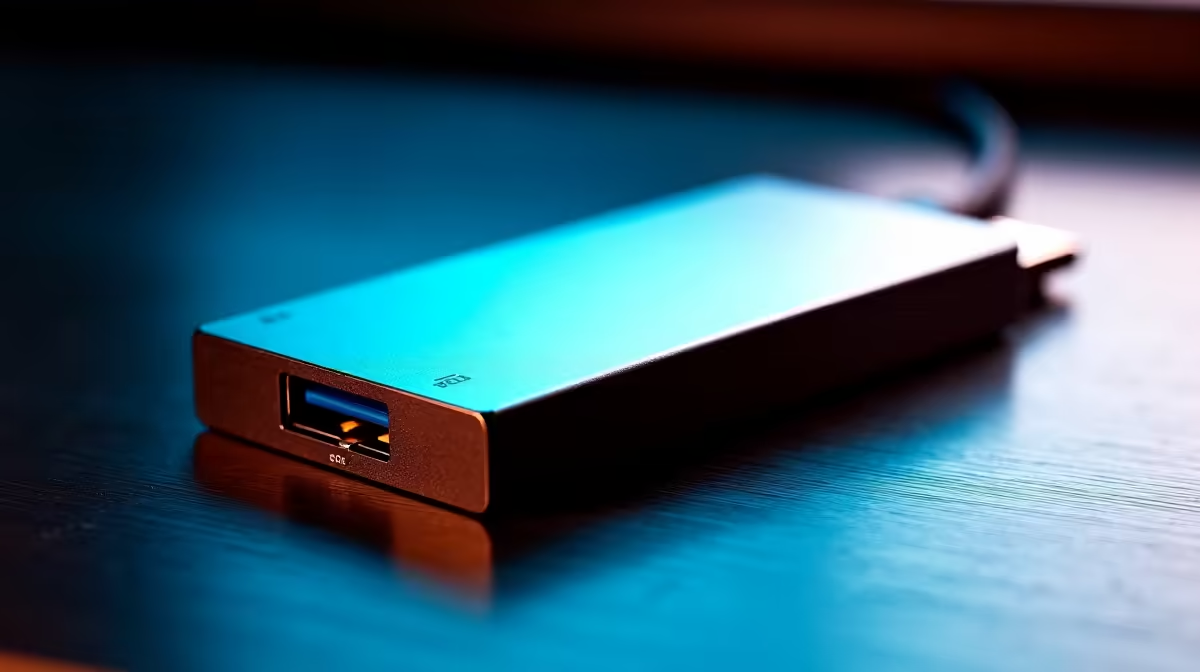
Load shedding and sudden power dips are a harsh South African reality. Losing your hard-earned game saves or crucial work documents is an absolute nightmare. That is why learning how to install a USB backup drive step-by-step is your best defence against data disaster. It is much easier than you think. Let us secure your digital life before the next blackout hits. 🚀
Why Local Storage Still Rules
Cloud storage is fantastic... until your fibre line drops. Having a physical drive on your desk means instant access to your files, even when the grid goes down. When you invest your hard-earned ZAR into one of our top-tier pre-built PC deals, protecting your data should be priority number one. A local USB drive gives you total control over your backups without any annoying monthly subscription fees.
Prepping Your Machine for Backup
Before we dive into the setup, make sure you have an open USB 3.0 port or higher. This ensures lightning-fast transfer speeds. Whether you are securing a massive desktop rig or backing up one of the versatile laptops for sale in South Africa, a direct connection to the motherboard is always best. Avoid using cheap USB hubs... they often cause frustrating disconnects during large file transfers.
How to Install USB Backup Drive: Step-by-Step
Ready to get started? Follow these simple steps to safeguard your files permanently.
First, plug your external drive directly into your computer. Windows will usually detect it immediately with a quick chime.
Next, you need to format the drive if it is brand new. Open File Explorer and right-click on the new drive. Select 'Format' and choose NTFS for the file system. This is the most stable format for Windows users.
Now it is time to automate. Search for 'File History' in your Windows search bar. Turn the feature on and select your newly formatted USB drive as the target. Windows will now automatically save copies of your files.
Finally, always remember to safely eject your drive if you need to unplug it. Pulling it out during a transfer can corrupt your entire backup. This simple routine is an absolute lifesaver for gamers. If you just grabbed one of our incredible best gaming PC deals, you can rest easy knowing your local save files are protected from corruption. ✨
Formatting Pro Tip 🔧
If you plan to move your backup drive between a Windows PC and a Mac, format it to exFAT instead of NTFS. This allows both operating systems to read and write to the drive without needing any extra software.
Automate Your Peace of Mind
Backups run quietly in the background. You will barely notice them while you work or play. You can easily optimise your backup schedule for off-peak hours. Grabbing a high-capacity drive from our daily specials means you will never run out of backup space.
Hardware failures happen to the best of us. Pushing your system to the absolute limit with a heavy 3D render on your new graphics card can sometimes cause unexpected crashes. Having a reliable, automated backup means a crash is just a minor annoyance... not a total catastrophe. It is a small step that brings massive peace of mind to your daily routine. ⚡
Ready to Upgrade Your Entire Setup? Now that your critical data is safe and secure, it might be time to boost your system's overall performance. Explore our massive range of laptop specials and find the perfect machine to conquer your digital world.











