

There is nothing worse than watching your screen freeze while trying to beat a tight client deadline. You click a simple filter... and the dreaded loading wheel appears. Whether you are retouching high-res photos or designing stream overlays, lag completely kills your creative flow. If you want to know how to optimise Photoshop for performance, you are in the right place. Let us speed up your workspace. ⚡
Give Photoshop the Memory It Deserves
Photoshop is notoriously hungry for RAM. By default, the software uses about 70 percent of your available memory. You can safely bump this allocation up to 85 percent if you are not running other heavy applications in the background. Simply go to Edit > Preferences > Performance and adjust the memory slider.
However, tweaking software settings only goes so far if your physical hardware is outdated. If you need reliable, portable power for on-location client shoots or working through unexpected power cuts, checking out the latest high-performance laptops is a genuinely smart move for South African creatives.
Sort Out Your Scratch Disks
When you inevitably run out of RAM, Photoshop uses your storage drive as a temporary memory bank... known as a scratch disk. If your scratch disk is a slow mechanical hard drive, your performance will absolutely tank. Always set your fastest NVMe SSD as your primary scratch disk for the best results.
If you are building a creative workstation from scratch, grabbing one of our best gaming PC deals ensures you have the rapid storage needed for massive, multi-layered design files.
Unleash GPU Acceleration 🚀
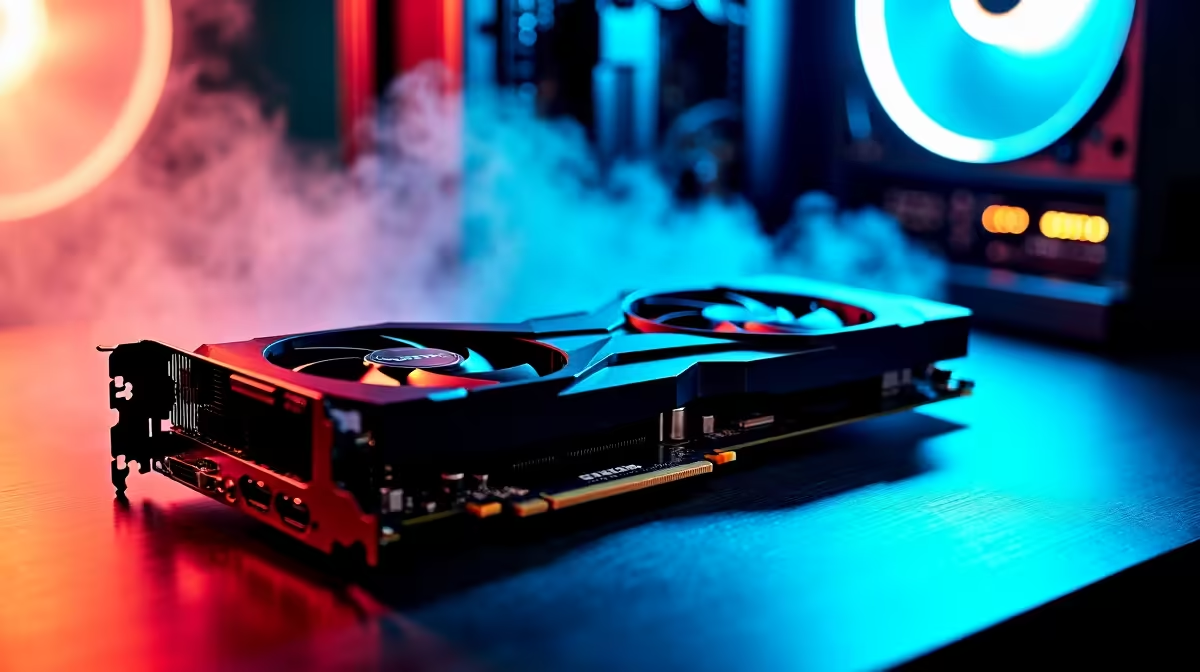
Your processor handles most of the heavy lifting, but your graphics card is vital for rendering complex effects and zooming smoothly around your canvas. Ensure GPU acceleration is checked in your performance preferences to take full advantage of your hardware.
If your current rig is struggling to keep up with complex 3D layers or heavy brush strokes, it might be time for a substantial upgrade. You can easily buy graphics cards that will completely obliterate render times and make your daily workflow buttery smooth.
Tweak Cache Levels and History States
Every single time you make a change, Photoshop saves a history state. Dropping your history states from the default 50 down to 20 frees up massive amounts of memory. You should also adjust your cache levels based on your specific project type. Use higher cache levels for large documents with very few layers. For intricate web design with dozens of layers, keep the cache level low to maintain responsiveness.
Quick Performance Pro Tip 🔧
Press and hold the Alt key while clicking on the document size info at the bottom left of your workspace. This reveals your efficiency percentage. If it drops below 100 percent, Photoshop is relying on your scratch disk. That is your cue to upgrade your RAM or storage!
Keep Your System Clean and Updated
Bloatware and outdated drivers are silent performance killers. Keep your Windows OS and Nvidia Studio drivers consistently updated for maximum stability. Close down unnecessary browser tabs too... Google Chrome loves to eat the RAM that Photoshop desperately needs.
Sometimes, a fresh system is the only way to truly solve deep-rooted hardware bottlenecks. If you want a hassle-free solution without building it yourself, browse our pre-built PC deals for machines tuned perfectly for intensive creative workloads.
Software tweaks are fantastic, but they cannot fix ancient hardware. If you are tired of losing time and money to slow rendering, an upgrade is the ultimate fix. You do not need to break the bank either. Keep an eye on our daily hardware specials to find incredible value in ZAR and take your creative output to the next level.
Ready to Find Your Perfect Match? The Mac vs Windows debate is complex, but for maximum power, choice, and value in South Africa, Windows is hard to beat. Explore our massive range of laptop specials and find the perfect machine to conquer your world.











