

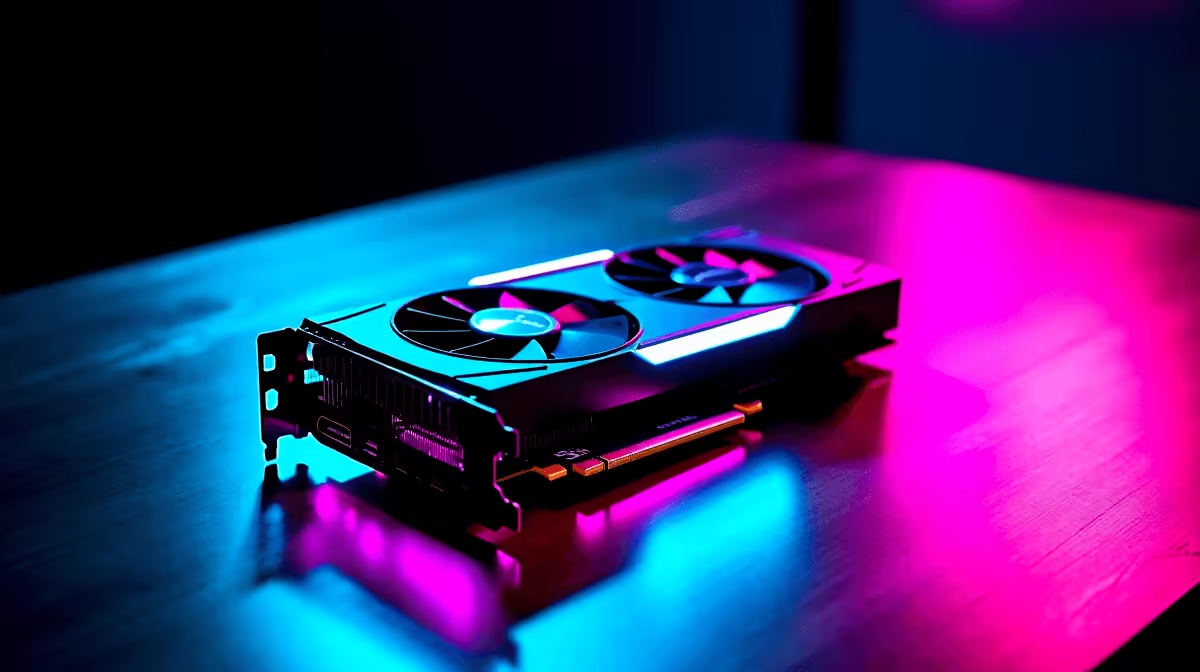
Picture this... you are holding a tight angle on Ascent. Your ping is a crispy 15ms on the Cape Town servers. Suddenly, a micro-stutter ruins your flick. If you just spent hard-earned ZAR on AMD's latest powerhouse, that should never happen. Let us explore exactly how to optimise RX 9070 XT for Valorant so you can climb to Radiant without a single hitch.
The Foundation: Drivers and Software 🔧
Before tweaking any in-game menus, you need a solid base. AMD's Adrenalin software is your absolute best friend here. Always ensure you are running the latest driver version for maximum stability. If you are still shopping around for an upgrade, you can easily browse the latest graphics cards to find your ideal pixel pusher.
Inside the Adrenalin control panel, disable Radeon Chill and enable Radeon Anti-Lag. This significantly reduces input delay... a crucial factor for tactical shooters. You should also turn on Smart Access Memory (SAM) if you have a compatible Ryzen processor. This allows your CPU to access the full VRAM of your GPU at once, giving you a noticeable bump in 1% low frame rates.
In-Game Settings for Maximum FPS
Valorant relies heavily on your processor, but your graphics card still needs the right instructions. To properly optimise your RX 9070 XT for Valorant, set Material, Texture, and Detail qualities to Low. Keep Anti-Aliasing on MSAA 4x for visual clarity so enemy outlines remain sharp.
If your current processor is bottlenecking this beastly GPU, you will not see the high frames you deserve. It might be time to look at some pre-built PC deals to properly balance your system. A strong CPU paired with the 9070 XT will easily push past 500 frames per second at 1080p or 1440p.
System Synergy and Hardware Matches ✨
Pushing massive frame rates requires perfect harmony between all your components. A high refresh rate monitor is essential to actually see those frames. If you want a complete setup overhaul without the stress of building it yourself, check out the best gaming PC deals available right now.
Alternatively, if you travel often for local LAN tournaments, a massive desktop might not be practical. You might want to explore our huge range of laptops for sale that pack desktop-tier performance into a portable chassis.
Keeping Things Cool and Efficient
Uncapped frames in the menus can make your hardware run unnecessarily hot. Cap your lobby FPS to 60 to save power and reduce heat. During actual matches, cap your frame rate slightly above your monitor's maximum refresh rate. This keeps temperatures low and ensures your frame pacing remains buttery smooth. Keep an eye out for our weekly tech specials if you need better cooling solutions or a blazing-fast display to match your newly tuned rig 🚀.
Windows Tweaks for a Competitive Edge
Your operating system can also steal precious resources. Turn on Game Mode in your Windows settings to prioritise your game over background tasks. Disable background recording apps unless you actively clip your highlights. Every little bit of overhead you remove helps stabilise your frames. When you combine a clean operating system with a tuned graphics card, your crosshair placement becomes the only thing you need to worry about.
Radiant Pro Tip ⚡
Turn on AMD Anti-Lag in your graphics software, but keep 'Enhance Sync' disabled for Valorant. Competitive shooters thrive on raw, unfiltered frame delivery to minimise input latency when peeking corners.
Ready to Dominate the Server? Optimising your hardware is just the beginning. For maximum power, choice, and value in South Africa, Evetech is hard to beat. Explore our massive range of PC specials and find the perfect machine to conquer your world.











