


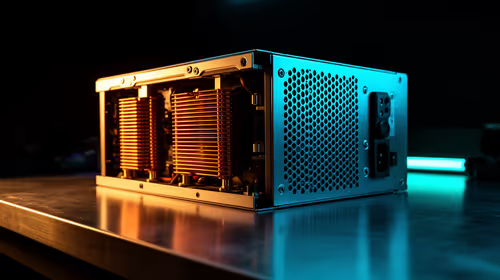
1000W PSU Planning for RTX 5090 Builds in SA
1000W for RTX 5090 needs a full-build check, not a simple yes. Review GPU guidance, CPU draw, transient load, connectors, PSU quality, and upgrade plans before deciding.
Read moreOverclock ROG Ally Safely: Beginner Guide. Step-by-step instructions with SA-specific tips, common pitfalls to avoid & expert recommendations.

Overclocking the ROG Ally safely requires using ASUS's built-in performance modes first, then using Armoury Crate to push TDP and GPU clocks in small increments while monitoring thermals. SA users should be aware that loadshedding-related power fluctuations are an added risk during overclocking sessions, so use a stable power source.
Before touching any manual overclock settings, exhaust what ASUS has already built in. The ROG Ally ships with three main performance profiles: Silent, Performance, and Turbo. Turbo mode pushes the Ryzen Z1 Extreme APU to its 30W TDP ceiling, which alone delivers a significant boost over the default Performance mode at 15W. For most games, switching to Turbo mode with the charger plugged in is the practical starting point and gives you meaningful gains with no risk.
If Turbo mode is not enough and you want to push further, ASUS's Armoury Crate app is your tool. Avoid third-party overclocking utilities for the ROG Ally as the AMD APU in this device has specific power delivery requirements that generic tools can mismanage.
Always overclock on mains power. The ROG Ally's APU draws significantly more power at high TDP settings than the battery can sustain cleanly. In South Africa, where loadshedding is a reality, do your overclocking testing during a scheduled on-grid period or with the device connected to a UPS rated for at least 65W output. A sudden power cut mid-overclock session will not permanently damage the hardware but can corrupt your Armoury Crate profile settings.
Raise TDP gradually. In Armoury Crate, you can push TDP above the 30W Turbo ceiling to 33W or 35W using the custom profile. Go up in 2W steps. After each increase, run a 10-minute gaming session and check the thermals. The ROG Ally's AMD APU throttles when it hits 95 degrees Celsius, so staying below 90 degrees gives you thermal headroom.
GPU clock offset. Armoury Crate also allows a GPU clock offset. Start with +50 MHz and test for stability. Push to +100 MHz if stable. Beyond that, you risk graphical artefacts or driver crashes, which means you have gone too far.
Check fan curves. Higher TDP means more heat. Set the fan to a more aggressive curve in Armoury Crate to keep junction temperatures under control. The ROG Ally's fans can get loud at maximum speed but the cooling is adequate for sustained loads if configured correctly.
Using the built-in Armoury Crate profiles including custom TDP settings should not void your warranty as it is software-level configuration within ASUS's own tools. However, if you modify hardware or use extreme OC tools that damage the device, warranty claims become complicated. Stick to ASUS's official software to stay on the safe side.
AMD specifies a maximum junction temperature of around 95 to 100 degrees Celsius for the Ryzen Z1 Extreme. In practice, sustained temperatures above 90 degrees lead to thermal throttling which reduces performance gains from overclocking. Aim to keep the APU below 88 degrees under load for stable overclocked performance.
No, overclocking reduces battery life significantly. Higher TDP draws more power and heats the battery faster. Overclocked profiles are best used when plugged into mains power, not for portable gaming sessions.
Ready to Find Your Perfect Match? Explore handheld gaming options available in South Africa. Shop Handheld Gaming Consoles at Evetech
How to Overclock ROG Ally Safely: SA Beg available at Evetech.co.za with local warranty and fast delivery.
How to Overclock ROG Ally Safely: SA Beg - check Evetech for latest stock and SA pricing.
Depends on your use case. How to Overclock ROG Ally Safe offers good value at current Rand pricing.
1000W for RTX 5090 needs a full-build check, not a simple yes. Review GPU guidance, CPU draw, transient load, connectors, PSU quality, and upgrade plans before deciding.
Read more
RTX 5080 Super with a 750W PSU is more comfortable than lower wattage if the unit is quality. SA builders should still confirm GPU guidance, CPU draw, connector type, airflow, and upgrade room.
Read more
How to fix FPS drops after a RX 9070 XT starts with driver cleanup, chipset updates, thermals, and power checks. For SA gaming PCs, confirm PCIe seating, monitor refresh, frame caps, and per-game graphics settings before replacing parts.
Read more
How to fix low FPS Windows 11 Wi-Fi 7 issues starts by checking whether the problem is frame rate or network lag. Test ping, drivers, power settings, Ethernet, and game FPS before adjusting visuals.
Read more
AM5 is smart for SA builders because it supports newer Ryzen CPUs, DDR5 memory, and a longer upgrade path. Compare board cost, cooling, gaming needs, and local part availability before choosing your next PC platform.
Read more
AM5 gives Randburg gaming builders a longer upgrade path. For SA buyers, DDR5 support, newer board features, and future CPU options can justify the platform. Weigh board cost, cooler support, BIOS maturity, and upgrade timing before choosing.
Read more
RTX 5090 on a 550W PSU leaves almost no practical room for OC plans. Treat the setup as constrained, with CPU draw, power spikes, cable quality, thermals, and stability checks more important than chasing extra clocks.
FPS drops on a Ryzen 9 9950X3D build often have a fixable cause. Check settings, drivers, thermals, background tasks, network conditions, and bottlenecks before assuming a part must be replaced.

The difference between PCIe 5.0 and PCIe 4.0 for SA gamers is mostly bandwidth headroom. Compare GPU slot needs, NVMe speed, motherboard support, and upgrade timing before paying extra for a newer platform.

Gaming PC stuck pixel checks in South Africa should confirm the monitor fault first. Use colour tests, screenshot comparison, cable swaps, display menu checks, and clear photos before deciding on support.

AMD's current driver now lists a Radeon RX 9050 4GB, while product coverage details a narrowed memory system. SA buyers should weigh the low VRAM ceiling against current local Radeon options.

Samsung Display has demonstrated a 16-inch 2.5K OLED laptop panel running at 300Hz. SA buyers should wait for a named notebook, full panel specifications and a local price before planning an upgrade.

Microsoft says some Windows 11 game crashes after recent updates are linked to RGB-related drivers. Affected SA gamers should confirm the update and driver before using the published registry workaround.

Thermalright's Fan Frame Vision-1 adds a 640x172 status screen to a standard 120mm fan. SA builders should check clearance, USB routing and local support before treating it as an easy upgrade.
1000W for RTX 5090 needs a full-build check, not a simple yes. Review GPU guidance, CPU draw, transient load, connectors, PSU quality, and upgrade plans before deciding.

Wi-Fi 6E vs Wi-Fi 6 matters for 4K video editing when files move across a network. The real-world difference between Wi-Fi 6E and Wi-Fi 6 for video editing in 4K depends on NAS access, cloud uploads, router range, and SA creator workflows.
RTX 5080 Super with a 750W PSU is more comfortable than lower wattage if the unit is quality. SA builders should still confirm GPU guidance, CPU draw, connector type, airflow, and upgrade room.
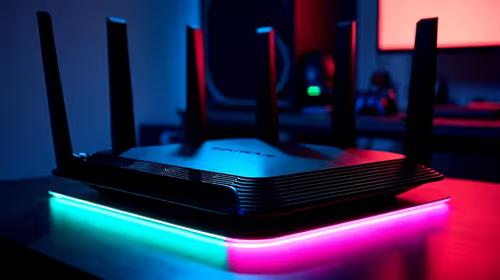
Wi-Fi 6E vs Wi-Fi 6 for Video Editing in 4K comes down to router support, latency, client devices, band support, and home network layout. SA buyers should match the choice to their setup instead of assuming one option always wins.