

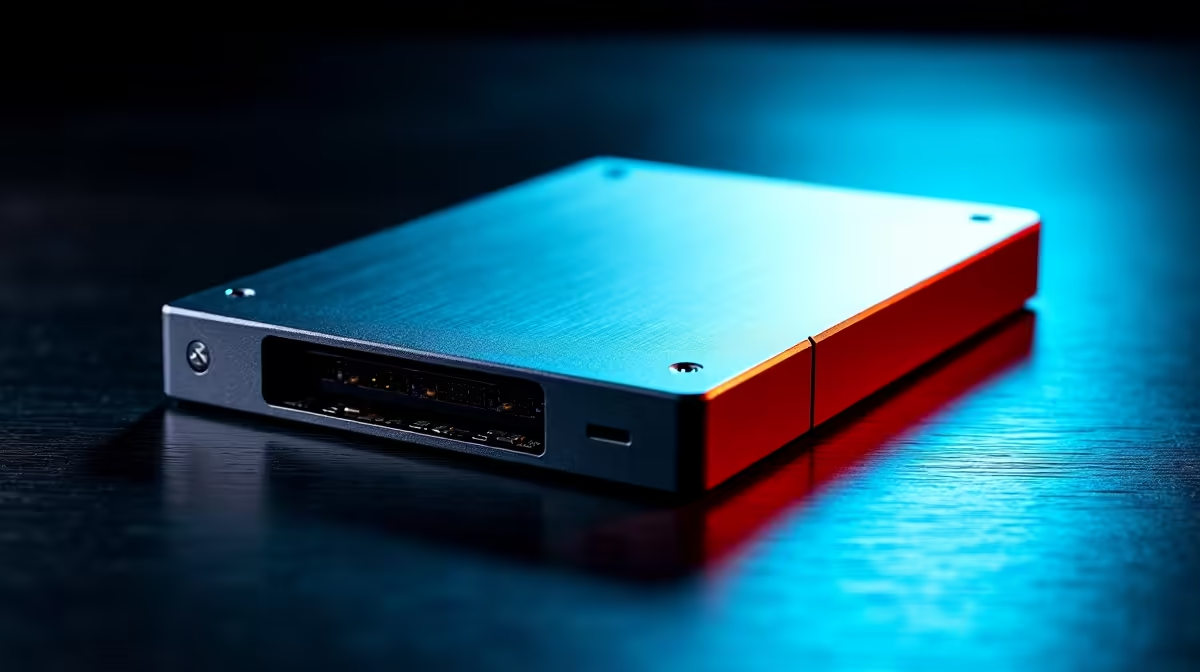
Is your rig feeling sluggish after years of hoarding massive game files? Or maybe you are selling old parts to fund an upgrade. Either way, a simple format will not cut it. You need a complete wipe. Learning how to reset 2TB SSD to factory settings helps optimise performance and secures personal data. Let us dive right in.
Why You Need a Deep Clean
Before we get technical, let us talk about why a deep wipe matters. Modern solid state drives use complex controllers to manage data. When a drive fills up, its overall speed drops. A standard Windows format leaves ghost data behind. A factory reset... often called a Secure Erase... wipes every single memory cell clean. This brings back that out-of-the-box speed. It is absolutely essential if you are selling your current setup to grab one of our epic gaming PC deals.
The Safest Way to Wipe Your Drive 🔧
The best method is right inside your motherboard BIOS. Most modern motherboards include a built-in Secure Erase tool. Restart your computer and mash the Delete or F2 key. Once you are in the BIOS, navigate to the tools or advanced section. Look for a utility named Secure Erase or NVMe Sanitize. Select your drive and confirm the prompt. The process only takes a few minutes. It is highly recommended whether you use a desktop or are upgrading one of the many notebooks for sale in South Africa.
Motherboard Utility Tip ⚡
If your BIOS lacks a Secure Erase feature, check your SSD manufacturer software. Brands like Samsung, WD, and Crucial offer free dashboard apps for Windows. These let you easily create a bootable USB to safely reset 2TB SSD to factory settings without any hassle.
Using Windows DiskPart for Secondary Storage
If you just need to wipe a secondary drive, Windows has a powerful hidden tool. Press the Windows key and type 'cmd'. Right-click Command Prompt and run it as an administrator. Type 'diskpart' and press Enter. Next, type 'list disk' to see all connected drives. Find your 2TB drive... be very careful here... and type 'select disk X' where X is your drive number. Finally, type 'clean all'. This forces Windows to write zeroes over every single sector. It takes longer but guarantees a totally blank slate.
Knowing When to Simply Upgrade ✨
Sometimes a drive is just too old to save. If you still experience regular crashes or slow load times after a reset, the hardware might be failing. Instead of stressing over dying parts, it might be time for a fresh start. You can easily pick up a powerful new pre-built PC for around R15,000 ZAR depending on your gaming needs. A new system comes with fresh storage, zero bloatware, and full warranties. Keep an eye on our latest tech specials to score massive savings on your next big upgrade.
Ready for a Massive Storage Upgrade? Resetting an old drive is great, but nothing beats the blistering speed of a brand new Gen4 NVMe SSD. Explore our massive range of SSD specials and find the perfect drive to supercharge your gaming rig today.











