

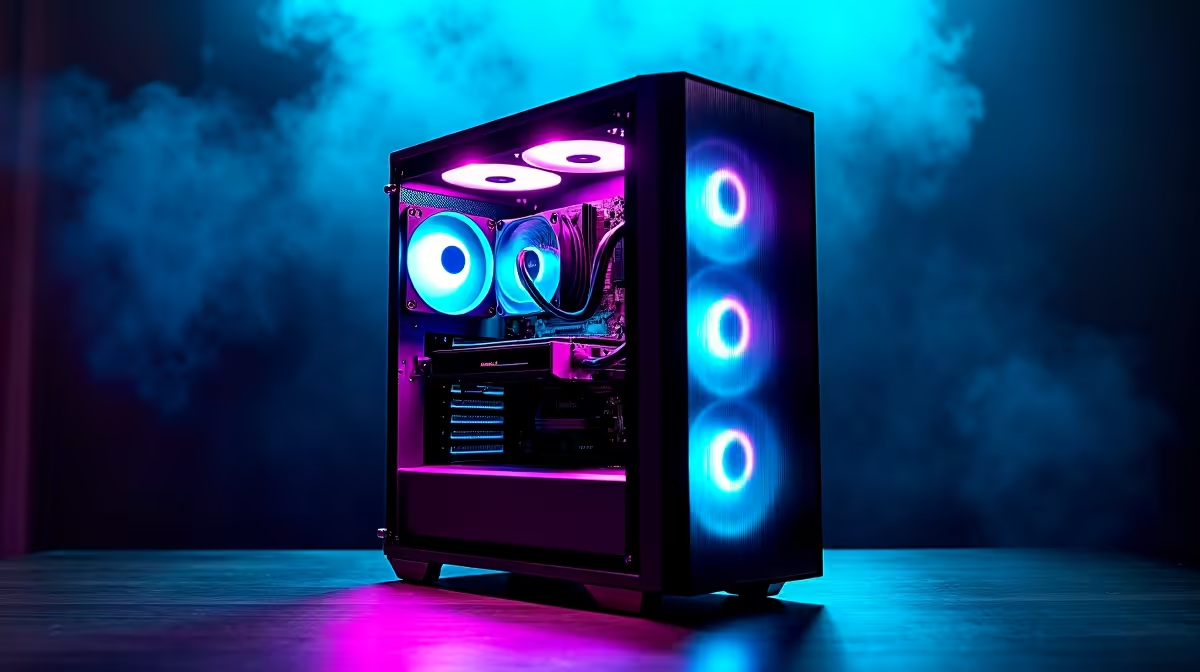
Dual booting Windows and Linux on a gaming PC gives you the best of both worlds - Windows for games with full driver support and Linux for development, privacy, and tinkering without the performance overhead of a virtual machine. The setup process takes about two hours if you follow the steps correctly from the start.
Quick Answer
How do you dual boot Windows and Linux on a gaming PC? Install Windows first on one partition or drive, then boot from a Linux USB installer, select "Install alongside Windows" or manually partition the remaining space, and let GRUB install the bootloader. On restart, GRUB presents both OS options. Disable Secure Boot in BIOS before beginning if your Linux distro does not support it.
🔧 Step-by-Step Dual Boot Setup
Before you start - back up everything Dual boot partitioning carries a small but real risk of data loss if a step is skipped. Back up your Windows installation with a system image (Windows Backup → Create a system image) and copy important files to an external drive.
Step 1: Prepare your drive setup Two physical SSDs is the cleanest approach - Windows on one, Linux on the other. This avoids partition resizing and eliminates any risk of touching the Windows partition during Linux installation. If you only have one drive, shrink the Windows partition: right-click Start → Disk Management → right-click C: → Shrink Volume. Allocate at minimum 50 GB for Linux (100 GB+ recommended for a development setup).
Step 2: Disable Secure Boot (and optionally Fast Boot) Restart and enter BIOS (usually Delete or F2 on POST). Navigate to the Secure Boot setting and disable it - most popular Linux distros (Ubuntu, Fedora, Manjaro) support Secure Boot, but disabling it prevents unexpected boot issues. Also disable Fast Boot, which can prevent Linux from mounting the Windows partition correctly.
Step 3: Create a bootable Linux USB Download your chosen distro's ISO. Ubuntu 24.04 LTS or Linux Mint 22 are recommended for gaming PC users new to Linux - both have excellent NVIDIA and AMD GPU driver support. Use Rufus (on Windows) or Balena Etcher to write the ISO to a USB drive of 8 GB or larger.
Step 4: Boot from USB and install Linux Insert the USB, restart, and enter your boot menu (usually F8, F11, or F12). Select the USB drive. In the Linux installer, choose "Install alongside Windows" if it appears, or choose manual partitioning. On a second SSD, select the entire second drive. The installer will set up Linux partitions automatically. When prompted about the bootloader, install GRUB to the system's primary drive (the one Windows boots from).
Step 5: First boot with GRUB After installation, restart. GRUB will display Windows and Linux options. Test both boot into their respective OS successfully before making any further changes.
📊 Which Linux Distro for Gaming PCs?
| Distro | Best For | GPU Support |
|---|---|---|
| Ubuntu 24.04 LTS | Beginners, broad compatibility | NVIDIA & AMD, easy driver install |
| Linux Mint 22 | Windows switchers, familiar UI | NVIDIA & AMD |
| Manjaro | Intermediate users, rolling release | Excellent, AUR access |
| Pop!_OS | NVIDIA-heavy setups | Best out-of-box NVIDIA support |
| Fedora 40 | Developers, bleeding-edge packages | AMD preferred, NVIDIA via RPM Fusion |
For South African gamers who primarily want Linux as a secondary OS for development or privacy, Ubuntu or Mint is the lowest-friction starting point.
💡 Post-Install Optimisation for Gaming Dual Boot
NVIDIA drivers on Linux: Do not use the open-source Nouveau driver for gaming. Install the proprietary NVIDIA driver through your distro's driver manager or the terminal. On Ubuntu: sudo apt install nvidia-driver-550 (check current version).
Steam on Linux: Steam's Proton compatibility layer allows many Windows-only games to run on Linux. Install Steam from your distro's package manager, enable Steam Play for all titles in Settings, and check ProtonDB.com for game-specific compatibility ratings. Many titles including popular esports games run well under Proton.
Time sync between Windows and Linux: Windows stores hardware clock time as local time; Linux stores it as UTC. This causes the system clock to shift by your UTC offset when switching OS. Fix it on Linux: timedatectl set-local-rtc 1 --adjust-system-clock
GRUB timeout: GRUB defaults to a 10-second countdown, which is long. Edit /etc/default/grub and set GRUB_TIMEOUT=5, then run sudo update-grub to apply.
❓ Frequently Asked Questions
Will dual booting affect my Windows gaming performance? No. Each OS runs independently from its own partition. Dual booting does not install software into Windows or affect Windows performance in any way. The only shared resource is storage space.
Can I access my Windows files from Linux? Yes. Linux can read Windows NTFS partitions natively. Mount the Windows drive from your file manager and access documents, downloads, and media files. Avoid writing to Windows system folders from Linux to prevent corruption.
What happens if a Windows update breaks GRUB?
Major Windows updates occasionally overwrite the bootloader. If Windows boots directly without showing GRUB, boot from your Linux USB in live mode and run sudo grub-install /dev/sdX (replace sdX with your primary drive) followed by sudo update-grub. This restores the dual boot menu.
Compare Graphics Card Deals and Evetech Best Sellers at Evetech for the latest specs and SA deals.
Ready to Find Your Perfect Match? Shop at Evetech











