

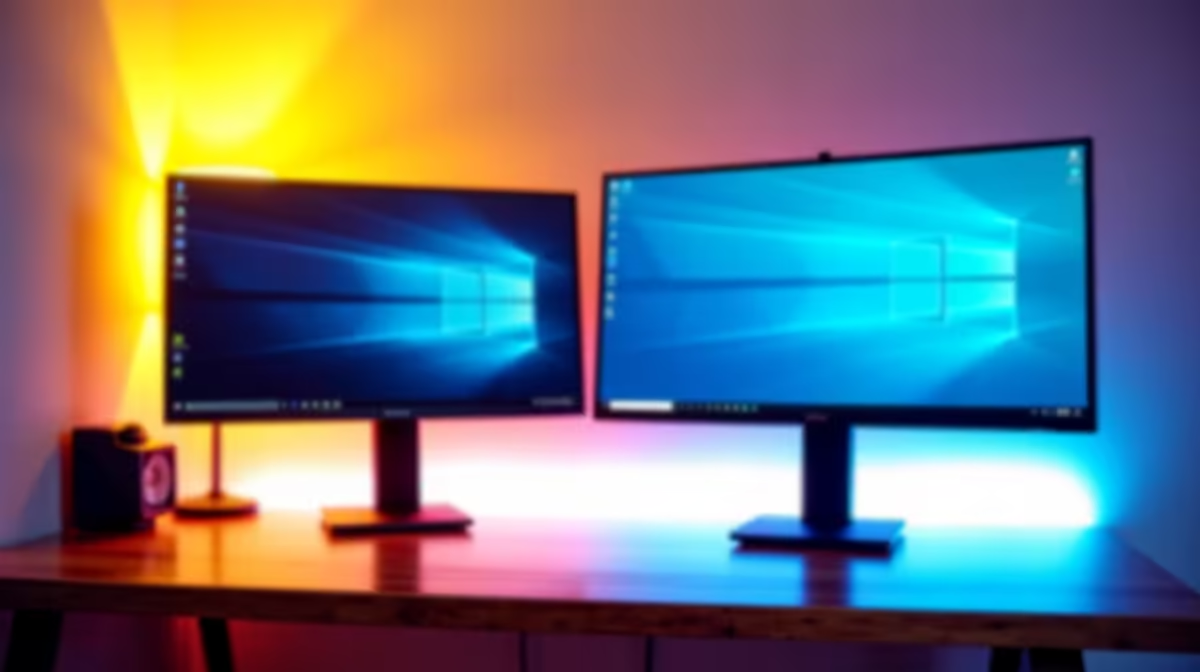
Quick Answer
Setting up dual monitors in a small res room is absolutely doable with the right gear and a bit of planning. You need a desk with at least 120cm of width, a GPU with two video outputs, and monitor arms to free up precious desk space. Most student rooms at South African universities can accommodate a dual-monitor setup without major rearrangements.
What You Actually Need Before You Start
Dual monitors in a tight space come down to three things: GPU outputs, desk real estate, and cable management. First, confirm your PC or laptop has two video outputs. Most dedicated graphics cards have at least two DisplayPort or HDMI ports, and many have three or four. If your laptop only has one external output, you may need a USB-C dock or DisplayLink adapter.
For monitors, two 24-inch screens side by side need about 115cm of desk width when placed flat. Two 27-inch screens need closer to 130cm. If your res desk is on the smaller side, consider 21.5-inch or 24-inch monitors with slim bezels. Ultra-thin bezels make the gap between screens nearly invisible and help the setup feel less cramped.
Check your desk for cable routing holes or grommets. Running HDMI and power cables through the desk rather than across the surface keeps things neat in a small space.
Monitor Arms vs. Stands: Why Arms Win in Small Spaces
This is the single biggest upgrade you can make in a small res room. Monitor stands eat up desk depth, often taking 15 to 20cm of usable space per screen. A dual monitor arm, clamped or grommet-mounted to the desk edge, lifts both screens off the surface entirely.
You get the full desk depth back for your keyboard, mouse, and study materials. Arms also let you tilt and swivel each monitor independently, which matters when your room layout means viewing from a slight angle. A good dual arm can hold two 24-inch monitors and adjusts height, tilt, and rotation all in one unit.
For res rooms with shared or communal desks, confirm the desk edge is solid enough to support a clamp mount. Most standard university desk edges are fine for monitors up to 7kg each.
Configuring Windows for Dual Monitors
Once cables are connected, Windows 10 and 11 detect the second monitor automatically in most cases. Right-click the desktop and select Display Settings. You will see both monitors represented as numbered rectangles. Drag them to match their physical positions on your desk, whether the second screen is to the left or right.
Set the primary display to your main work monitor. Set each screen to its native resolution independently. If your two monitors are different models or sizes, you may need to adjust scaling so text appears the same size on both. Windows lets you set a percentage scale per display under Display Settings.
For gaming, most titles default to the primary monitor. You can drag the Windows taskbar to sit on whichever screen you prefer. For study setups, keeping your browser or notes on one screen and your work document on the other is a common and productive workflow used by students at UCT, Wits, and Stellenbosch.
Loadshedding Considerations for a Dual Monitor Setup
Running two monitors draws more power than one. Budget roughly 20 to 30 watts per LCD monitor, so a dual-monitor desk setup adds 40 to 60 watts to your overall draw. During loadshedding, if you are running on a UPS or inverter, that extra load shortens your backup runtime.
If loadshedding is frequent in your area, consider monitors with efficient LED backlighting and lower peak brightness settings during battery power. Some students keep one monitor on a UPS circuit and leave the second as a convenience screen that they power off when load is being shed. A good UPS in the 650VA to 1000VA range will handle a PC and two 24-inch monitors for 15 to 30 minutes depending on load, which is usually enough to save work and shut down cleanly.
Frequently Asked Questions
Do both monitors need to be the same brand or size? No. Windows handles mixed monitors fine. The only trade-off is that different resolutions and sizes can make taskbar alignment and window snapping slightly less seamless. Matching monitors are ideal, but not required.
Can I use my laptop with dual external monitors? Most modern laptops with a dedicated GPU support at least one external monitor. Adding a second usually requires a USB-C hub with dual video output or a DisplayLink adapter. Check your laptop's specifications for the number of supported external displays before buying.
Will a dual monitor setup void my res room agreement? Generally no. Mounting monitor arms with desk clamps rather than wall anchors is non-destructive and almost universally acceptable in student accommodation. Check your res rules before drilling anything into walls.
What refresh rate should I set each monitor to? Set each monitor to its highest supported refresh rate in Display Settings under Advanced Display. For study monitors, 60Hz is perfectly fine. For gaming, use the monitor capable of 144Hz or higher as your primary game display.
Ready to Find Your Perfect Match? Browse Evetech's full range of monitors, including slim-bezel and high-refresh options perfect for a dual-monitor res room setup.











