

Quick Answer
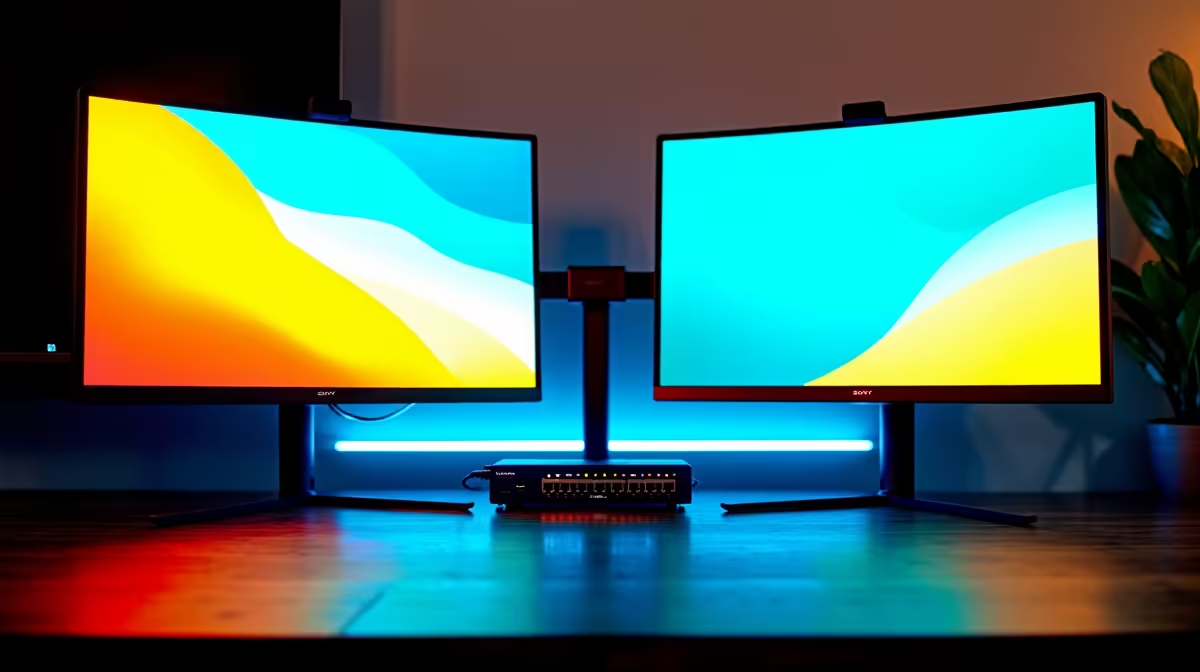
Setting up dual monitors with a network switch in South Africa is not a standard configuration. A network switch handles internet or LAN traffic and does not carry video signals. To run dual monitors, you need the correct video outputs on your PC and matching cables or adapters connecting each display directly to your graphics card or motherboard.
Understanding the Difference Between a Network Switch and a Video Switch
The confusion between a network switch and a video switch (also called a KVM switch or display switch) is common, especially among students setting up shared desks in res or digs. A network switch routes ethernet traffic between multiple devices on a local area network. It has no video output and cannot send a display signal to a monitor. A video switch or KVM switch, by contrast, lets you share one or two monitors across multiple computers using a single set of peripherals.
If your goal is to extend your desktop across two monitors using one PC, you do not need any kind of switch at all. You simply connect each monitor to a separate video output on your graphics card or motherboard. Most dedicated graphics cards in South Africa offer at least two outputs, typically a combination of DisplayPort, HDMI, and sometimes DVI. Integrated graphics on Intel processors usually provide one HDMI and one DisplayPort via the motherboard.
How to Set Up Dual Monitors Correctly in South Africa
Start by identifying which video outputs your GPU or motherboard provides. Plug monitor one into the primary output and monitor two into the secondary output. If your monitors use different cable types, for example one needs HDMI and another uses DisplayPort, purchase the appropriate cable or a passive adapter.
Once both monitors are connected and powered on, go to Windows Settings, then System, then Display. Windows will detect both screens. Choose Extend These Displays to use them as one large workspace. Students at UCT, Wits, or Stellenbosch who work across multiple tabs and documents find the extended display setup significantly boosts productivity when writing assignments or coding.
If only one monitor is detected, check that the second cable is firmly seated, try a different port on the GPU, and restart the system. In some cases, you need to physically disable integrated graphics in the BIOS if a dedicated GPU is installed, as some motherboards default to the integrated output.
When a KVM or Display Switch Actually Makes Sense
If you are sharing one monitor between a work laptop and a gaming desktop, a KVM switch does make sense. These devices let you toggle one or two monitors and a set of peripherals between two computers using a button press or hotkey. This is popular in home office setups where desk space is limited. For loadshedding resilience, some South African users pair a KVM switch with a UPS so they can quickly shift from the desktop to a laptop running on battery during an outage without unplugging and re-plugging cables.
FAQ
Can a network switch output video to two monitors?
No. A network switch only handles ethernet data packets. It has no display output capability and cannot be used to connect monitors.
Do I need a special cable for a dual monitor setup in South Africa?
Not necessarily. Use whatever cable matches both your GPU output and your monitor's input port. DisplayPort is preferred for high-refresh-rate monitors. HDMI 2.0 or 2.1 works well for 4K or 144Hz displays.
Why is my second monitor not detected after connecting it?
Common causes include a loose cable connection, an inactive GPU port (some ports are disabled by default), or Windows needing a refresh. Press Windows + P to open the projection menu and select Extend, or go to Settings and click Detect under Display.
Ready to Find Your Perfect Match? Find monitors that pair perfectly for a South African dual-display setup, available with nationwide delivery. Shop Monitors at Evetech











