

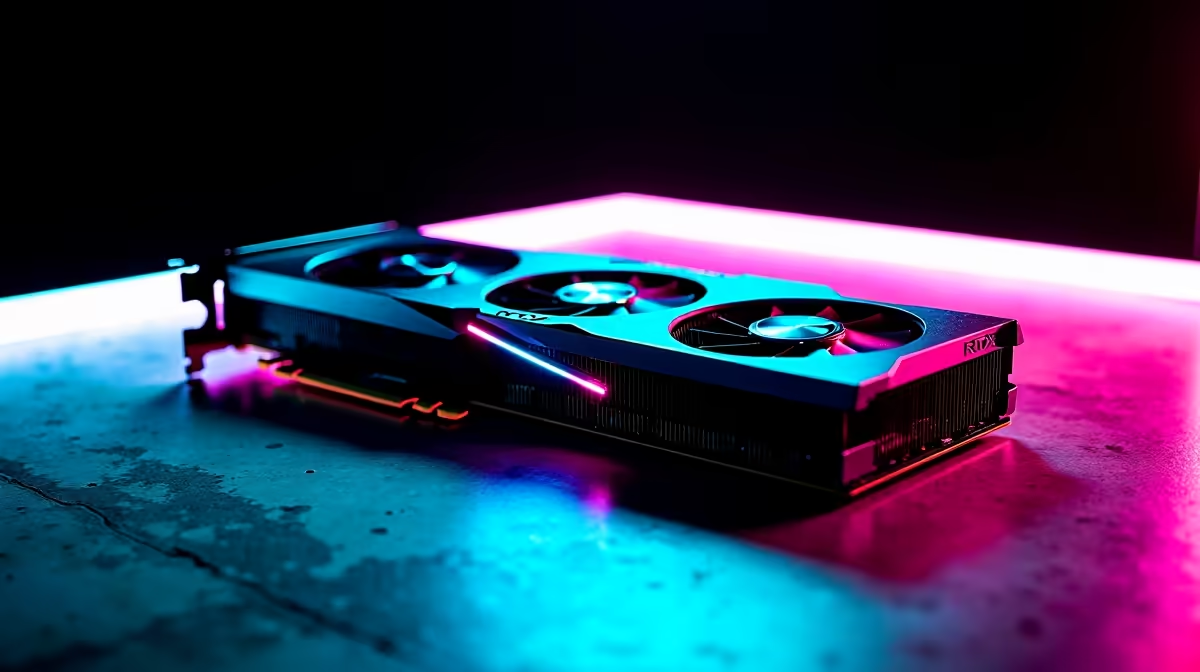
Why Blue Screen Errors Haunt Your RTX 4070 Ti ⚡
If you’re a gamer or tech buyer rocking the powerful RTX 4070 Ti, blue screen errors can totally ruin your flow. These crashes are often frustrating and confusing, especially in South Africa where hardware support can feel tricky. But fear not — troubleshooting your RTX 4070 Ti blue screen errors isn’t rocket science. Understanding the common triggers can save you hours of downtime and money. Let’s dive into what’s causing these errors and how to fix them 🔧.
Common Causes of RTX 4070 Ti Super Blue Screen Issues
Faulty or Outdated Drivers
One frequent culprit is outdated or buggy GPU drivers. The RTX 4070 Ti relies on the latest NVIDIA software optimised for Ampere architecture. If your drivers are out of date, or a recent update was corrupted, blue screen errors often appear.
Incompatible or Faulty Hardware
Another cause is hardware conflicts. Sometimes your new GPU clashes with existing components, like an older motherboard BIOS or insufficient power supply. In South Africa, where many upgrade incrementally, double-check your rig is balanced for your RTX 4070 Ti’s requirements.
Overheating or Power Delivery Issues ⚡
Overclocking or poor cooling can cause instability too. Sudden shutdowns or crashes during intense gaming sessions happen if the card overheats or power delivery fluctuates. Check your PC cooling and PSU specs carefully.
How to Fix RTX 4070 Ti Blue Screen Errors
Step 1: Update or Roll Back Drivers
Start by visiting NVIDIA’s official site or your Evetech graphics cards page to get the latest RTX 4070 Ti drivers. If a recent update triggered the issue, rolling back to a stable version can help.
Step 2: Check for BIOS and Windows Updates
Your motherboard BIOS might need an update for newer GPUs like the RTX 4070 Ti. Also, ensure your Windows OS is fully patched. South African gamers often overlook this vital step, but it’s crucial for hardware harmony.
Step 3: Monitor Temperatures and Power
Use GPU monitoring tools to keep an eye on temperature and power draw. If temperatures climb above 85°C during gaming, improve airflow or adjust fan curves. This helps prevent overheating-related blue screens. You can explore high-performance gaming PC deals on Evetech tailored for stable cooling and power.
Pro Tip for Stability
Stay within NVIDIA’s recommended power limits—use a 650W+ PSU certified 80 Plus Gold or better. This cuts power-related crashes and keeps your system reliable.
Step 4: Test RAM and Other Components
Faulty RAM or PSU often masquerades as GPU blue screen errors. Run memory tests and stress your PSU if you suspect instability. South African users can find solid notebook alternatives ranging in power and price on Evetech’s laptop section, perfect for diagnosing if the GPU or system is at fault.
Step 5: Consider a Clean GPU Installation
Sometimes a dusty or loosely installed GPU causes errors. Power down and reseat your RTX 4070 Ti carefully. While you’re at it, clean PCIe slots and connector pins of dust or oxidation. For hassle-free setups, browse pre-built PC options at Evetech designed for worry-free performance.
When to Seek Help or Upgrade Your Setup
If troubleshooting doesn’t clear up blue screen errors, you might be facing a defective GPU or deeper system conflict. South African tech support can be patchy, so it often makes sense to upgrade your rig or consult experienced builders.
Evetech’s specials page regularly offers affordable GPU upgrades and components tailored for South African performance and compatibility. Keeping your system modern reduces error risks and boosts your game.
Ready to Boost Your Gaming Reliability? Don’t let blue screen errors stop your RTX 4070 Ti’s power. Shop now at Evetech for reliable GPUs, expert advice, and deals customised for South African gamers.











