

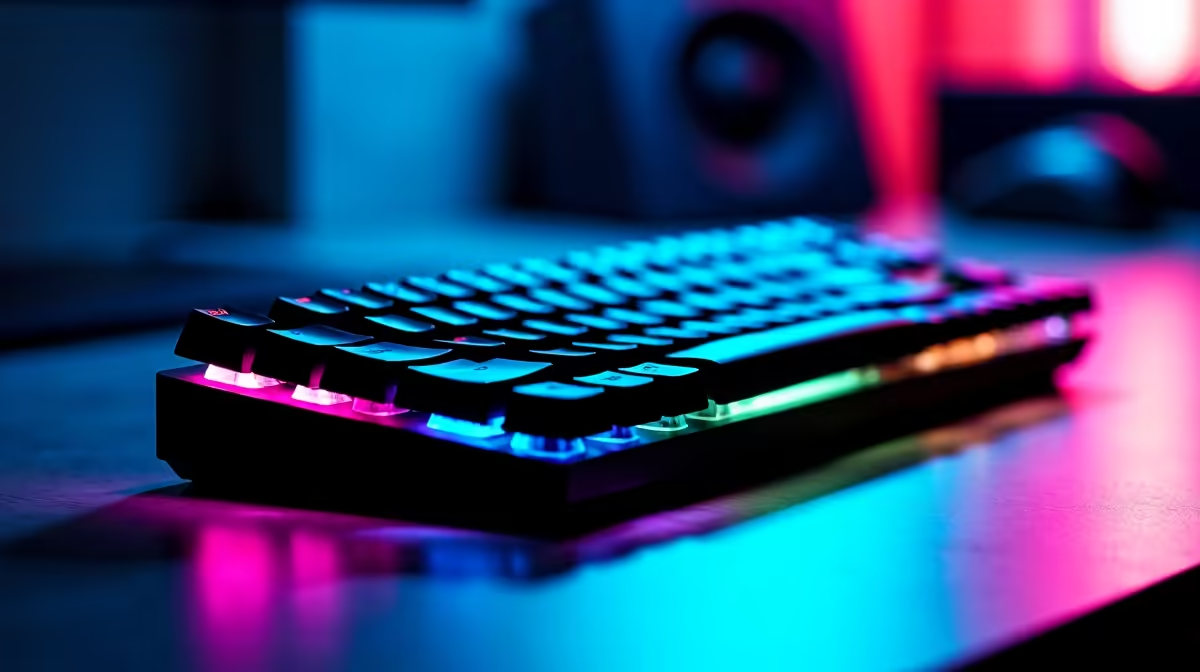
You just dropped into a crucial competitive match, and suddenly... nothing. Your character is frozen. Figuring out how to troubleshoot wireless keyboard installation issues can be incredibly frustrating. Whether you are dealing with Bluetooth pairing failures or an unresponsive USB dongle, you need a quick fix. Let us get your setup running smoothly so you can get back into the action without losing your mind. 🔧
Check the Power and Dongle Basics
Before you panic, start with the absolute basics. Wireless devices need juice. Ensure your batteries are fresh or your internal battery is fully charged. Next, inspect the USB receiver. Sometimes, simply moving the dongle to a different USB port solves everything.
If you recently upgraded to one of the latest high-performance gaming keyboards, plug the receiver directly into the motherboard. Avoid using unpowered USB hubs or front-panel ports. Front ports often lack the consistent voltage required for high-polling rates. If you are running an ultimate gaming PC, those rear IO ports provide the most stable connection. It is a simple tweak that saves hours of frustration.
Overcoming Driver and Bluetooth Conflicts
Sometimes Windows gets confused by overlapping software. If you want to troubleshoot wireless keyboard installation issues effectively, check your Device Manager first. Look for any yellow warning triangles under the keyboards section. Right-click and uninstall the problematic device... then restart your machine. Windows will automatically reinstall the correct drivers upon booting.
For Bluetooth models, ensure your system actually supports the required Bluetooth version. Many modern powerful gaming laptops have excellent built-in wireless adapters. However, older desktop rigs might struggle without a dedicated PCIe card or a modern USB adapter. Always keep your motherboard BIOS and Bluetooth drivers updated to the latest versions. 🚀
Quick Pairing Pro Tip ⚡
If your Bluetooth connection keeps dropping, clear your PC pairing history completely. Remove the device from Windows settings, hold down your keyboard pairing button for five seconds, and reconnect from scratch. This clears out corrupted cache files instantly.
Defeating Signal Interference
Your physical gaming environment plays a huge role in connectivity. Standard wireless receivers operate on the very busy 2.4GHz frequency band. This is the exact same band used by older Wi-Fi routers, wireless headsets, and even microwaves. If your Wi-Fi router sits right next to your pre-built PC, you might experience severe input lag or random disconnects.
Try using a USB extension cable to move the receiver closer to your desk surface. Keep the dongle away from thick metal desk frames or heavy glass panels. A clear line of sight works wonders for signal stability.
When you finally resolve these annoying glitches, your setup will feel incredibly responsive. If your current peripheral is simply too old to maintain a reliable connection... it might be time for a fresh start. You can always check out our daily specials to find a premium, lag-free replacement that fits your ZAR budget perfectly.
Ready to Upgrade Your Setup? Dealing with constant disconnects is frustrating, but finding a reliable replacement in South Africa is easy. Explore our massive range of gaming specials and find the perfect wireless companion to conquer your digital world.











