

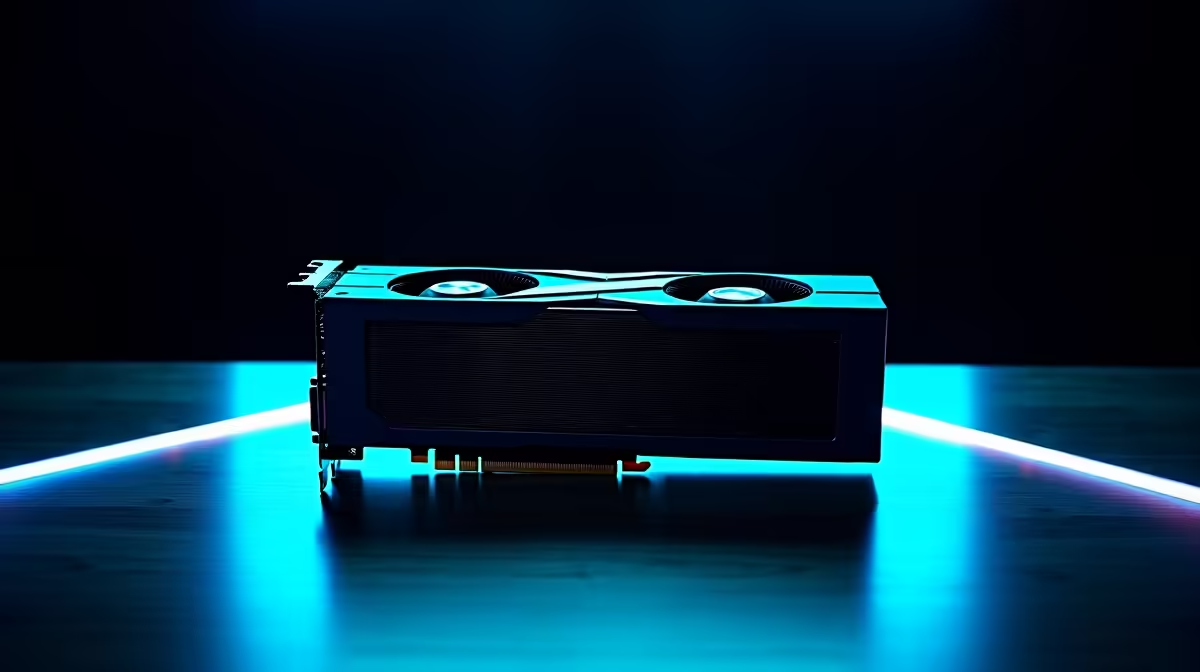
You just dropped a massive stack of ZAR on the most powerful GPU on the planet. But plugging it in is only half the battle. If you want maximum frames and ray-tracing glory, you need the right software. Knowing how to update RTX 4090 drivers in South Africa is crucial for stable performance... especially when local internet speeds or sudden power cuts try to interrupt your download. 🚀
Why Regular Updates Matter for Your RTX 4090
Think of a driver as a translator between your operating system and your graphics card. When you invest in the latest graphics cards, keeping their software current is non-negotiable. NVIDIA regularly releases patches that optimise performance for brand-new game releases.
These updates unlock vital features like DLSS 3 and Frame Generation. Without them, your expensive hardware is running with one hand tied behind its back. Whether you slotted this beast into a custom rig or grabbed one of our top-tier gaming PCs, outdated drivers will bottleneck your entire system. Skipping these updates means missing out on crucial bug fixes.
Step-by-Step: How to Update RTX 4090 Drivers in South Africa
Let us look at the actual update process. First, ensure your internet connection is stable. A sudden drop during a download can cause corrupted files. If you recently picked up one of our pre-built desktop systems, it likely came with the base drivers already installed. But you still need to grab the newest version.
- Download the NVIDIA App: The old GeForce Experience is being phased out. Grab the new NVIDIA App directly from their official site.
- Log In and Scan: Open the application and navigate to the drivers tab. It will automatically detect your RTX 4090.
- Download and Install: Click download. We highly recommend selecting 'Custom Installation' and checking the 'Perform a clean installation' box. This wipes old, conflicting files. 🔧
Load Shedding Pro Tip ⚡
Always check your local load shedding schedule before starting a major driver update. If the power cuts mid-install, your PC might boot to a black screen. Keep a backup of the previous driver version saved on your drive just in case!
Troubleshooting Common Driver Issues
Sometimes things go wrong. If your screen flickers or goes completely black after an update, do not panic. Simply restart your PC in Safe Mode. You can then use a free tool called Display Driver Uninstaller (DDU) to wipe the slate clean. Then, try installing the driver again.
Another common issue is audio cutting out after an update. NVIDIA drivers also install HD audio drivers for your display connections. This can sometimes override your default headset settings. A quick trip to your Windows sound settings easily fixes this.
What if you are gaming on the go? The troubleshooting process is identical for those using high-performance notebooks equipped with 40-series mobile GPUs. Just ensure your laptop is firmly plugged into the wall before updating. And if you are looking to upgrade your current monitor or power supply to handle this massive GPU, keep an eye on our tech specials to stretch your ZAR even further. ✨
Ready to Unleash Ultimate Frame Rates? Now that your drivers are perfectly optimised, it is time to push your rig to the absolute limit. If your current setup is bottlenecking that shiny new GPU, explore our massive range of PC specials and find the perfect hardware to conquer your world.











