

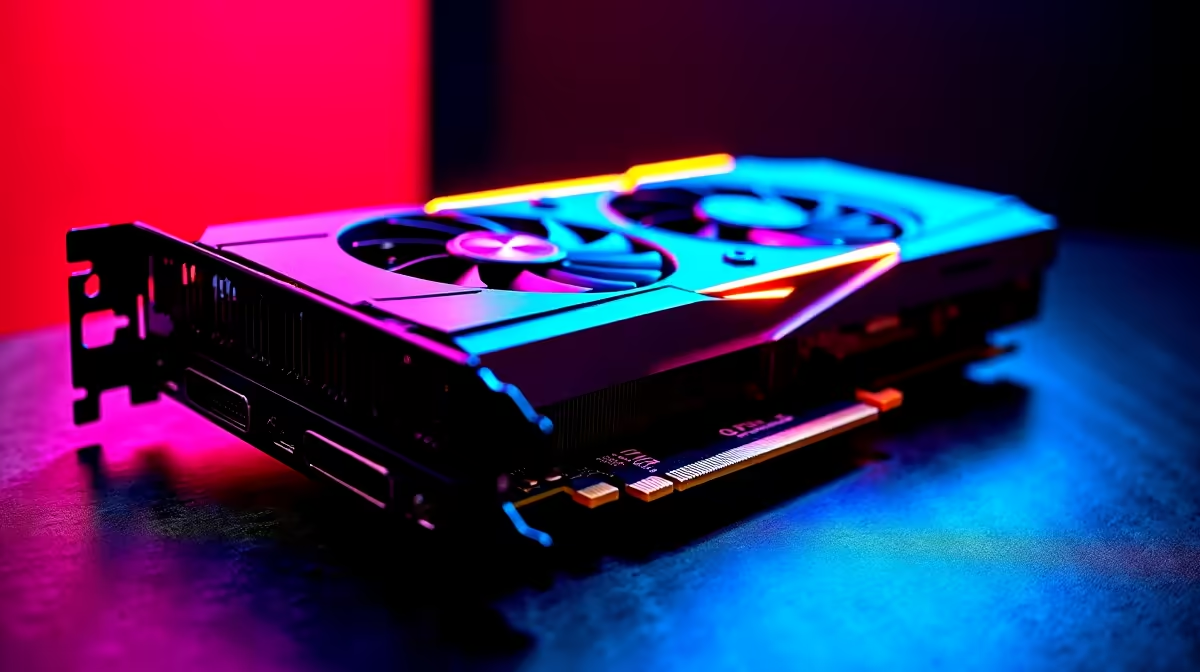
The NVIDIA Control Panel is one of the most underused tools in any PC gamer's or creative professional's toolkit. Tucked behind a right-click on the desktop, it gives you granular control over how your GPU behaves - from display colour calibration to per-application graphics settings that can meaningfully affect performance, image quality, and input latency.
Quick Answer
The NVIDIA Control Panel lets you configure display refresh rate, resolution, colour depth, G-Sync, anti-aliasing, texture filtering, and per-game settings. Key changes to make immediately: set maximum pre-rendered frames to 1, enable G-Sync if your monitor supports it, and configure your preferred sharpening or image quality profile per application.
Accessing and Navigating the Panel 🔧
Right-click your Windows desktop and select "NVIDIA Control Panel" - if it doesn't appear, open it from the Windows Start menu or reinstall your NVIDIA drivers via GeForce Experience. The left pane is divided into three main sections: Display, Video, and 3D Settings. Most of the performance-impacting options live in 3D Settings. The "Manage 3D Settings" menu is where you'll spend most time - it contains both global settings (applied to all applications) and per-program overrides (useful for configuring specific games differently). Keeping drivers up to date is essential since NVIDIA regularly adds game-specific optimisation profiles. Your GPU powers everything here - if you're shopping for an upgrade, the NVIDIA graphics card range at Evetech has the latest options.
Key 3D Settings to Optimise 💡
Focus on these settings for the biggest impact:
- Low Latency Mode: Set to "Ultra" for competitive gaming. This reduces the pre-render queue, lowering input latency perceptibly in GPU-bound scenarios.
- Max Frame Rate: Set a cap slightly below your monitor's refresh rate (e.g., 141fps for a 144Hz monitor) when using G-Sync to keep the sync range active and latency consistent.
- Texture Filtering – Quality: Set to "High Performance" for esports titles, "Quality" for single-player games where visual fidelity matters more.
- Shader Cache Size: Increase to 10GB or "Unlimited" if you have SSD space. Larger caches reduce stutter during shader compilation in modern games.
- Preferred Refresh Rate: Set to "Highest Available" to ensure games default to your monitor's maximum refresh rate rather than a conservative default.
Display and G-Sync Configuration ⚡
Under the Display section, configure your monitor properly by setting resolution and refresh rate here as well as in Windows Display Settings. For G-Sync: navigate to "Set up G-Sync," check "Enable G-Sync, G-Sync Compatible," select your monitor, and enable it for windowed and full-screen modes. Then cap your frame rate via the Control Panel's "Max Frame Rate" setting rather than in-game limiters for best results. For colour, use "Use NVIDIA colour settings" and set Output Dynamic Range to "Full" when connected to a PC monitor (not a TV) to ensure accurate black levels and shadow detail.
Frequently Asked Questions ❓
Q: Does changing NVIDIA Control Panel settings actually affect FPS? A: Yes. Settings like Low Latency Mode, Max Frame Rate cap, and texture filtering quality have measurable effects on both frame rate and perceived input latency, particularly in GPU-bound scenarios.
Q: Should I use NVIDIA's DSR (Dynamic Super Resolution)? A: DSR renders at a higher resolution and downscales to your native resolution - useful for older or less demanding games that don't stress your GPU. It won't benefit modern GPU-intensive titles where you need all the headroom available.
Q: What's the difference between Global Settings and Program Settings in 3D Settings? A: Global Settings apply to all applications that don't have a specific override. Program Settings let you set different values per game - useful for applying High Performance texture filtering to competitive titles while keeping Quality settings for single-player games.
Evetech stocks All Graphics Cards and Graphics Card Deals — browse current SA pricing and availability online.
Ready to Find Your Perfect Match? Explore relevant Evetech options, compare current South African pricing, and choose hardware that fits your setup. Shop now











