

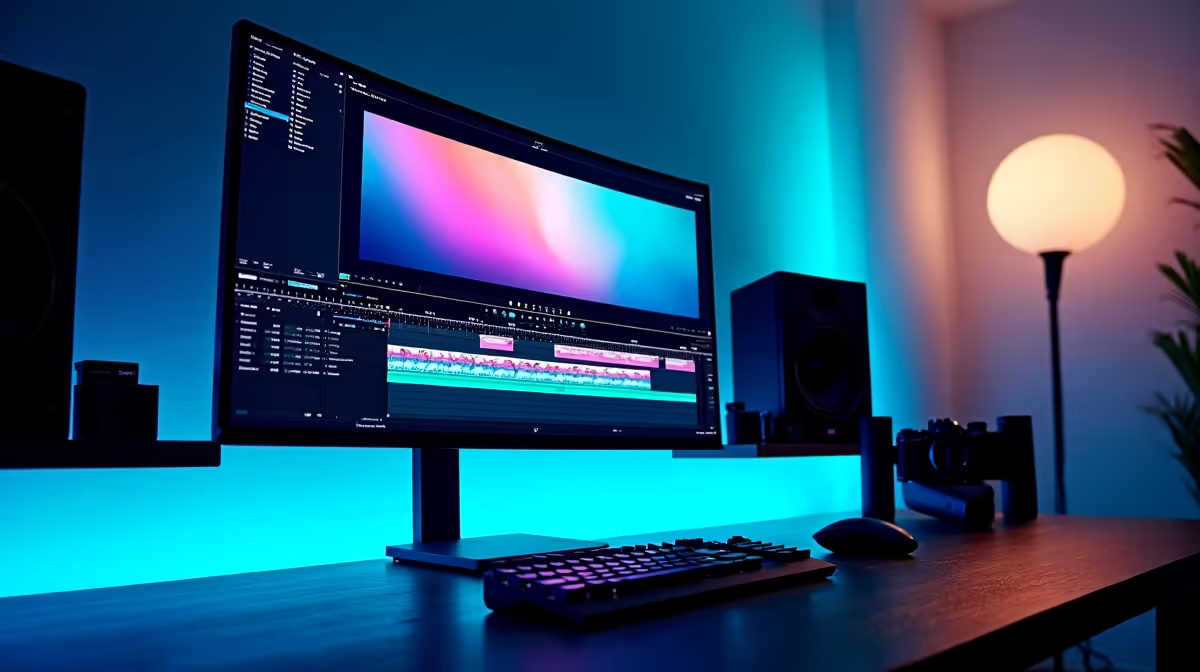
Vegas Pro is one of the most capable non-linear video editors available, offering a timeline-based workflow that suits both beginners and professionals. Getting started takes about an hour to learn the basics, and the payoff is a highly flexible editing environment that handles everything from YouTube vlogs to short films.
Quick Answer
How do you use Vegas Pro for video editing? Import your footage into the Vegas Pro media pool, drag clips onto the timeline, and use the trim and split tools to arrange your edit. Add transitions, colour grades, and audio adjustments from the built-in effects panels, then render your project using the "Render As" menu.
🔧 Setting Up Your Project
When you launch Vegas Pro, create a new project and match the project properties to your footage - typically 1920x1080 at 30fps for most content, or 3840x2160 (4K) if you shot in 4K. Vegas Pro uses a track-based timeline where video tracks sit above audio tracks. Import clips via File > Import > Media or drag directly from Windows Explorer into the project media panel.
Place clips on the timeline by dragging from the media panel. Vegas Pro automatically snaps clips to the playhead position. Use the S key to split a clip at the cursor, then delete unwanted sections. The Trim tool (T) lets you adjust in and out points non-destructively - the original file is never altered.
📊 Colour Grading and Effects
Vegas Pro includes a full colour grading suite accessible via the Video FX panel. Apply the Colour Corrector Secondary for targeted hue adjustments, or use the Levels and Curves plugins for overall exposure control. For a cinematic look, add a slight S-curve to the Luma channel and desaturate the shadows slightly.
Transitions are applied by right-clicking the junction between two clips on the timeline and selecting "Insert Transition." The default crossfade works for most cuts, but Vegas Pro ships with hundreds of transition presets. Keep transitions subtle - hard cuts or a simple crossfade are almost always better than flashy wipes.
Audio is handled on separate tracks below the video. Use the Audio FX to add noise reduction and EQ. Vegas Pro's internal loudness meter helps you target -14 LUFS for YouTube and -23 LUFS for broadcast.
💡 Rendering Your Final Export
Go to File > Render As to export your project. For YouTube, choose the "Internet HD 1080p" template under the Sony AVC/MVC codec - it produces a high-quality H.264 MP4 file that uploads cleanly. For 4K YouTube, choose the HEVC (H.265) 4K template to keep file sizes manageable. The render time depends heavily on your CPU and GPU - a powerful desktop PC cuts render times dramatically.
If you are rendering frequently, consider a PC with a modern CPU and dedicated GPU. Vegas Pro supports GPU-accelerated rendering via NVIDIA CUDA and Intel Quick Sync, which can reduce render times by 50% or more compared to CPU-only rendering.
❓ Frequently Asked Questions
Does Vegas Pro support 4K editing? Yes. Vegas Pro handles 4K, 6K, and even 8K footage natively. For smooth 4K playback on the timeline, enable Smart Proxy mode so Vegas works from lower-resolution proxies during editing and switches back to the original files at render time.
Can you use Vegas Pro on a budget PC? Vegas Pro runs on Windows 10/11 and requires at minimum 8GB of RAM, but 16GB or more is recommended for smooth multi-track editing. A dedicated GPU with at least 4GB VRAM significantly improves real-time playback performance.
Is Vegas Pro good for beginners? Vegas Pro has a gentler learning curve than some professional alternatives. The timeline-based interface is intuitive, and most essential functions are accessible from keyboard shortcuts. The built-in tutorials and Vegas Pro online community are solid resources for newcomers.
Evetech stocks Graphics Card Deals and Evetech Best Sellers — shop online with fast delivery across South Africa.
Ready to Find Your Perfect Match? Shop at Evetech











