


650W PSU Planning for RTX 5090 Builds in SA
650W for RTX 5090 needs a full-build check, not a simple yes. Review GPU guidance, CPU draw, transient load, connectors, PSU quality, and upgrade plans before deciding.
Read morei5-14400F Not Detected by BIOS: Fix Guide. Diagnosis steps, proven fixes & when to seek professional help. SA-specific support info included.
An i5-14400F not detected by BIOS is almost always caused by one of three things: the motherboard BIOS version does not support the 14th Gen CPU, the CPU is not properly seated in the socket, or there is an issue with the CPU power connector. This guide walks through each cause and fix in the correct troubleshooting order.
The Intel Core i5-14400F is a Raptor Lake Refresh processor that requires an LGA1700 socket motherboard -- compatible with Z690, Z790, B660, B760, H610, and H770 chipsets. However, not all LGA1700 motherboards support 14th Gen CPUs out of the box. Older boards manufactured before late 2023 shipped with BIOS versions designed for 12th Gen only. Without a BIOS update that adds 14th Gen microcode, the motherboard cannot POST and will not display any output, which users often interpret as the CPU being undetected. This is the most common cause of the problem. The fix requires updating the BIOS -- but you need a compatible CPU (typically a 12th or 13th Gen Intel) to boot the system first, or a motherboard that supports BIOS Flashback, which allows flashing the BIOS from a USB drive without a CPU installed. ## Step-by-Step Fix for i5-14400F BIOS Detection Failure
Step 1 -- Check your motherboard's CPU support list: Go to your motherboard manufacturer's website (Asus, MSI, Gigabyte, or ASRock) and find the CPU compatibility list for your specific model. Verify that the i5-14400F is listed and note the minimum BIOS version required. If your board was shipped before mid-2023, it almost certainly needs a BIOS update. Step 2 -- Use BIOS Flashback or a compatible CPU: If your board supports BIOS Flashback (look for a "BIOS" button on the rear I/O panel), download the latest BIOS file from the manufacturer, copy it to a FAT32-formatted USB drive with the correct filename (specified in the manual), plug it in, and press the Flashback button with the PSU connected but system powered off. The LED will flash and then go solid when complete. If no Flashback support, borrow or use a 12th Gen Intel CPU (i3-12100, i5-12400, or similar), boot into BIOS, update to the latest version, shut down, install the i5-14400F, and restart. Step 3 -- Reseat the CPU: If the BIOS is already up to date, the next step is physical. Power off and unplug the system. Release the LGA1700 socket retention arm, lift it, and remove the CPU. Inspect all 1700 pins in the socket for bent or damaged pins -- even one bent pin can prevent detection. Reinsert the CPU carefully, ensuring the alignment notches match. Lower the retention arm fully until it clicks. Step 4 -- Check CPU power connectors: The i5-14400F requires the 8-pin ATX12V CPU power connector on the motherboard. Ensure it is fully seated. Higher-end boards have two CPU power connectors -- the primary 8-pin must be connected. Without CPU power, the system powers on but cannot POST, which looks identical to a CPU detection failure. Step 5 -- Test with one RAM stick: Remove all but one RAM stick and try booting. Faulty or incompatible RAM can prevent POST in a way that resembles CPU detection failure. Test with RAM in the A2 slot (second slot from the CPU, as indicated in most manuals). Step 6 -- Clear CMOS: Use the CMOS jumper (consult your motherboard manual) or remove the CMOS battery for 30 seconds with the system unplugged. This resets all BIOS settings to factory defaults and can resolve detection issues caused by corrupted BIOS configurations. ## When the Problem Is Hardware
If none of the above steps resolve the issue, the problem may be a physically damaged CPU socket, a defective i5-14400F sample, or a failed VRM on the motherboard. At this point, testing the CPU in a known-working LGA1700 board (or testing a known-good CPU in your board) is the only way to isolate whether the fault is the CPU or the board. In South Africa, Evetech includes a 1-year warranty on processors, so a confirmed defective unit can be exchanged through the warranty process. ### FAQs
Ready to Find Your Perfect Match? Shop Intel CPUs and compatible processors at Evetech with warranty support and fast delivery across South Africa. Shop CPUs and Processors
i5-14400F Not Detected by BIOS: Fix Guid available at Evetech.co.za with local warranty and fast delivery.
i5-14400F Not Detected by BIOS: Fix Guid - check Evetech for latest stock and SA pricing.
Depends on your use case. i5-14400F Not Detected by BIOS offers good value at current Rand pricing.
650W for RTX 5090 needs a full-build check, not a simple yes. Review GPU guidance, CPU draw, transient load, connectors, PSU quality, and upgrade plans before deciding.
Read more
How to fix FPS drops Windows 11 RX 9070 XT starts with GPU drivers, overlays, power plans, and frame pacing checks. For SA gaming PCs, verify chipset updates, HAGS, refresh rate, thermals, and per-game graphics settings.
Read more
How to fix FPS drops on X870E motherboard starts with BIOS, chipset drivers, PCIe settings, and memory stability. SA gamers can check EXPO, resize BAR, thermals, display refresh, and background apps before replacing components.
Read more
RTX 5060 is popular with SA students because it can fit gaming, coursework, and creative app needs in one setup. Compare total system price, cooling, RAM, storage, and screen quality before picking a desktop or laptop.
Read more
1440p is the sweet spot for SA gamers because it balances sharp visuals, high frame rates, and GPU cost better than 4K. It is a practical monitor target for players who want smoother upgrades without the heavier hardware demands of 4K.
Read more
RAM pricing for Midrand gamers can shift with exchange rates, supply, specs, and model tier. Treat the title as a buying prompt, then compare SA warranty, timing, and build priorities.
Read more
From 1 October 2026, WhatsApp Business Platform service replies in South Africa are expected to cost about $0.0076, or 12 cents, per delivered message.
DDR5-8000 RAM Kits pros and cons depend on the build, budget, and workload. Weigh gaming needs, platform fit, power, cooling, warranty support, and South African pricing context before shortlisting it.

Wi-Fi 6E vs Wi-Fi 6 depends on AAA single-player gaming needs, platform limits, and budget fit. Compare compatibility, latency, upgrade path, and real setup constraints before choosing for an SA build.

Ryzen 9 9950X3D dead pixel checks should isolate the panel first. Run colour fills, inspect the monitor menu, test another cable or input, and capture proof before linking it to the SA CPU upgrade.

YouTube will count public views from the first frame across video formats from 24 August, while earnings and eligibility remain tied to engaged viewing.

Canonical expects Ubuntu on WSL users to outnumber native Ubuntu desktop users before the end of 2026. The software is open source and runs inside supported Windows PCs.

Telkom's daily bundles pair WhatsApp access with 10 all-network voice minutes. The R15 option includes 300MB, while the R17 option uses a fair-use threshold.

A 10,000-hour test found similar image retention across older and newer OLED TVs, while newer panels were brighter and more efficient. Local OLED monitors started at R9,999.
650W for RTX 5090 needs a full-build check, not a simple yes. Review GPU guidance, CPU draw, transient load, connectors, PSU quality, and upgrade plans before deciding.
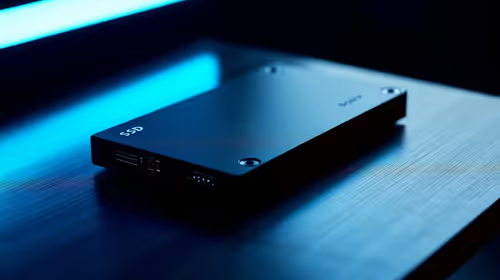
PCIe 5.0 and PCIe 4.0 differ most in lane support, compatibility, and upgrade value for strategy and sim games. SA buyers should match the choice to their actual hardware and games.
How to fix FPS drops Windows 11 RX 9070 XT starts with GPU drivers, overlays, power plans, and frame pacing checks. For SA gaming PCs, verify chipset updates, HAGS, refresh rate, thermals, and per-game graphics settings.
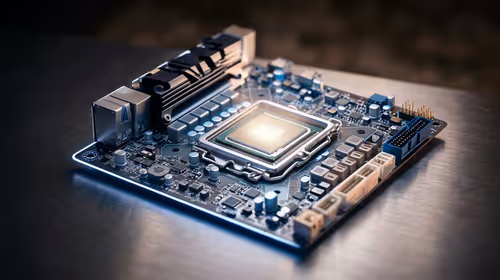
AM5 vs AM4 for video editing in 4K Difference explained is mostly about compatibility, budget, upgrade path, and setup fit. SA buyers should check device support and real needs before expecting a clear win from either option.