

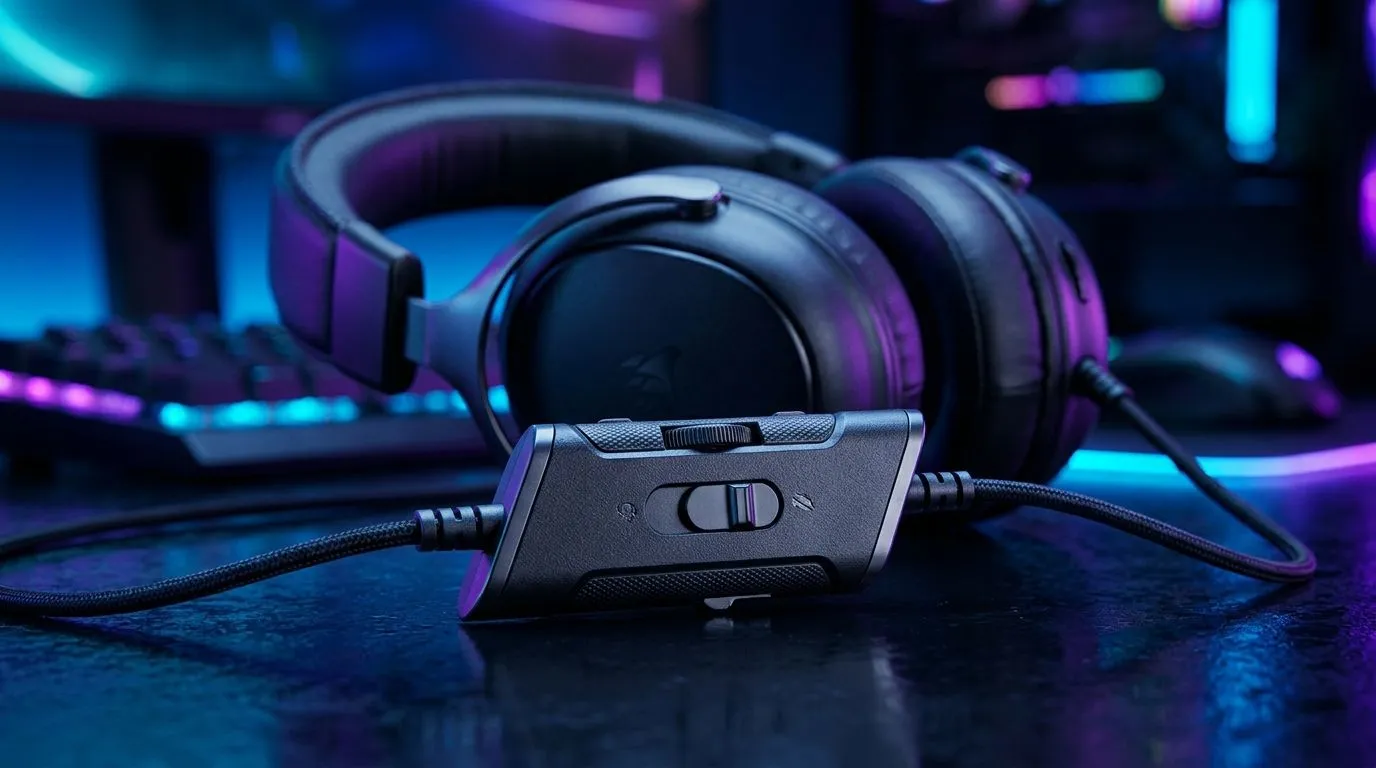
In-Line Volume Control for Wired Gaming Headsets: Beginner Guide
If your wired headset sounds great… then suddenly gets too quiet, you’re not alone. South African gamers often plug in at the desk, the couch, and sometimes inbetween. One hand on the controller, the other hunting for the right volume… it’s annoying. In-line volume control solves this. It lets you adjust audio without digging through Windows sliders or PS5 menus. And yes, it’s beginner-friendly. 🔧
But what is it, where do you find it, and how do you avoid distortion or weak mic audio? Let’s sort it out.
In-Line Volume Control for Wired Gaming Headsets: What it actually does
In-line volume control is a small knob or wheel on the headset cable. It sits between the earcups and the audio plug. Turning it changes the audio output level going to your headphones, while the rest of your setup stays the same.
Here’s the practical part:
- Turning it down reduces loudness instantly.
- Turning it up increases loudness instantly.
- The control usually affects both ears, and it does not “fix” poor input settings.
If you rely on it daily, you’ll notice something quickly… it can prevent those sudden loud moments during ranked matches.
Inline knob vs PC/console volume
Your device volume still matters. In-line control is like a “local” volume. Your system volume is the “global” volume. For best results:
- Keep device volume moderate
- Use the inline knob for quick adjustments
That helps reduce the chance you’re overdriving the signal.
In-Line Volume Control for Wired Gaming Headsets: Setup tips for clean sound
Getting a solid starting point takes two minutes.
- Set your console/PC volume to about 60–70%.
- Turn the inline knob to mid-range.
- Start a game with consistent audio (menu music or training).
- Adjust the inline knob until voices and footsteps are clear.
If you hear distortion (crackling or harsh highs), the inline knob is likely too high for your system. Back it off slightly. 🔊
Micro-story: the “quiet lobby” problem
One common scenario in SA households is the headset being shared between devices. Someone turns the inline knob low for calls, then later joins you for a raid. Suddenly the whole lobby feels muffled. The fix? A quick reset: set device volume first, then bring the inline knob back up to match your normal.
Quick Cable Check ⚡
On your first setup, confirm the inline knob is on the headset cable (between headset and plug). If you only see volume controls on the headset earcup, that’s a different system and may not behave the same way.
In-Line Volume Control for Wired Gaming Headsets: Common mistakes to avoid
Mistake 1: Using only system volume
If you adjust only in Windows (or on console), your in-game mixing can feel inconsistent. Inline control gives you fast “real-time” control.
Mistake 2: Ignoring the connection type
Many wired headsets use separate audio and mic plugs. If you’re using an adaptor, the wrong one can reduce mic quality or affect audio levels. If you’re unsure, confirm your headset’s compatibility before you buy.
Mistake 3: Assuming the inline knob controls the microphone
Most inline controls focus on headphone audio, not mic gain. For mic level, you’ll still use your OS or console settings.
If you want a straightforward wired-to-good-experience route, it helps to browse reputable headset options in one place. For example, check out the Razer Barracuda X Chroma (wireless) if you’re comparing “real-time comfort” styles versus inline convenience: Razer Barracuda X Chroma Wireless Headset (Phantom White) best deal.
Or if you’re choosing your next headset and want a wide selection, start here:
In-Line Volume Control for Wired Gaming Headsets: When to upgrade
If your inline knob feels scratchy, stops responding, or the audio cuts at certain cable angles, that’s a sign of wear. In that case, upgrading the headset (or replacing the cable, if available) is usually the most reliable fix. ✨
Also remember… a good inline control still can’t replace basic mixing. Footsteps and callouts are about your game settings and device balance too.
Ready to Find Your Perfect Match? If you’re upgrading for comfort and control, Evetech makes it easy to shop smarter in South Africa. Browse our headset range and pair your setup with the right gear for competitive audio. Explore our massive range of laptop specials and find the perfect machine to conquer your world.











