

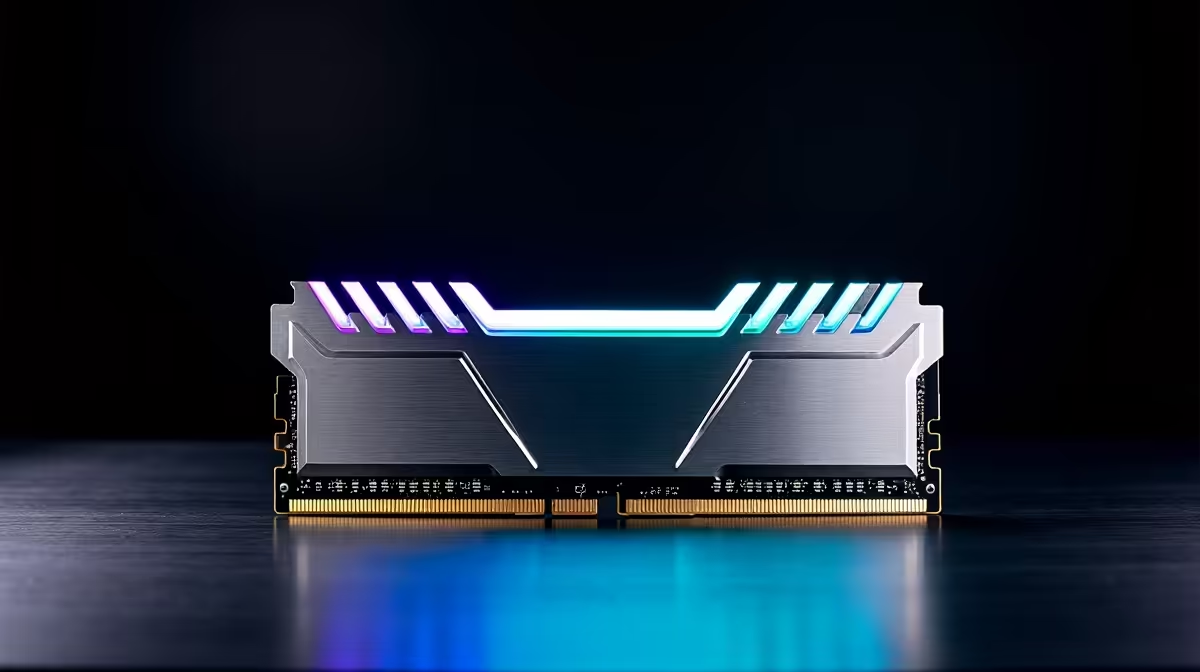
Diagnosing RAM Issues in Gaming: Could Memory Be the Culprit?
Game crashes mid-session on your rig? That frustrating freeze or sudden exit could be your RAM acting up. South African gamers often overlook memory as a cause, yet faulty or insufficient RAM is a top reason for unstable gameplay. Before blaming the graphics card or software, it’s smart to check if your memory sticks are holding their ground. ⚡ This quick guide helps you figure out if your RAM is behind those crashes and how to fix it effectively.
How RAM Affects Game Stability and Performance
RAM temporarily stores game data for rapid access. If it falters, your PC struggles to keep up, leading to crashes or stutters. Low RAM capacity can choke heavy titles, but even sufficient RAM can misbehave due to errors or incompatibilities.🧩 Testing your RAM is easier than you think and avoids costly guesswork. In South Africa, many gamers upgrade RAM to meet demanding titles, enhancing fluidity and load times. Explore top memory options available locally for smooth gaming sessions.
Signs Your RAM Might Be Causing Game Crashes
- Frequent game crashes or blue screens without clear reason
- Random freezes during gameplay or sudden shutdowns
- System fails to boot or shows memory error codes
- Performance dips despite a strong CPU and GPU
If your rig checks these boxes, it’s wise to start diagnosing your RAM next.
How to Diagnose Memory Issues on Your PC 🔧
Step 1: Run MemTest86 or Windows Memory Diagnostic
Windows has a built-in tool to scan RAM for errors. To launch Windows Memory Diagnostic:
- Press Windows + R, type
mdsched.exe, and hit Enter. - Choose to restart and check for problems.
- The PC will reboot and test your RAM automatically.
MemTest86 offers a more thorough scan from a bootable USB, ideal if you want deeper diagnostics. Any errors reported usually confirm a faulty memory module.
Step 2: Check Your RAM Configuration
Make sure your RAM sticks are properly seated and compatible with your motherboard. South African gamers upgrading PCs should verify if speeds and dual-channel setups match for best results. Incorrect configurations can cause instability even with good RAM modules.
Step 3: Temporarily Reduce RAM Usage
Close unnecessary background apps before gaming to free up memory. For heavy titles and multitasking, consider increasing total RAM capacity—a common fix for frequent RAM-related crashes. Browse current gaming PC deals that already come equipped with optimal memory setups.
What If You Need a RAM Upgrade?
Upgrading RAM can be a straightforward path to smoother play. South Africans seeking hassle-free solutions might consider pre-built rigs with reliable memory sizes, like those on offer at this pre-built PC deals page. For laptop users, plenty of great options with expandable or ample RAM exist too, check them out here: notebooks for sale.
Memory Upgrade Hack
If crashes persist after testing, swap out one RAM stick at a time to isolate the faulty module. This approach avoids buying unnecessary replacements.
For budget-conscious gamers, keep an eye on Evetech specials which frequently include discounts on memory sticks and bundles.
Wrap-up: Stability Starts with Strong RAM
Game crashes linked to RAM aren’t just bad luck—they’re usually fixable with the right tools and upgrades. Try diagnosing memory faults systematically to save time and money. A stable rig delivers uninterrupted battles and immersive worlds, essential for every South African gamer chasing peak performance.
Upgrade Your Gaming Experience Don’t let faulty memory ruin your sessions. Shop now at Evetech for reliable RAM and gear that powers up your gameplay.











