

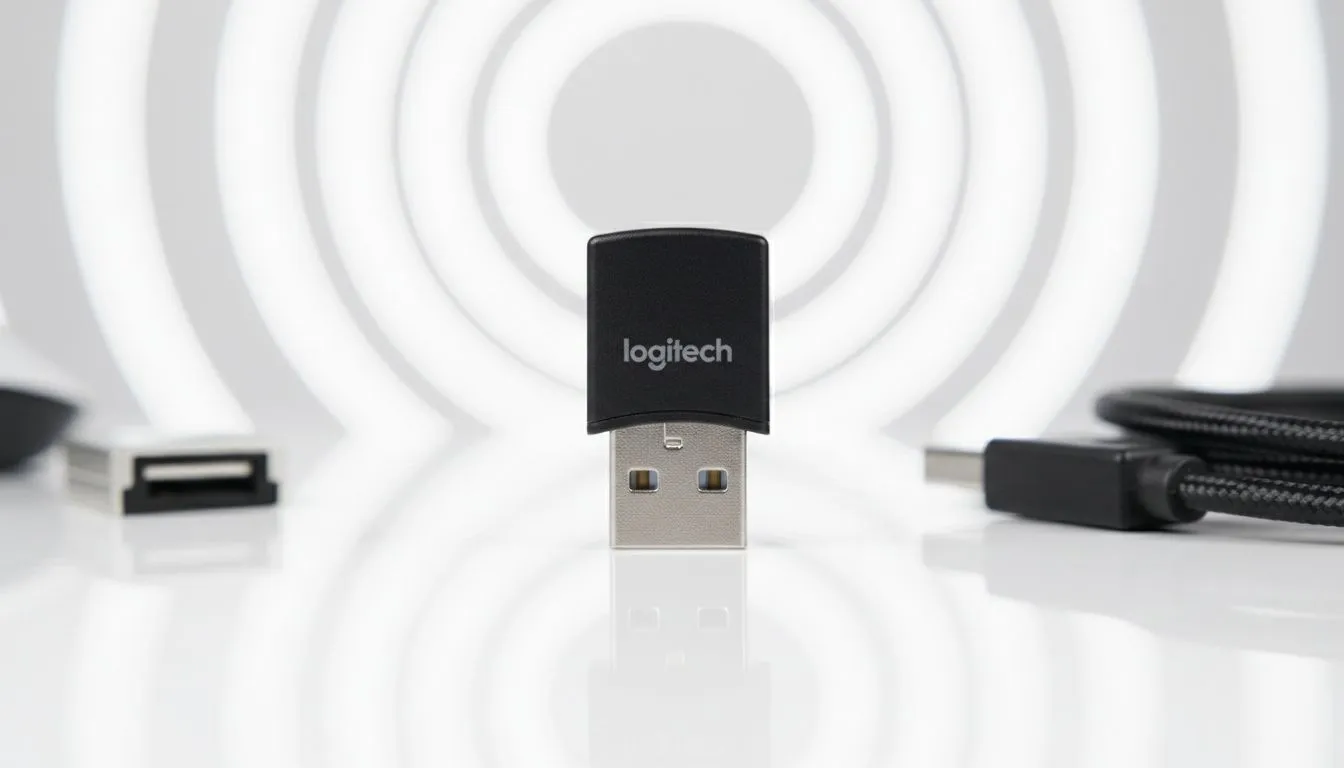
There is nothing more frustrating than sitting down for a session of Warzone or finishing a project only to find your mouse or keyboard unresponsive. If your Logitech USB receiver is not working, don't panic. Whether it is a driver glitch or a port issue, most fixes take less than five minutes. Let's get your gear back online so you can get back to the action. ⚡
Initial Checks for your Logitech USB Receiver
Before diving into complex software fixes, start with the basics. Ensure the dongle is plugged directly into your PC rather than a USB hub. Sometimes, hubs do not provide enough power for a stable connection. If you are using one of the latest wireless keyboards, verify that the battery is charged. A low battery often mimics a faulty receiver.
Try switching the dongle to a different port. Windows sometimes "hangs" on a specific USB entry... moving it to a USB 2.0 port instead of 3.0 can often resolve detection issues. If you have been hunting for the best gaming keyboard deals in South Africa, you likely know that high-performance peripherals require a clean, uninterrupted signal to function at their peak.
Software Fixes for Windows Dongle Issues
If the hardware seems fine, the problem likely lies within your drivers. Open the Device Manager and look under "Human Interface Devices" or "Mice and other pointing devices." If you see a yellow exclamation mark, your driver is corrupted. Right-click and select "Uninstall device," then unplug and replug the receiver. Windows will automatically attempt to reinstall the correct driver for you.
For those who prefer a more stable, "plug and play" experience without worrying about signal drops, many local pros still opt for wired keyboards. However, if you are committed to the wire-free life, ensure you have the Logitech G HUB or the Logitech Unifying Software installed. These tools can force a re-pairing between your device and the receiver. ✨
Connection Pro Tip ⚡
If your receiver is plugged into a USB 3.0 port, it might experience radio frequency interference that affects 2.4GHz wireless devices. Use a short USB extension cable to move the dongle away from the computer chassis. This simple trick often fixes stuttering or "dead" receivers instantly without costing a cent.
Resolving Signal Interference
Wireless interference is a common culprit in South African households with multiple devices on the same frequency. Routers, microwaves, and even cordless phones can disrupt the 2.4GHz band. If your Logitech USB receiver is not working consistently, try to clear the line of sight between the dongle and your mouse or keyboard.
If your current setup is simply too old to maintain a reliable link, it might be time to browse the cheapest gaming keyboard in South Africa to find a modern replacement. Modern receivers are much better at hopping frequencies to avoid congestion.
When Hardware Replacement is Necessary 🔧
Sometimes, the internal circuitry of a tiny USB dongle simply fails due to heat or physical wear. If you have tried different ports, updated every driver, and the device still refuses to show up in the Logitech software, the receiver might be dead.
Replacing a single dongle can be tricky depending on the model. In many cases, especially for budget-friendly setups, it is more cost-effective to pick up a new keyboard mouse combo. This ensures total compatibility and gives your desk a fresh, clean look with the latest tech. 🚀
Ready to Upgrade Your Setup? Don't let a faulty dongle slow down your climb up the ranks. Whether you need a reliable wireless replacement or a rock-solid wired deck, we have the best tech at the best prices. Explore our massive range of keyboard specials and find the perfect gear to dominate your next match.











