

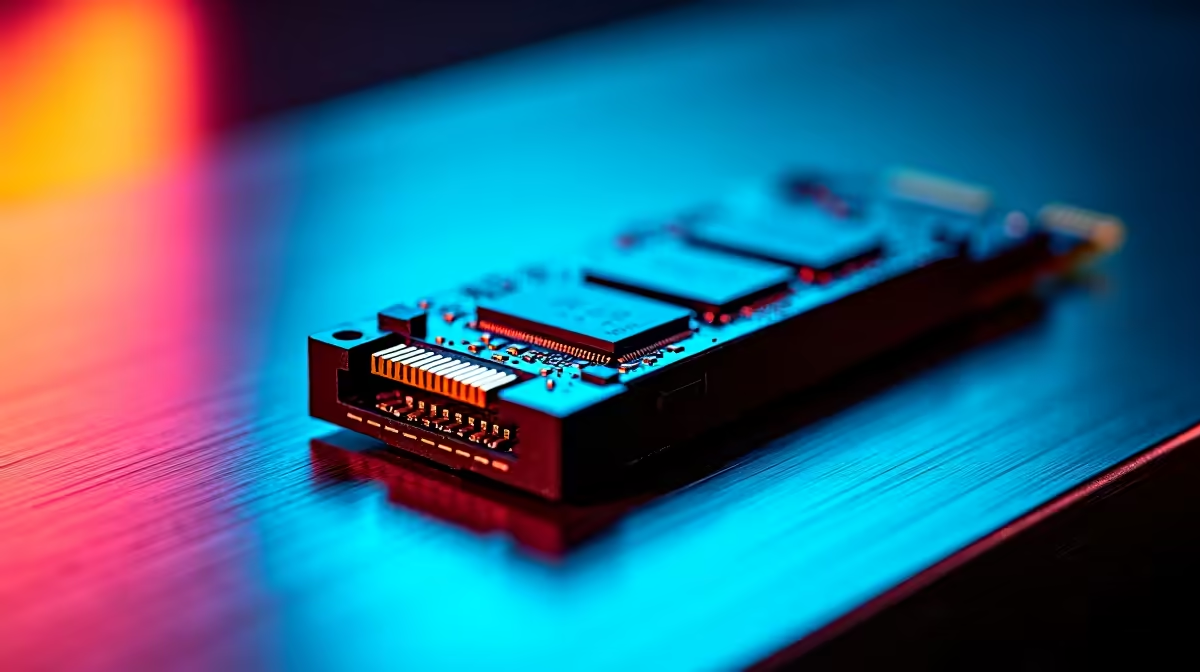
You just dropped a cool R1500 on a lightning-fast NVMe SSD. You snap it into your motherboard, boot up your rig, and... nothing. The drive is completely invisible. Finding your M.2 slot not working is incredibly frustrating for any South African gamer. Before you panic, let us explore the most common fixes.
Initial Hardware Checks When Your M.2 Slot is Not Working 🔧
First, check the physical connection. A surprising number of detection issues happen because the drive is not seated properly. Remove the tiny screw, pull the drive out, and slot it back in at a 30-degree angle. Push it down gently and secure it.
Next, consult your motherboard manual about PCIe lane sharing. Sometimes using specific SATA ports automatically disables certain M.2 slots. Similarly, if you recently bought a new graphics card, your system might be reallocating PCIe lanes away from your storage.
If you are upgrading storage on laptops, physical space is tight. Ensure no ribbon cables are obstructing the connection pins.
Updating and Tweaking BIOS Settings ⚡
If the physical installation is perfect, the issue usually hides in your BIOS. Restart your PC and mash the Delete or F2 key.
Once inside, look for the advanced storage configuration menu. If your M.2 slot is not working, you might need to manually switch the slot configuration. Change it from SATA mode to PCIe or NVMe mode.
Another common culprit is your boot mode. Older operating systems rely on CSM (Compatibility Support Module). Modern NVMe drives require UEFI mode to function correctly.
BIOS Troubleshooting Pro Tip ✨
Always ensure your motherboard BIOS is updated to the latest version. Manufacturers frequently release patches to optimise NVMe compatibility and fix hardware detection bugs on newer drives.
Wait... does your BIOS see the drive, but Windows ignores it? Press the Windows key, type 'Disk Management', and hit Enter. If your drive shows up as unallocated black space, simply right-click it and select 'New Simple Volume'. Your M.2 slot not working might just be an unformatted drive.
When to Call It Quits and Upgrade 🚀
Sometimes a dead slot is just a dead slot. Motherboards age, and hardware fails. If you have tested the drive in another machine and it works perfectly, your motherboard is likely the problem.
If you are tired of endless troubleshooting, it might be time to look at pre-built PC deals. Grabbing a fully tested system eliminates these headaches entirely. Alternatively, browse our current specials for massive savings on replacement motherboards.
Building a PC should be fun. If your current rig is giving you grief, upgrading to one of our best gaming PC deals ensures you get plug-and-play performance right out of the box.
Ready for a Hassle-Free Upgrade? Do not let hardware gremlins ruin your gaming time. Whether you need a replacement motherboard or a completely new setup, Evetech has the best prices in South Africa. Explore our massive range of PC specials and get back in the game today.











