Quick Answer
Dead USB ports on a motherboard are usually caused by power delivery faults, driver corruption, or BIOS misconfiguration rather than permanent hardware failure. Most cases can be resolved without replacing the board.
Finding that your motherboard''s USB ports have stopped responding is frustrating, especially mid-session. Before assuming the worst, it''s worth working through a structured troubleshooting process - the majority of dead USB ports on modern motherboards are software or configuration issues that can be fixed in under an hour.
Check the Basics First
Start by ruling out the simplest causes. Test the port with multiple devices and cables - a faulty cable or a device drawing too much power can cause a port to shut off via the motherboard''s over-current protection. Try a different USB device, preferably one that draws minimal power like a keyboard or mouse. Also check whether the issue affects all USB ports or only specific ones (front-panel vs rear I/O), as this points toward different root causes.
BIOS Settings and USB Configuration
A BIOS update or reset can silently disable USB controllers. Boot into your BIOS (typically Delete or F2 on startup) and look for USB configuration settings. Ensure the relevant USB controllers are enabled - some boards separate USB 2.0 and USB 3.x controllers independently. If you recently flashed your BIOS, load optimised defaults, save, and reboot to see if ports come back. Also check that XHCI Hand-off is enabled, as disabling it can cause ports to appear dead under Windows.
Driver and OS-Level Fixes
In Windows, open Device Manager and expand Universal Serial Bus Controllers. Look for any entries with a yellow warning icon. Right-click and select Update Driver, or uninstall the device and reboot to force Windows to reinstall the driver. Also try: going to Power Management on each USB Root Hub, and unchecking ''Allow the computer to turn off this device to save power'' - aggressive power saving is a common culprit for intermittent USB port death on gaming rigs.
When It''s a Hardware Problem
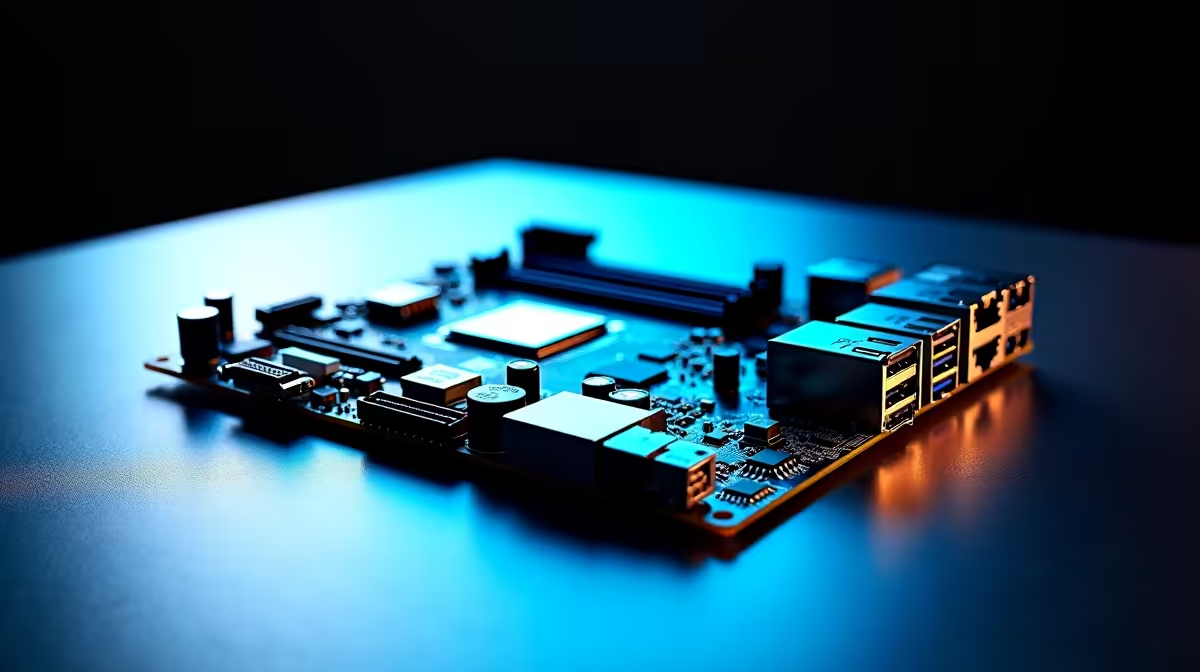
If individual rear ports are dead but front-panel ports work (or vice versa), suspect the USB header connection on the motherboard. Check that the front-panel USB header cable is seated properly. For rear I/O ports that are permanently dead, the port itself may have suffered physical damage or an ESD event. If multiple rear ports are dead and BIOS doesn''t detect any USB activity, the USB controller on the motherboard may have failed - at this point, replacement or a PCIe USB expansion card is the practical solution.
Frequently Asked Questions
Q: Can a power surge permanently kill USB ports? A: Yes - voltage spikes can damage the USB controller IC on the motherboard. A PCIe USB expansion card is a cost-effective workaround if only one or two ports are affected and the rest of the board functions normally.
Q: Why do my USB ports work in BIOS but not in Windows? A: This is almost always a driver issue. Boot into Safe Mode with Networking, uninstall all USB Root Hub entries from Device Manager, and reboot normally to force a clean driver reinstall.
Q: Will resetting BIOS to defaults fix dead USB ports? A: It often does when the issue is a misconfigured USB controller setting introduced by a failed BIOS update. Load optimised defaults, not factory defaults, to preserve your memory XMP/EXPO profile.