Quick Answer
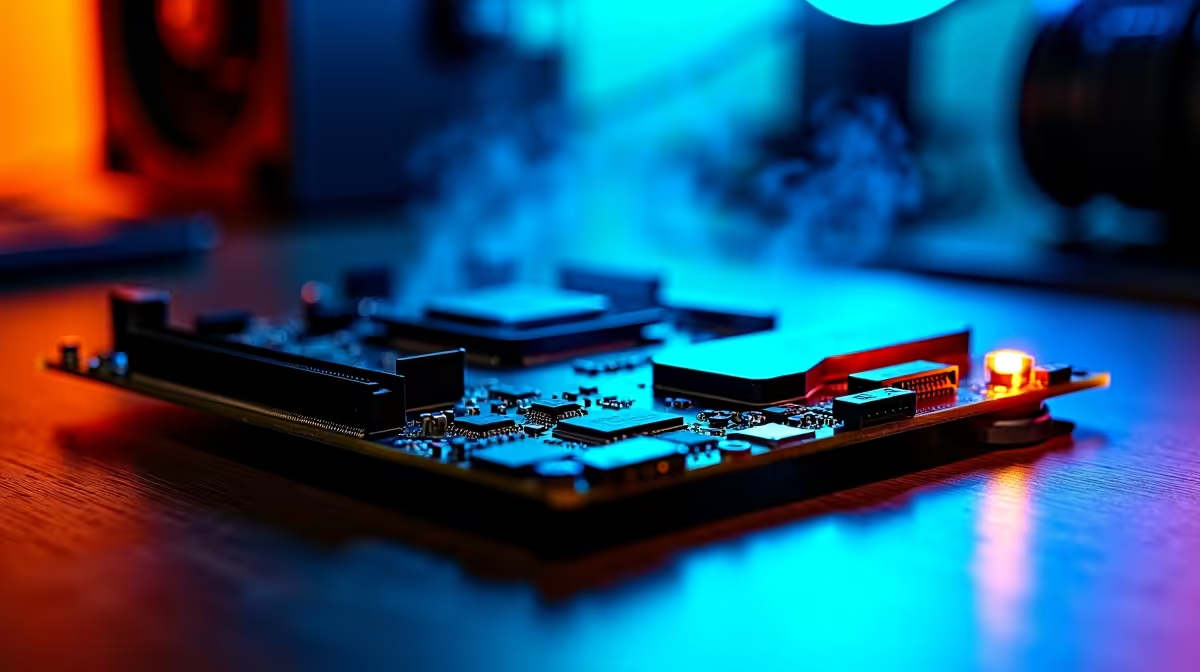
A motherboard that won't boot can be traced to a handful of common causes: a failed POST, a misseated component, a corrupted BIOS, or a power delivery fault. Working through a structured checklist gets most systems back up without replacing any hardware.
Start With the Basics: Power and Connections
Before assuming the motherboard is dead, confirm the basics. Check that the 24-pin ATX connector and the 4-pin or 8-pin CPU power connector are fully seated. A partially inserted CPU power connector is one of the most common causes of a no-boot situation. Verify the power supply switch on the back of the PSU is set to ON and that the wall outlet has power.
If you have a case power button issue, short the two power pins on the motherboard header directly with a flat-head screwdriver to rule out a faulty case button. Also check that the front panel connectors (PWR_SW, RESET_SW) are connected to the correct header pins as labelled in your motherboard manual.
Isolate Components With a Breadboard Test
Strip the build down to the absolute minimum: motherboard, CPU, one stick of RAM in the first DIMM slot (slot A2 on most boards), and the PSU. Remove the GPU and all storage drives. If the system posts with this minimal setup, add components back one at a time until you find the culprit.
If the board has no display output even in this stripped state, check the CPU socket for bent pins (AMD platforms) or damaged pads (Intel). A single bent pin in the LGA socket can prevent booting entirely. Use a magnifying glass and bright light for this inspection.
BIOS and CMOS Recovery Steps
A corrupted BIOS or incompatible RAM profile can stop a system from booting without any error indication. Clear the CMOS by removing the coin cell battery for 30 seconds, then replacing it, or use the CLR_CMOS jumper on the board if one is present. This resets all BIOS settings to factory defaults.
Many modern motherboards include a BIOS Flashback feature that lets you update the BIOS from a USB drive even with no CPU or RAM installed. If your board supports a newer CPU that requires a BIOS update, this is the fix. Download the correct BIOS file from the manufacturer's site, rename it as instructed, and use the dedicated USB port for the flash.
Frequently Asked Questions
What does it mean when my motherboard has no POST beep and no display?
No beep and no display in a minimal configuration (CPU, one RAM stick, PSU only) usually points to a RAM issue, a bad CPU seating, or a failed CPU. Try reseating the RAM in different slots and check CPU socket for damage.
Can loadshedding damage a motherboard?
Yes. Voltage spikes when power returns after loadshedding can damage the BIOS chip or capacitors on the motherboard. A quality UPS with automatic voltage regulation (AVR) protects against this and is strongly recommended for South African users.
How do I know if my PSU is causing the no-boot issue?
Borrow or purchase a PSU tester to check voltage rails. A PSU that passes tester checks but still fails under full load may need replacement. Alternatively, swap in a known-good PSU to confirm.