

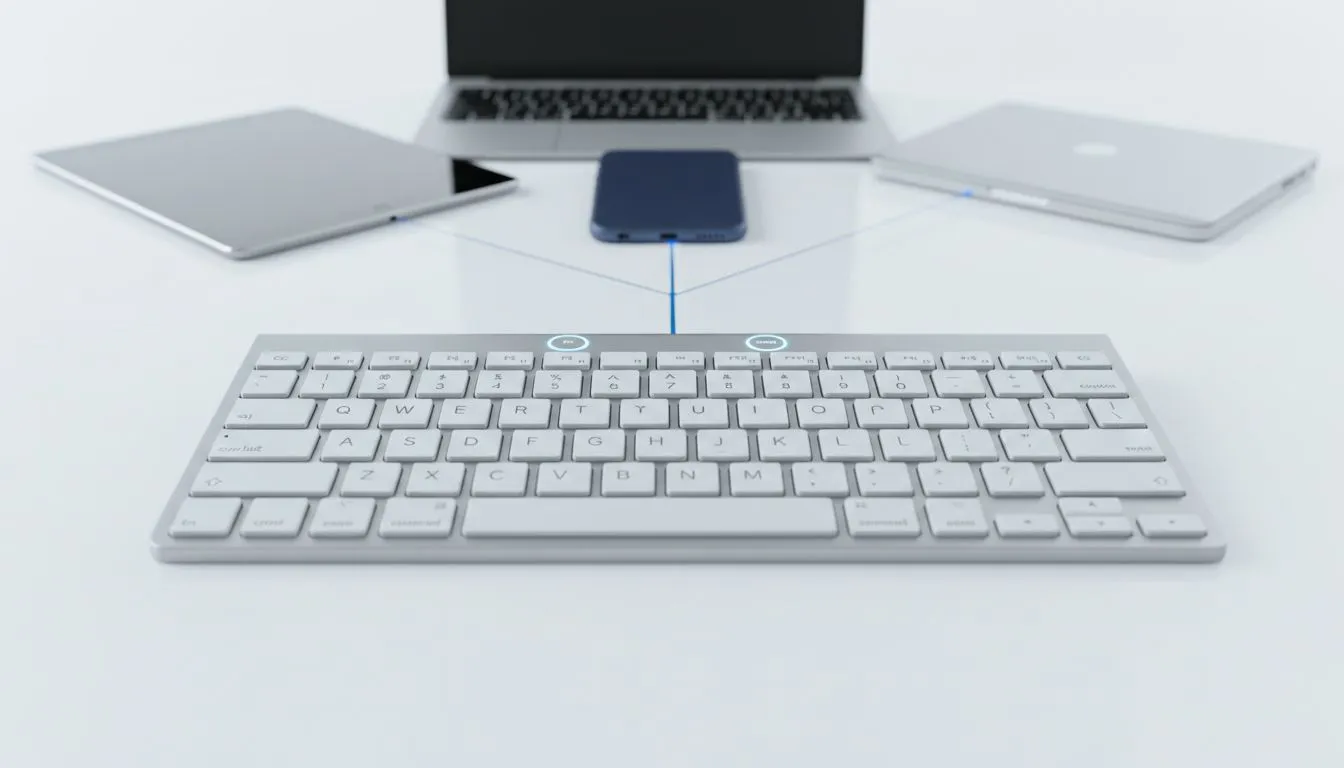
Multi-Device Bluetooth Keyboard Setup for Tablet, Phone & PC
Tired of your desk looking like a cable graveyard? Between your gaming rig, work tablet, and phone, clutter builds up fast. A multi-device Bluetooth keyboard setup for tablet, phone & PC is the smartest way to reclaim your space. Whether you are grinding in an MMO or smashing through emails, switching devices should be seamless. Let’s look at how to master your multi-screen workflow.
Why You Need a Multi-Device Bluetooth Keyboard Setup for Tablet, Phone & PC
The modern South African workspace is rarely just one screen. You might have a high-end PC for gaming, an iPad for creative work, and a smartphone for keeping up with Discord. Managing three different sets of peripherals is a nightmare. By using a single keyboard, you save desk space and mental energy. If you are looking to upgrade your setup without breaking the bank, you can find the best gaming keyboard deals that offer multi-point connectivity.
Most modern wireless keyboards allow you to pair with up to three devices simultaneously. You switch between them using dedicated keys or a dial. This means you can type a research paper on your PC... then instantly switch to your phone to reply to a text... all on the same keys.
Pairing Your Devices for Maximum Efficiency
The setup process is usually straightforward. First, ensure your keyboard is in pairing mode. On your PC, go to Bluetooth settings and add the device. Once connected, toggle to the second channel on your keyboard. Repeat the process for your tablet and then your phone.
Finding the cheapest gaming keyboard in South Africa doesn't mean sacrificing these features. Many budget-friendly options now include basic Bluetooth switching. This functionality is essential for students or professionals who need to move between a laptop and a mobile device quickly.
Productivity Pro Tip ⚡
To make your multi-device setup even faster, memorise the OS-specific shortcuts. Most multi-device keyboards automatically remap the 'Command' or 'Windows' keys depending on which device is active. Switching from a Windows PC to an iPad? Your keyboard should swap the layout instantly to match Apple’s shortcuts.
Choosing the Right Keyboard for Your Workflow
When selecting your gear, consider your primary use case. If you spend hours typing, ergonomics are vital. For those who want a unified look, picking up a keyboard and mouse combo ensures your desk aesthetics stay consistent while providing easy switching across all your hardware.
Some users worry about latency during intense gaming sessions. While some prefer a reliable wired connection for zero latency in competitive shooters, the freedom of modern wireless keyboards is hard to ignore for general productivity. Many high-end models now offer a "best of both worlds" approach... using a 2.4GHz dongle for your PC and Bluetooth for your mobile devices.
Ready to Find Your Perfect Match? Streamlining your workspace starts with the right hardware. Whether you need a mechanical beast for gaming or a slim wireless deck for your tablet, Evetech has you covered. Explore our massive range of keyboard specials and find the perfect machine to conquer your world.











