

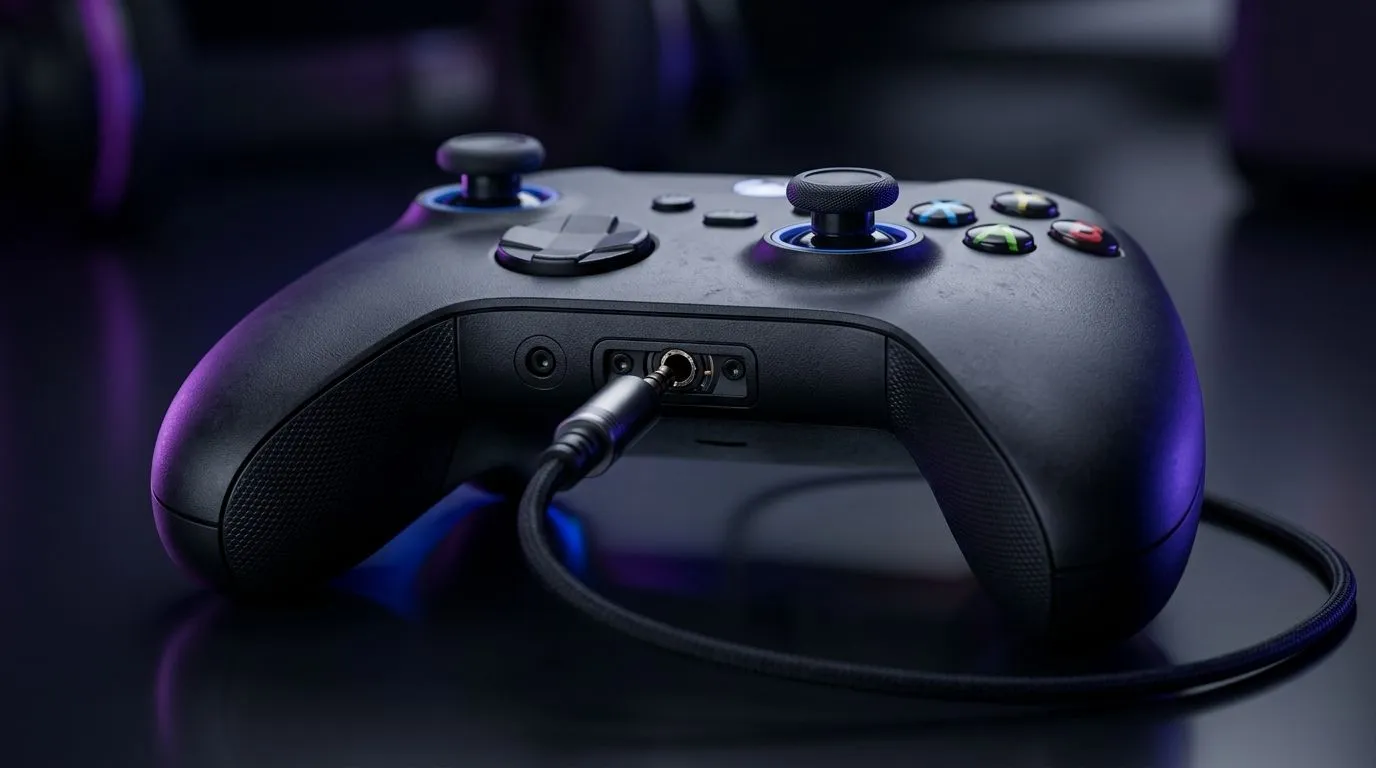
PC Audio Not Routing to Controller 3.5mm Jack? Fix It Fast
Ever plug your controller in, hear nothing, and think… “Did I just waste my evening?” In South Africa, this happens more than you’d expect. One minute your controller is “the headset”, the next minute it’s silent. 🔧 The good news? Usually it’s a simple Windows audio routing issue, not a broken jack.
If your PC Audio Not Routing to Controller 3.5mm Jack? Fix It situation feels familiar, follow these steps in order. You’ll likely get sound back in minutes.
PC Audio Not Routing to Controller 3.5mm Jack? Confirm the hardware path first
Before touching settings, check the basics.
- Try a different 3.5mm cable (or even a different controller) if possible.
- Unplug/replug the controller firmly. Some jacks need a full reseat.
- Test another app that makes noise (like a YouTube video) so you can tell if it’s just the game.
This is also where budget controllers can bite. Some models deliver audio only when they’re selected as the default device in Windows.
PC Audio Not Routing to Controller 3.5mm Jack? Set the correct output device in Windows
Windows can list your controller as an audio device, but not select it automatically.
Quick steps
- Right-click the speaker icon in the taskbar.
- Select Sound settings.
- Under Output, choose your controller jack output (it may show as “Headphones (Controller)” or similar).
If you see multiple entries, pick the one that explicitly mentions the controller/headset.
Productivity Pro Tip ⚡
On Windows, open Settings > System > Sound, then scroll to More sound settings. In the Playback tab, right-click the controller device and choose Set as Default Device. This prevents games from “helpfully” using your speakers again after every restart.
PC Audio Not Routing to Controller 3.5mm Jack? Check the Playback device and levels
Sometimes the controller is selected, but volume is muted or reduced.
What to look for
- In Sound control panel > Playback, ensure the controller device is not Disabled.
- Item
Micro-story from the Evetech desk ✨
We’ve seen cases where the controller was working… but Discord was set to a different output. Result: game audio went to the controller, but chat didn’t. If you use voice comms, set Discord output to the controller too.
PC Audio Not Routing to Controller 3.5mm Jack? Tune game and chat apps
Many games override system audio settings.
- In-game: look for Audio Output Device or Headset Output options.
- In Discord: User Settings > Voice & Video > Output Device.
- In Steam games: check audio options inside the title, not just Windows.
If you want a no-fuss controller recommendation, consider the Razer Wolverine V3 Tournament Edition (8K), which is built for wired performance and consistent game audio. You can browse deal options here: Razer Wolverine V3 Tournament Edition 8K on Evetech. 🚀
PC Audio Not Routing to Controller 3.5mm Jack? When to stop troubleshooting and upgrade
If the controller still doesn’t appear under Playback, it’s likely either a connection issue or the controller’s audio hardware isn’t supported the way you expect on Windows.
At that point, it’s worth shopping with your use-case in mind: wired audio reliability, compatibility, and whether you’ll actually use 3.5mm versus USB.
If you’re replacing or upgrading, start with our guide: buy gaming controllers on Evetech. And if you’re specifically into Razer options, here’s a focused list: Razer gaming controllers on Evetech. 🎧
Ready to Find Your Perfect Match? The Mac vs Windows debate is complex, but for maximum power, choice, and value in South Africa, Windows is hard to beat. Explore our massive range of laptop specials and find the perfect machine to conquer your world.











