

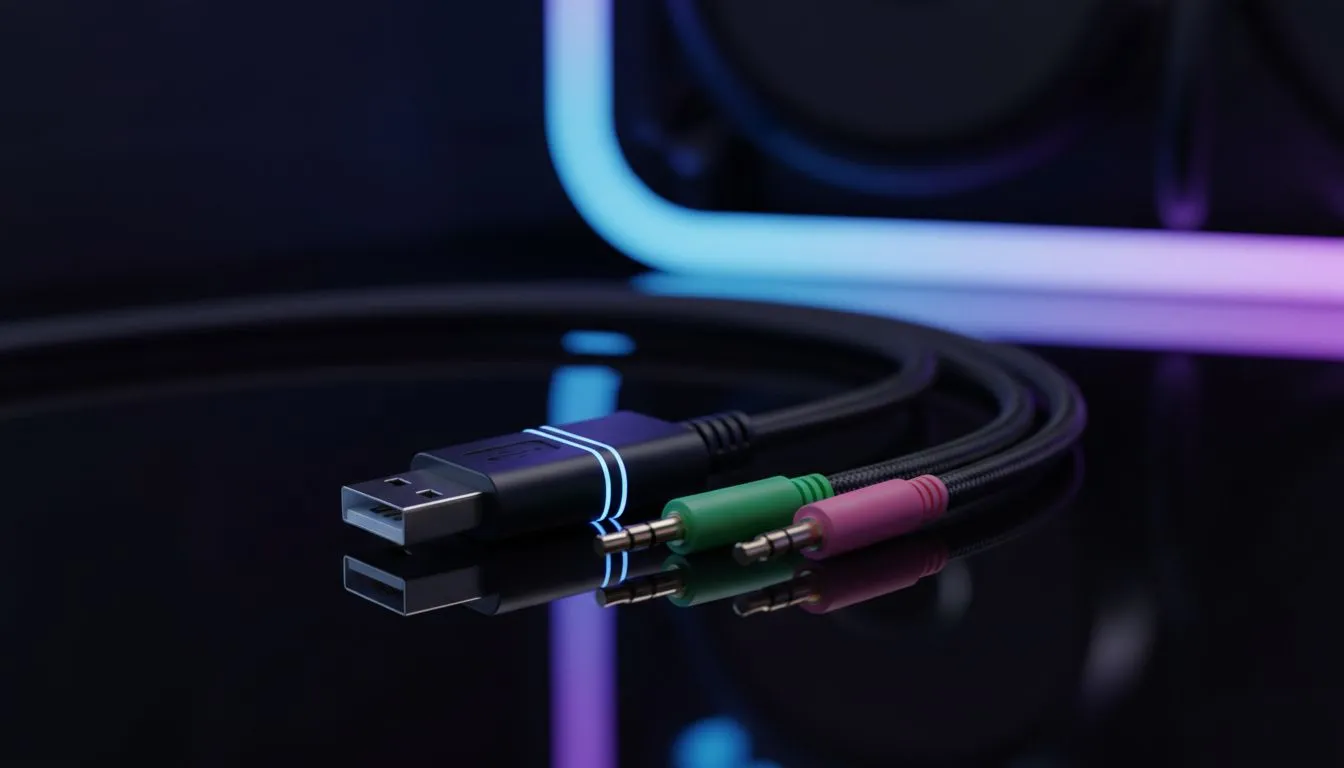
Why Converting PC Headset Split Jacks to USB is a Must
Tired of your dual-jack headset not playing nice with your laptop's single port? We have all been there... trying to plug those pink and green jacks into a modern machine only to find silence. Converting your PC headset split jacks to USB is the easiest way to get back into the lobby without the crackling audio or mic issues that plague cheap adapters. Let's get your comms crystal clear. 🔧
Understanding the Split Jack Struggle
Most classic gaming headsets use two 3.5mm connectors: one for audio output and one for your microphone. However, modern gaming laptops and even many desktop cases have shifted toward a single combo jack or purely digital inputs. If you are sitting with a high-quality analogue headset, you do not need to bin it. By using a USB sound card or adapter, you can bridge the gap between legacy hardware and modern ports.
When looking to upgrade your setup, checking out the latest gaming accessories can help you find the right tools for the job. These adapters essentially act as external sound cards, processing the audio signal outside of your PC's motherboard, which often results in less electronic interference and a cleaner sound profile.
How to Connect Your PC Headset Split Jacks to USB
The process is incredibly straightforward. First, identify your jacks: the green one is for your ears, and the pink one is for your voice. Plug these into the corresponding ports on your USB adapter. Once connected, simply plug the USB end into an open port on your PC. Windows should automatically recognise the device as a "USB Audio Device."
Audio Quality Pro Tip ⚡
If your mic sounds too quiet after connecting, head to your Windows Sound Settings. Under 'Input Device Properties', ensure the levels are set to at least 80%. Sometimes Windows defaults new USB audio devices to a lower volume to protect your hearing, but this can make you sound like you are whispering in Discord.
If you are hunting for a bargain on these peripherals, keep an eye on the gaming accessories deals currently available in South Africa. You can often find high-quality external DACs (Digital-to-Analogue Converters) for under R500 that will significantly boost your audio fidelity.
Why USB is Often Better Than Analogue
Beyond just making things fit, moving your PC headset split jacks to USB offers technical advantages. Analogue ports on the front of a PC case are notorious for picking up "coil whine" or static from the internal components. Because a USB adapter handles the conversion digitally until it reaches the adapter itself, your audio remains crisp and free from that annoying background hiss.
For those who want to browse a wider variety of connection solutions, the Gaming Accessories category at Evetech offers everything from basic splitters to premium external sound cards. 🚀
Ready to Level Up Your Audio? Don't let a simple plug stand between you and your next victory. Whether you need a quick adapter or a full headset upgrade, we have the best gear at the best prices in South Africa. Explore our massive range of gaming accessories and find the perfect match for your battle station.











