PWM Fan Control: How It Works and Why It Keeps Your Build Quiet and Efficient
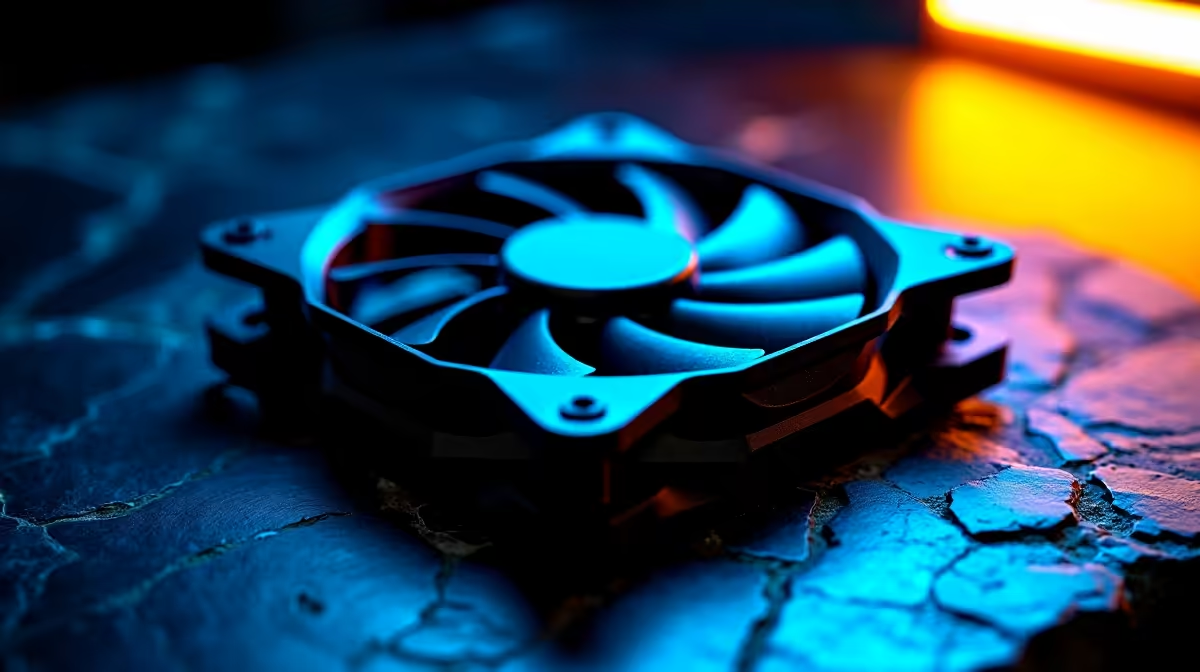
PWM (Pulse Width Modulation) fan control is the standard method for managing case fan speed automatically based on your PC's temperature. Instead of running fans at full blast 24/7, PWM allows your motherboard to ramp fan speed up and down smoothly, cutting noise while maintaining optimal cooling. Understanding PWM transforms your PC from a constant hum into a responsive, efficient machine.
What Is PWM and How Does It Work?
PWM stands for Pulse Width Modulation—a technique that controls power delivery to a fan motor by rapidly switching the power on and off. The "width" of each pulse (how long it stays on versus off) determines the fan's speed.
Imagine flipping a light switch on and off dozens of times per second. If you flip it quickly, the bulb appears dimly lit. If you flip it more slowly, it gets brighter. PWM works the same way:
- 100% duty cycle (power on all the time) = full fan speed
- 50% duty cycle (power on half the time) = half fan speed
- 10% duty cycle (power on briefly) = very slow speed
Your motherboard adjusts the duty cycle continuously based on CPU, GPU, and case temperatures, automatically scaling fan speed to match cooling demand. When your PC is idle or running light tasks, fans spin slowly and quietly. When you're gaming or rendering, PWM spins them faster for maximum cooling.
PWM Fan Headers and Connectors
PWM fans connect to your motherboard using a 4-pin connector:
- Pin 1 (Ground) – Black wire
- Pin 2 (12V Power) – Red wire
- Pin 3 (Sense) – Yellow wire
- Pin 4 (Control) – Green wire
The first two pins provide constant 12V power. The third pin sends a tachometer signal back to your motherboard, confirming the fan is spinning (used for detection and failure alerts). The fourth pin receives the PWM control signal, which your motherboard uses to modulate fan speed.
Most motherboards include multiple PWM headers labeled "CPU_FAN", "SYS_FAN", "CHA_FAN" (chassis fans), or similar. Each can control one 4-pin PWM fan independently, allowing you to manage cooling across different zones.
Setting Up PWM Control in BIOS
Once your PWM fans are physically connected, you configure them in your motherboard's BIOS:
Step 1: Enter BIOS Setup
Restart your PC and press Delete, F2, F12, or another key (varies by motherboard) during startup to enter BIOS.
Step 2: Locate Fan Control Settings
Navigate to the "Monitor", "Hardware Monitor", or "Thermal Management" section. You'll see all connected fans listed by header name.
Step 3: Select a Fan Header
Choose the header your fan is connected to (e.g., "CHA_FAN1") and open its settings menu.
Step 4: Choose Your Control Mode
Most motherboards offer several modes:
- Auto/Automatic: Motherboard adjusts fan speed based on a temperature sensor (usually CPU temperature)
- Manual: You set a fixed fan speed percentage (0–100%)
- Thermal: Fan speed scales based on a specific temperature curve
- Smart: Advanced algorithm that balances noise and cooling
For most users, the "Automatic" mode is ideal. Your motherboard monitors CPU temperature and ramps the fan smoothly from low speed at 30°C to full speed at 70°C or higher.
Step 5: Review the Curve (Optional)
Some motherboards let you view or edit the temperature-to-speed curve. A typical curve:
- 30°C → 20% fan speed
- 40°C → 30% fan speed
- 50°C → 50% fan speed
- 60°C → 70% fan speed
- 70°C+ → 100% fan speed
This ensures gradual, imperceptible speed changes rather than dramatic jumps.
Step 6: Save and Exit
Press F10 or navigate to "Save & Exit" to apply your changes and reboot.
Why PWM Control Matters for Your SA Build
South Africa's ambient temperatures can swing dramatically:
- Winter mornings in Johannesburg: 5–10°C
- Summer afternoons in Cape Town: 30–35°C
- Heat-intensive environments (office, gaming cafe): 35°C+
Without PWM control, you'd need to choose between:
- Running fans constantly at high speed (loud, 24/7)
- Running fans at low speed (quiet, but risks overheating in summer)
PWM solves this by adapting automatically. On a cool winter morning, your fans might run at 15% speed in near-silence. During summer gaming sessions, they scale to 80% automatically—no manual tweaking required.
PWM vs. DC (Non-PWM) Fans
Older or budget fans use DC (Direct Current) speed control, which adjusts voltage rather than pulsing power. DC fans:
- Use a 3-pin connector (ground, 12V, sense only)
- Have simpler wiring but less precise control
- Often stall or fail at very low speeds
- Cannot be controlled by standard PWM headers
PWM fans offer superior speed control, better responsiveness, and more reliable operation across a wider speed range. For modern SA builds, PWM is the standard and preferred choice.
Tuning Your PWM Curve for Optimal Performance
Advanced users can edit the fan curve directly in BIOS to optimise for their specific build:
For Noise-Focused Builds:
Set the curve to keep fans under 40% speed until CPU temps hit 60°C. Prioritise silence for office or everyday computing:
- 30°C → 15% speed
- 50°C → 25% speed
- 65°C → 50% speed
- 75°C+ → 100% speed
For Performance-Focused Builds:
Aggressively ramp fans to keep temperatures low during gaming. Accept more noise for cooler GPUs and CPUs:
- 30°C → 30% speed
- 45°C → 50% speed
- 55°C → 80% speed
- 65°C+ → 100% speed
For Balanced Builds:
Maintain mild cooling with moderate fan speeds. Suitable for most gaming and productivity work:
- 30°C → 20% speed
- 45°C → 35% speed
- 60°C → 65% speed
- 70°C+ → 100% speed
Monitoring PWM Performance
Use software like CPU-Z, HWiNFO, or your motherboard's native monitoring tool to watch PWM in action:
- RPM (Revolutions Per Minute): Confirms fan speed is changing responsively
- Temperature: Track CPU and chassis temps during gaming to ensure your curve is effective
- Fan Control %: Displays the current PWM duty cycle (0–100%)
If fan speed doesn't change as temperature increases, double-check your BIOS settings or test the fan on a different header.
Connecting Multiple Fans With Splitters
If you have more fans than motherboard headers, use a PWM splitter (also called a fan hub). A single PWM splitter can control up to 3–4 fans from one header, with all fans receiving the same PWM signal and speed adjustment.
For advanced setups with multiple independent zones, consider a dedicated fan controller or a motherboard with abundant PWM headers. When shopping for components, check out Evetech's selection of motherboards to find models with plenty of fan headers.
Troubleshooting PWM Issues
Fans Not Responding to Temperature Changes:
Verify the fan is connected to a PWM-capable header (4-pin). Some older boards mix PWM and DC headers. Confirm BIOS settings aren't overridden by a fixed speed mode.
Fans Making Buzzing Noise:
Low PWM duty cycles (below 20%) can sometimes cause audible buzzing. Adjust your curve to maintain at least 25% minimum speed, or enable a "silent mode" that maintains higher baseline speed.
Fan Detected But Not Spinning:
The sense wire may be damaged. Try the fan on a different header to confirm it works. If it still doesn't spin, the motor may be faulty.
PWM control is fundamental to modern PC cooling. Master it, and you'll enjoy a build that whispers during light work and roars only when needed. Explore high-quality cooling components at Evetech to pair with your optimised PWM setup.