

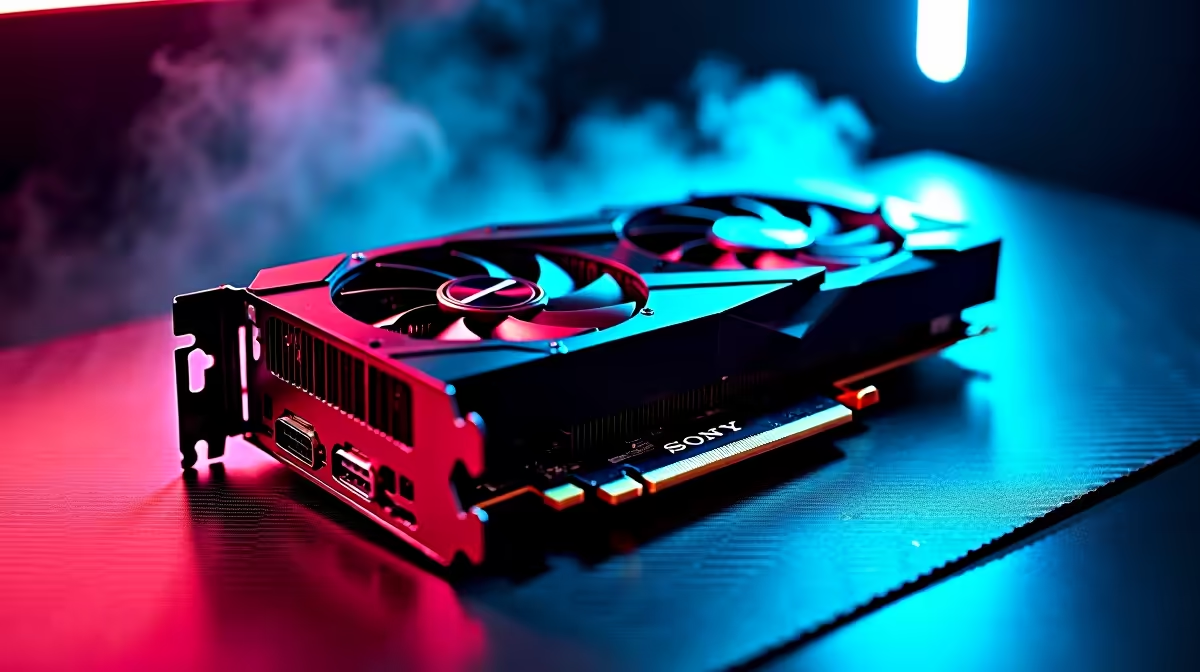
An RTX 4070 Ti Super that isn’t being detected by your PC is a frustrating problem, but it’s almost always fixable without returning the card. In South Africa, the most common causes are PCIe slot seating issues, driver conflicts, and power connector problems - all of which you can diagnose and resolve at home.
Quick Answer
RTX 4070 Ti Super not detected fix: Reseat the GPU firmly in the PCIe x16 slot, ensure both 16-pin (or 8-pin) power connectors are fully clicked in, clear CMOS to reset BIOS settings, and perform a clean NVIDIA driver install using DDU. These four steps resolve the vast majority of GPU detection failures.
🔧 Step-by-Step Troubleshooting Guide
Step 1: Check the physical seating Power off your PC completely and unplug it from the wall. Open the case and firmly press the RTX 4070 Ti Super into the PCIe x16 slot until you hear or feel the retention clip click. Many “not detected” issues are simply the card not being fully seated. Also check that the case’s PCIe bracket screw is securing the card properly.
Step 2: Verify power connections The RTX 4070 Ti Super requires a 16-pin (12VHPWR) connector. If your PSU doesn’t have a native 16-pin connector, you’re likely using an adapter that converts from multiple 8-pin connectors. Ensure ALL adapter cables are fully seated on both the PSU and the adapter side. A partially connected 16-pin connector will cause the card to not POST or to be undetected.
Step 3: Test in a different PCIe slot If your motherboard has a secondary PCIe x16 slot (often x4 electrical), try the GPU there. If it works, your primary PCIe slot may be faulty. Also test with only the GPU installed - remove any other expansion cards temporarily.
Step 4: Clear CMOS / Reset BIOS A corrupted BIOS setting can prevent GPU detection. Locate the CMOS reset jumper on your motherboard (check your motherboard manual) or remove the CMOS battery for 30 seconds. After clearing, boot and let the system load default settings.
Step 5: Update or re-flash BIOS Some older motherboards require a BIOS update to fully support newer GPUs. Check your motherboard manufacturer’s website for the latest BIOS version and update if needed. For AMD Ryzen builds, ensure your board’s BIOS is current for the best GPU compatibility.
Step 6: Clean driver install with DDU If Windows detects the GPU but it’s behaving erratically or showing errors, old driver remnants may be the issue. Download Display Driver Uninstaller (DDU), boot into Safe Mode, run DDU to completely remove all NVIDIA drivers, then install the latest NVIDIA driver fresh from the NVIDIA website.
Step 7: Check Device Manager for errors In Windows, open Device Manager (right-click Start > Device Manager). Under Display Adapters, check if the RTX 4070 Ti Super appears with an error code. Common codes:
- Code 43: Driver or hardware failure - try clean driver reinstall
- Code 12: Resource conflict - try disabling integrated graphics in BIOS
- Code 10: Driver failed to start - reinstall drivers
📊 Common Causes Specific to SA Builds
South African PC builders sometimes encounter these specific issues:
- PSU quality: Budget power supplies may not deliver stable 12V power under load, causing the GPU to drop off the bus. If your PSU is under 750W or is a no-name brand, it may be insufficient for the RTX 4070 Ti Super.
- 16-pin adapter quality: Some bundled 16-pin adapters have been known to cause issues. If you’re using the cable that came with your PSU or GPU box, try a higher-quality replacement if available.
- Integrated graphics conflict: On Intel systems, the motherboard may default to integrated graphics. Enter BIOS and set the primary display output to PCIe/PEG rather than iGPU.
❓ Frequently Asked Questions
Why does my RTX 4070 Ti Super show in BIOS but not in Windows? This usually points to a driver issue rather than a hardware problem. Boot into Safe Mode and perform a clean driver install using DDU. If the GPU shows in BIOS POST screens but disappears in Windows, the hardware is likely fine - the issue is software-side.
Could a faulty PCIe slot cause the RTX 4070 Ti Super not to be detected? Yes. Faulty or damaged PCIe slots do occur, particularly if the slot has been subject to physical stress or ESD damage. Testing the card in a different slot (or testing in another system entirely) is the quickest way to confirm whether the slot is the culprit.
Is the RTX 4070 Ti Super compatible with all Z690/Z790/X670 motherboards? Generally yes - the RTX 4070 Ti Super is compatible with any motherboard that has a PCIe x16 slot. However, very old BIOS versions on some boards may not enumerate the card correctly. Always ensure your BIOS is up to date when installing a new GPU.
Evetech stocks All Graphics Cards and Graphics Card Deals — browse current SA pricing and availability online.
Ready to Find Your Perfect Match? Shop GPUs at Evetech











