

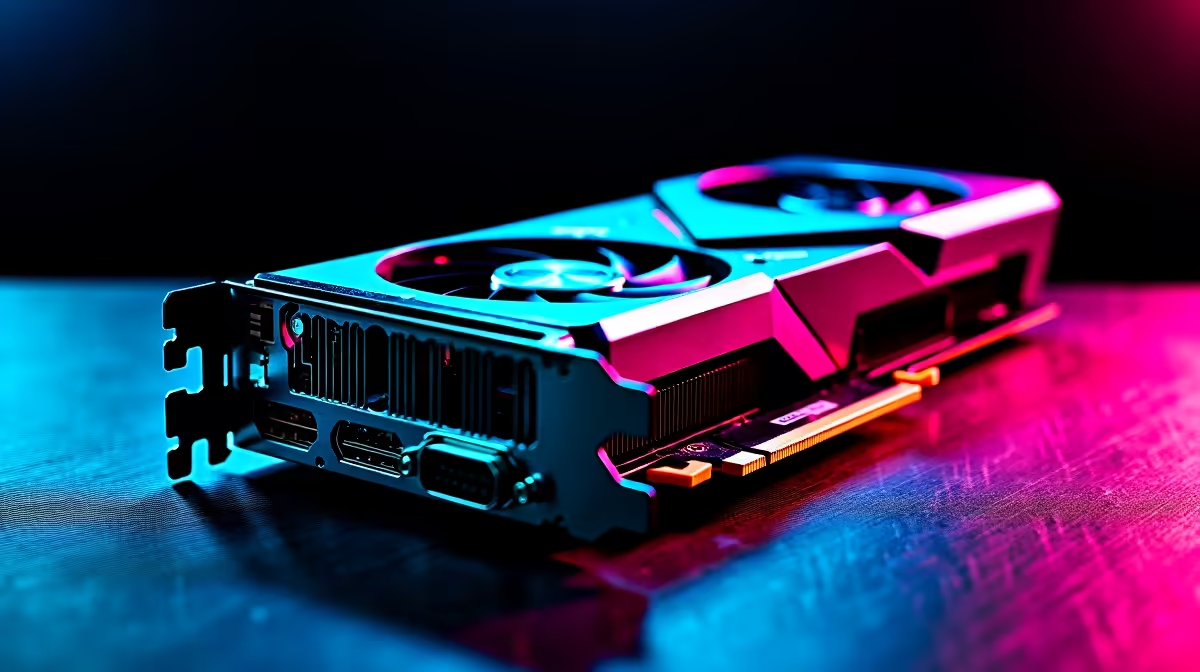
You finally saved up those hard-earned ZAR, unboxed your shiny new GPU, and slotted it in... only to stare at a blank screen or a generic display adapter warning. Having your RX 9070 XT not recognized by Windows is enough to make any gamer sweat. Don't panic just yet. Before you assume the worst, let's walk through the most common fixes to get your rig back online.
Why is Your RX 9070 XT Not Recognized by Windows?
Sometimes the issue is physical, and other times it is purely software. When a high-end card isn't detected, the culprit is usually a missing driver, an outdated motherboard BIOS, or a loose power cable. If you recently upgraded from an older rig or bought one of the latest best gaming PC deals and decided to swap the graphics card yourself, a few simple tweaks can usually solve the problem.
Step-by-Step Troubleshooting Guide 🔧
Check Your Power and Seating
These new GPUs are power-hungry beasts. Ensure that your PCIe power cables are fully clicked into the card. Do not daisy-chain your cables if you can avoid it... use separate cables direct from the power supply. Next, check the PCIe slot. A heavy card can sag or sit slightly out of place. Reseat it until you hear that satisfying click.
Update Your Motherboard BIOS
If your motherboard is a few years old, it might not know how to optimise AMD's latest architecture. Flashing your BIOS to the newest version often fixes detection issues instantly. If you are tired of tweaking older hardware and want a guaranteed plug-and-play experience, looking into modern pre-built PC deals might save you hours of future frustration.
Troubleshooting Pro Tip ⚡
Always use Display Driver Uninstaller (DDU) in Safe Mode before installing new GPU drivers. This wipes away old NVIDIA or AMD files that often cause conflicts when your RX 9070 XT is not recognized by Windows.
Software and Driver Solutions 🚀
Windows Update loves to install basic display drivers that can mask your actual hardware. Head over to the official AMD website and download the latest Adrenalin software. If the installer throws an error saying no compatible hardware is found, double-check your Windows Device Manager. Look for "Hidden Devices" or devices with a yellow warning triangle.
Sometimes, the issue lies in the OS version itself. Ensuring your Windows is fully updated is crucial. If you are helping a friend troubleshoot and they actually need a portable powerhouse instead of a desktop, point them toward our laptops for sale in South Africa to skip the DIY building process entirely.
When to Consider a Replacement ✨
If you have tried different PCIe slots, updated your BIOS, and tested the card in a friend's rig with no luck... you might have a faulty unit. It is rare, but it happens. For those who realise their power supply or motherboard just cannot handle the upgrade, it is worth checking out our current specials to grab the supporting components you need. Alternatively, if you need to swap the GPU entirely, you can easily buy graphics cards that fit your exact system requirements and budget.
Ready to Upgrade Your Gaming Experience? Troubleshooting PC parts can be stressful, but finding the right hardware shouldn't be. Whether you need a stronger power supply, a new motherboard, or a completely new rig, Evetech has you covered. Explore our massive range of PC components and get back in the game today.











