

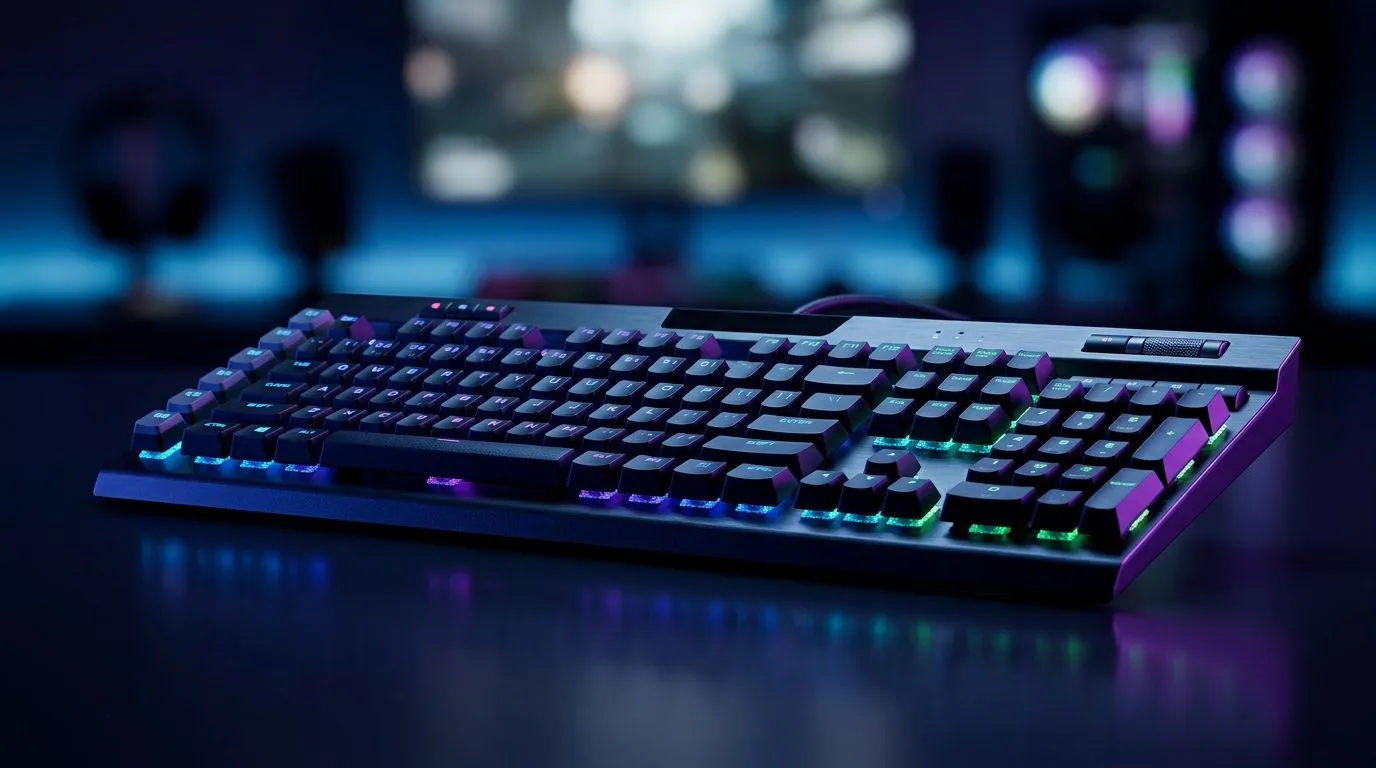
Save On-Board Profiles for Macros and Lighting on Mac: Make Your Setup Feel Instant ⚡
You’ve got one keyboard, two or three games, and a lighting setup that took ages to perfect… then you switch to Mac and it all resets. Annoying, hey? The good news is you can usually save on-board profiles for macros and lighting on Mac so your keybinds and RGB stay consistent, even when you’re not using the Windows software. Let’s set it up the right way so your next raid starts fast.
Save On-Board Profiles for Macros and Lighting on Mac: What “On-Board” Really Means 🔧
“On-board” means the keyboard stores profiles in its own memory. Instead of relying on the PC app to run macros or lighting effects, the keyboard can keep those settings internally. So when you plug into a Mac, the board loads the last saved profile automatically.
Why this matters for South African gamers:
- You move between machines, consoles, or laptops at LANs.
- You want stable lighting for streaming or capture cards.
- You don’t want to “re-program” every session.
Save On-Board Profiles for Macros and Lighting on Mac: The Setup Workflow That Usually Works 🚀
Even though you’ll be using Mac, the safest path is to do the initial save on a Windows PC (or a machine that supports the keyboard’s configuration software).
Step-by-step
- Install the keyboard software (the official utility for your model).
- Item
- Look for a setting like “Save to device”, “On-board memory”, or “Store profiles”.
- Save, then unplug the keyboard.
- Item
What to test first
- A macro that does a simple sequence (for example, “1 then 2”).
- A lighting effect with a clear indicator (like “breathing” on a single zone).
Productivity Pro Tip ⚡
Windows, save multiple profiles to different on-board slots, then label them in your mind (e.g., Profile 1: FPS, Profile 2: MMO). When you switch to Mac, you can quickly swap without reopening software, which is perfect when you’re editing clips or preparing to stream from a different machine.
Save On-Board Profiles for Macros and Lighting on Mac: Choose Keyboards That Make This Easy ✨
Not every keyboard supports on-board macro storage. Before you buy, check that the model advertises on-board memory or profile saving. That’s the difference between “it works on Windows” and “it keeps working on Mac”.
If you’re currently shopping, you can start with proven entry points and then verify the on-board profile feature on the product listing.
Good places to find a deal (and build around on-board profiles)
For keyboards that pair well with gaming mice (and often include software and profile controls you can save to-device), browse:
- Best gaming keyboard deals
- Cheapest gaming keyboard in South Africa (general)
- Keyboard & mouse combo options
If you want wired for low-latency and predictable behaviour:
Or if you prefer desk-cleaning wireless setups:
Save On-Board Profiles for Macros and Lighting on Mac: Common Pitfalls (And Fixes) ✅
Here’s what usually trips people up:
- Forgetting to “save to device”: If you only edit inside the app, Mac won’t know what you changed.
- Profile slot mix-ups: Some keyboards let you save 3 to 5 profiles. Make sure you’re activating the right one.
- Mac app expectations: Many macro functions require the keyboard’s onboard memory to work. If the keyboard needs a Windows driver at runtime, macros won’t carry over reliably.
- Lighting mode changes on connect: Some boards start in default lighting if you saved only one profile. Confirm lighting after unplugging.
If you want, tell me your keyboard model and whether it’s wired or wireless, and I’ll help you map the exact on-board steps.
Ready to Find Your Perfect Match? The Mac vs Windows debate is complex, but for maximum power, choice, and value in South Africa, Windows is hard to beat. Explore our massive range of laptop specials and find the perfect machine to conquer your world.











