

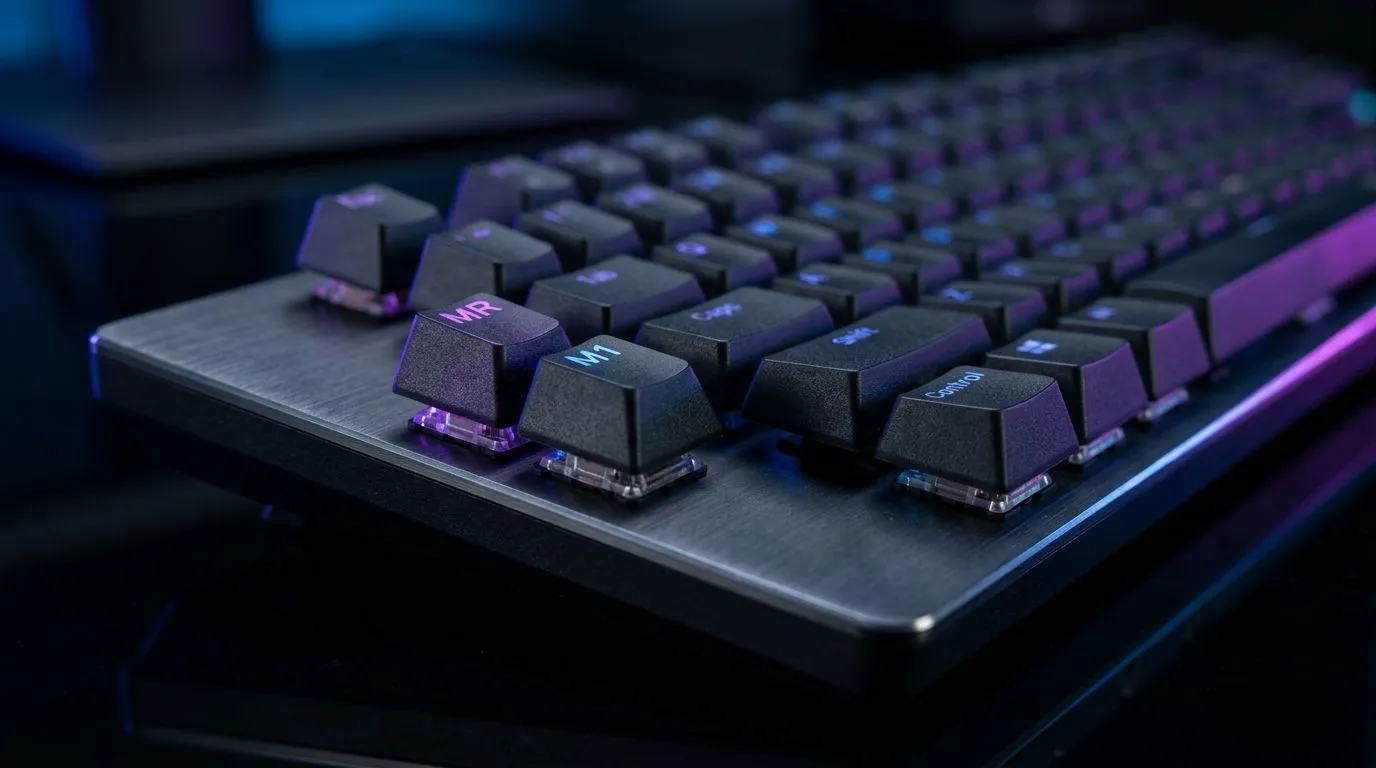
Single MR ML Macro Keys: No Extra Software Setup That Feels Effortless
Ever tried to set macros for CS2 or Valorant… then your mouse software refuses to cooperate? Or you just want plug-and-play on payday week? Good news: some modern mice and key setups let you use “single MR ML macro keys” without installing extra utilities. That means fewer steps, less clutter, and faster changes between workloads and games 🔧
In this Quick Bytes guide, we’ll break down how MR/ML-style macro keys work in practice, what to look for, and how to get reliable results on Windows without going down the rabbit hole.
Single MR ML Macro Keys: What They Mean (In Plain Gamer Terms)
“Single MR ML macro keys” usually refers to having dedicated macro functionality on specific buttons (often mapped as right/left or “middle/right”-style actions depending on the model). The big benefit is simple: the mouse can store or use those macro bindings with minimal extra setup.
Instead of installing a full suite of tools, you’re aiming for:
- Quick mapping directly in supported modes
- On-board macro storage (so your settings follow you)
- Reliable behaviour during long gaming sessions ⚡
If you’re the type who takes your gear to friends’ houses, LANs, or tournaments, “no extra software” is a real advantage. Less tweaking also means fewer settings that can break after Windows updates.
Single MR ML Macro Keys: Setup Steps That Don’t Waste Your Weekend
Let’s make this practical. Here’s a no-drama workflow you can use with most macro-capable gaming controllers and peripherals.
Windows baseline: get stable first
Before mapping macros, confirm two things:
- Your mouse/keyboard firmware is up to date (check the product page or manufacturer support).
- You’re using stable in-game settings (DPI, polling rate, and sensitivity).
If the device supports hardware profiles, you can bind macros once, then switch profiles on the fly.
Keep macros short and specific
A macro that presses 12 keys in a row might work… until it doesn’t. Prefer macros like:
- “One-button reload cancel” style timing
- “Melee tap then follow-up” combo
- Consistent comms wheel shortcuts (if your game supports it)
Your goal is consistency, not maximum chaos.
Productivity Pro Tip 🔧
On Windows, bind your macro key to a single keyboard shortcut (one action) first, then test in Notepad. Once it types the right thing every time, only then map that shortcut inside your game. This avoids diagnosing double-input issues later.
Single MR ML Macro Keys: Pair It With the Right Controller (Don’t Fight Your Gear)
Sometimes the best “no extra software setup” experience comes from choosing a controller that already fits your style. If you want a clean start, browse Evetech’s options first and pick a model that matches how you play.
If you’re shopping for a controller setup, start with Evetech’s controller buying guides:
- Gaming controllers and what to look for on Evetech
- Prefer Razer? Here’s the Razer-focused selection page
And if you’re building around a mouse that’s tuned for tournament-style consistency, you may want to check out:
Look for wording like “on-board profiles” or “no driver required” when available. That’s the difference between gaming tonight and spending your night Googling fixes 🚀
Single MR ML Macro Keys: Quick Testing Checklist for Reliable Results
Before you lock it in, test like a pro:
- Test in a text field: does the macro trigger once per press?
- Check for repeat-fire or “stuck key” behaviour.
- Verify timing in-game with a controlled scenario (range, training mode, or a private match).
- If you must swap computers, test on the second PC before the big session.
Small effort now saves rage later. ✨
Ready to Find Your Perfect Match? If you want gear that’s built for fast setup and smooth performance in South African gaming reality, start here. Browse our curated range of gaming accessories and peripherals, and get the right controller or mouse for your style. Explore our massive range of laptop specials and find the perfect machine to power your next grind.











