

You just dropped your hard-earned ZAR on a blazing-fast storage upgrade. You slot it in, boot up your rig, and... nothing. Staring at a screen where your SSD is not appearing in BIOS is enough to make any South African gamer sweat. Don't panic just yet. Before you assume you bought a dud, let us walk through some simple troubleshooting steps to get your storage recognised.
Checking Your Physical Connections 🔧
The most common reason for an SSD not appearing in BIOS is a loose connection. If you are using a traditional 2.5-inch SATA drive, double-check both the SATA data cable and the power cable. Ensure they are firmly clicked into place on both the drive and the motherboard.
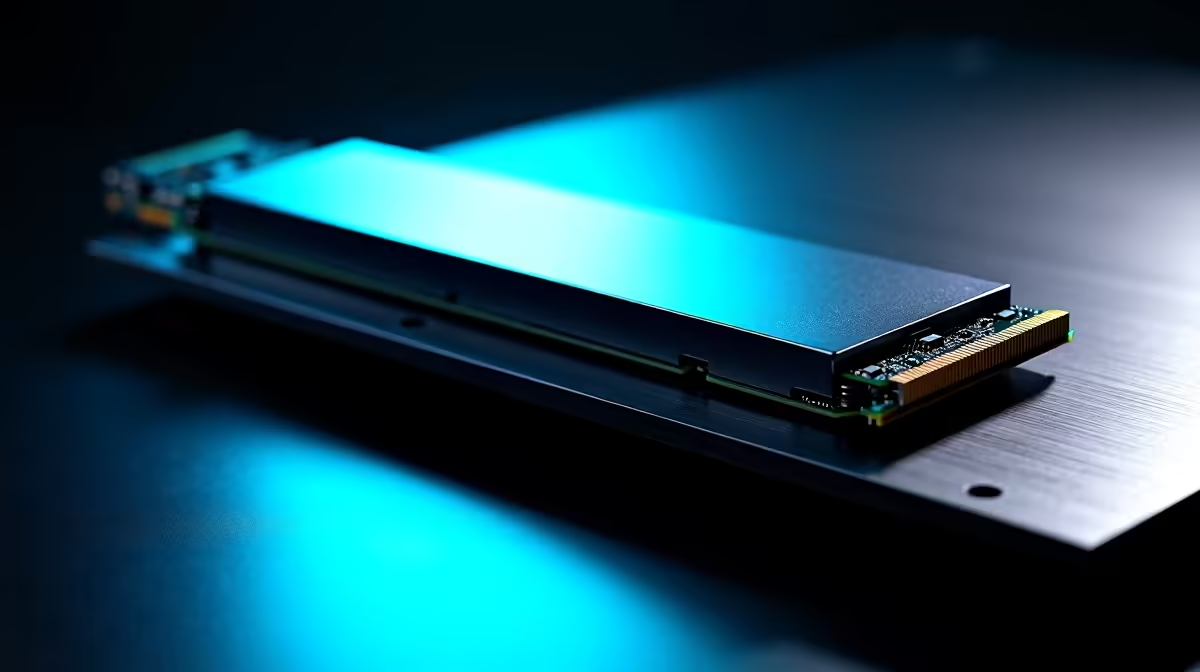
For those installing NVMe M.2 solid state drives, the issue is usually seating. The drive needs to be inserted at a slight angle and pushed in until the gold pins are barely visible. If it sits perfectly flat before you screw it down, it is probably not seated correctly.
Tweak Your Motherboard Settings ✨
Sometimes your hardware is perfectly fine, but your motherboard settings are hiding your new storage. Older motherboards might need a BIOS update to recognise newer NVMe technology. Always check your motherboard manufacturer's website for the latest firmware updates.
Another common culprit is the CSM (Compatibility Support Module) setting. If you are trying to boot from a new NVMe drive, you usually need to disable CSM and ensure UEFI mode is enabled. We configure this standard on all our best gaming PC deals, but DIY builders often miss this crucial step.
Motherboard Manual Pro Tip ⚡
Many motherboards share PCIe lanes between M.2 slots and standard SATA ports. If you plug an NVMe drive into slot one, SATA ports five and six might disable automatically. Always check your motherboard manual to ensure you are not plugging your drives into disabled ports.
BIOS vs Windows Disk Management
It is important to clarify where your drive is actually missing. If your SSD is not appearing in BIOS, you are dealing with a hardware or low-level firmware issue. However, if it shows up in your BIOS but not in Windows, you simply need to format it. You can easily fix this by opening the Windows Disk Management tool, right-clicking the unallocated space, and creating a new simple volume.
Ruling Out Faulty Hardware 🚀
If you have checked your connections and tweaked your settings, you might be dealing with a hardware fault. The best way to test this is by installing the drive into another system. If you have access to other pre-built PCs, slot the drive in there to see if it registers.
This troubleshooting process applies to portable machines too. If you are upgrading one of your modern laptops, ensure the M.2 slot actually supports NVMe. Some older notebook slots only support SATA M.2 drives. This will prevent a newer NVMe SSD from showing up entirely.
If the drive fails to show up in a second system, it might unfortunately be dead on arrival. It happens to the best of us. If it does show up, your motherboard M.2 slot might be faulty. Either way, knowing exactly where the problem lies saves you hours of frustration. If you do need a replacement, keeping an eye on our weekly specials is a smart way to stretch your budget.
Ready for a Hassle-Free Upgrade? Troubleshooting hardware can be stressful, but upgrading your storage shouldn't be. Whether you need a massive Gen4 NVMe drive or a reliable SATA SSD to store your growing game library, we have you covered. Explore our massive range of SSD deals and get back into the game faster than ever.











