

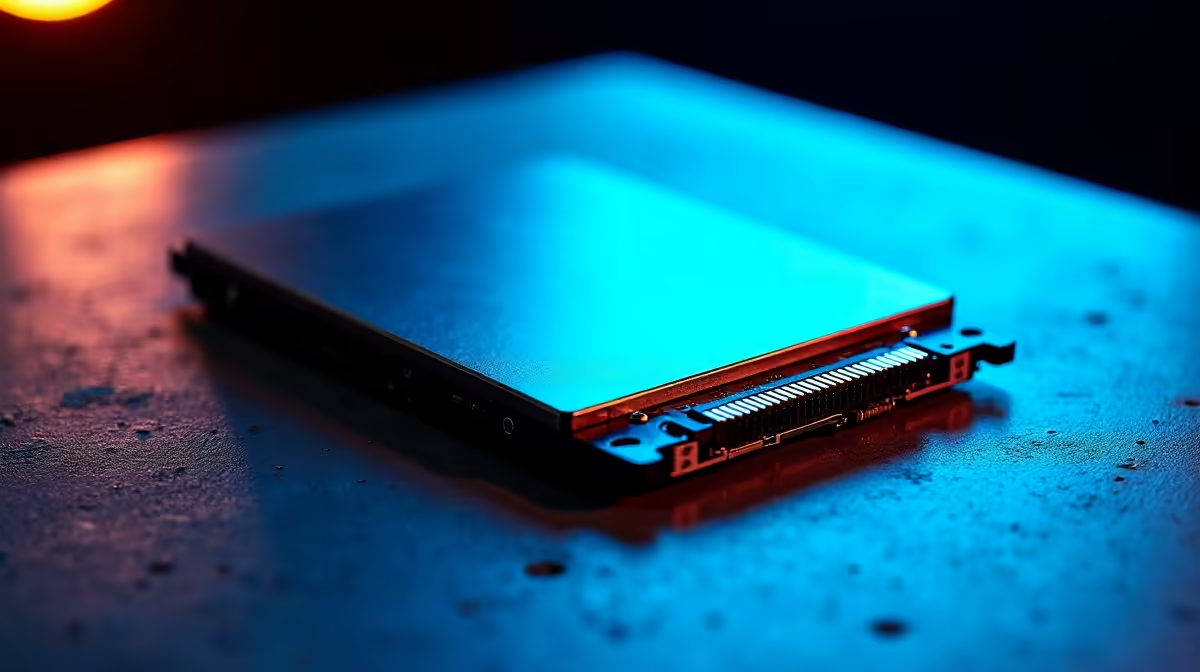
SSD Not Detected? Let’s Fix It Fast ⚡
If your PC suddenly refuses to recognise your SSD, frustration sets in quick. South African gamers and tech buyers know the value of speedy storage for smooth gameplay and quick load times. An SSD not detected can halt your plans cold, but don’t stress — this troubleshooting guide covers common causes and fixes to get your rig firing on all cylinders again. Ready to dive in? 🔧
Why Your SSD Might Not Be Showing Up
The SSD not detected message usually means the system isn’t communicating properly with the drive. This can happen due to hardware, firmware, or software issues. Common triggers include loose cables, outdated BIOS, or a drive needing initialisation. Some gamers miss the step of formatting a new SSD, which Windows sometimes won’t auto-detect until that’s done.
To tackle this, start by checking physical connections. Whether you’re running a SATA or NVMe SSD, a loose or faulty cable or slot can cause detection problems. Confirm that your drive’s firmly seated and the SATA data and power cables are properly attached.
For a more detailed look at different SSD types or if you’re thinking of upgrading, Evetech offers a wide selection of solid-state drives perfect for enhancing your rig today.
BIOS & Software Checks for SSD Detection
If your SSD looks good physically but still doesn’t show up, the BIOS is your next stop. Power on your PC and enter the BIOS setup (usually by pressing DEL or F2). Check if the SSD appears under storage devices.
If it’s missing, update your motherboard BIOS using the manufacturer’s instructions. An outdated BIOS often struggles with recognising newer NVMe drives. Don’t skip this step — it can unlock compatibility issues instantly.
Back in Windows, open Disk Management to check if the SSD appears as unallocated space. This indicates the drive is detected but needs initialisation or partition formatting. Right-click the drive and choose “Initialise Disk,” then create a new partition formatted to NTFS.
If you’re hunting for a new gaming rig ready to run with top-tier SSDs pre-installed, check out the best gaming PC deals south Africa has on Evetech.
Quick Fix for SSD Detection
Power down before unplugging or connecting SSDs to avoid hardware headaches and data loss. If you can, try a different SATA port or M.2 slot to rule out motherboard issues.
Drivers, Firmware & Beyond: Keep Your SSD in Check 🔄
Drivers and firmware updates are often overlooked but crucial for seamless SSD performance. Head to your SSD manufacturer’s site to download the latest firmware updates. Updated drivers ensure that Windows communicates efficiently with your device.
A failed or corrupted driver can cause the SSD to vanish. Use Device Manager to uninstall SSD-related drivers and reboot your PC to trigger a reinstallation.
If hassle-free mobility is your goal, don’t forget to explore Evetech’s range of notebooks and laptops featuring robust SSD options — ideal for gaming on the go or heavy workstation tasks.
Should You Consider Pre-Built or Custom Gaming PCs?
Sometimes SSD detection issues stem from DIY installation errors. If building gets overwhelming, pre-built PCs offer peace of mind with hardware tested for compatibility. Evetech’s pre-built PC deals come assembled and stress-tested, featuring top-tier SSDs to eliminate detection drama.
Keep a keen eye on Evetech’s specials page too — you'll find excellent deals on storage upgrades and complete rigs priced perfectly for South African budgets.
Get Your SSD Running Smoothly Today Don’t let an SSD not detected error slow your game or workflow down. Shop now at Evetech for quality drives and support that keep you ahead.











