


FPS Drops Troubleshooting for DDR5 build
DDR5 build FPS drops needs a methodical troubleshooting pass. Review drivers, thermals, power settings, background apps, cables and game settings before replacing parts in an SA gaming setup.
Read moreStarfield Crashing Due to Motherboard: Fix. Diagnosis steps, proven fixes & when to seek professional help. SA-specific support info included.
Starfield is one of the most demanding open-world RPGs to hit PC, and South African gamers have reported a frustrating pattern: the game crashes not because of the GPU or RAM, but because of motherboard-level instability. If you're seeing random shutdowns, blue screens, or instant exits to desktop, your motherboard configuration may be the culprit.
Starfield crashes linked to the motherboard are usually caused by unstable CPU overclocking profiles (XMP/EXPO), outdated BIOS firmware, or PCIe bandwidth conflicts. Disabling XMP, updating your BIOS, and ensuring your GPU is seated in the primary PCIe x16 slot resolves the issue in most cases.
The most common motherboard-related cause of Starfield crashes is an aggressive XMP or EXPO memory profile. These profiles push your RAM beyond its default speed and can introduce instability under sustained load - exactly the kind of load Starfield generates. Enter your BIOS (press DEL or F2 on boot), navigate to the memory settings, and temporarily disable XMP/EXPO. Boot into Windows and run Starfield for 30 minutes. If the crashes stop, your XMP profile is the issue. You can try re-enabling it at a lower frequency, or leave it off if stability matters more than maximum memory speed.
Motherboard manufacturers regularly release BIOS updates that improve CPU compatibility, memory training, and PCIe stability - all of which affect Starfield's performance. An outdated BIOS can cause the game to crash when it stresses the CPU-to-chipset communication pathways. Visit your motherboard manufacturer's website, download the latest BIOS for your specific board revision, and follow the update process carefully. Many modern boards support USB BIOS flashback, which lets you update without a CPU installed. After updating, reset your settings to defaults and reconfigure from scratch rather than loading a saved profile.
Starfield pushes GPU power draw hard during asset streaming between star systems. If your GPU is seated in a secondary PCIe slot (x4 or x8 electrical), you may hit bandwidth limits that cause the game to crash. Confirm your GPU is in the primary PCIe x16 slot - usually the topmost full-length slot on the motherboard. Also check that your gaming PC has a PSU with stable 12V rails; a weak or aging power supply can cause the motherboard to lose stability under peak GPU load. Re-seating the GPU and checking all power connectors is worth doing before deeper diagnostics.
Q: Can a faulty motherboard cause only Starfield to crash and not other games? A: Yes. Starfield's open-world streaming engine is uniquely aggressive in how it uses PCIe bandwidth and memory bandwidth simultaneously. Other games may not hit the same thresholds that expose motherboard instability.
Q: Will reinstalling Starfield fix a motherboard-related crash? A: No. If the root cause is hardware instability - unstable XMP, outdated BIOS, or PCIe issues - a reinstall will not help. Fix the hardware configuration first.
Q: How do I know if my BIOS is outdated?
A: Check your current BIOS version in Windows by running msinfo32 and comparing the BIOS Version/Date to the latest version listed on your motherboard manufacturer's support page.
Evetech stocks All Motherboards and Graphics Card Deals — shop online with fast delivery across South Africa.
Ready to Find Your Perfect Match? Browse gaming PCs built for demanding titles like Starfield at Evetech.
Starfield Crashing Due to Motherboard: F available at Evetech.co.za with local warranty and fast delivery.
Starfield Crashing Due to Motherboard: F - check Evetech for latest stock and SA pricing.
Depends on your use case. Starfield Crashing Due to Moth offers good value at current Rand pricing.
DDR5 build FPS drops needs a methodical troubleshooting pass. Review drivers, thermals, power settings, background apps, cables and game settings before replacing parts in an SA gaming setup.
Read more
Fps drops on ddr5 build in south africa usually needs a settings, driver, thermal, or power check first. Work through safe SA troubleshooting steps before replacing parts or assuming a full upgrade.
Read more
X870E motherboard frame pacing issues needs a step-by-step check before replacing parts. Review drivers, settings, thermals, power, background apps, display limits, cables, and game options before changing hardware.
Read more
4K monitors cost more as sharp panels raise the bar. See why 4k monitors still expensive for gamers in cape town before choosing screen specs, GPU targets, and value trade-offs.
Read more
4K monitors still feel expensive for Gqeberha gamers because panel quality, higher refresh rates, and GPU demands raise total setup cost. Compare 1440p, screen size, ports, and refresh rate before paying more for 4K.
Read more
ARGB cases explain mid-tier SA build appeal with visible style, airflow room, and cable control. For SA buyers, the smarter choice is a case where lighting, fan layout, and GPU clearance work together instead of just looking bright.
Read more
The Epomaker RT75 is a tri-mode 75% keyboard with a removable TFT screen. Local screen-equipped compact boards started at R1,199 in our snapshot.
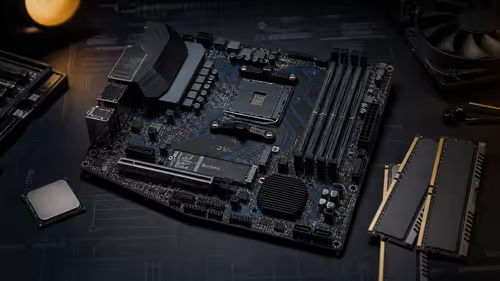
Gigabyte has launched two B450M D3HP boards for Ryzen 3000 to 5000 CPUs. The exact models had no confirmed Evetech listing on 15 August.

Attackers are exploiting a patched Mac screen-sharing flaw to gain root access. Update macOS and remove public port 5900 exposure immediately.

An auto-clamping phone holder offers seamless, one-handed convenience for your vehicle. Discover how it compares to manual cradle mounts to see which keeps your device secure during your daily drive. 🚗📱

A 10,000-hour test found similar image retention across older and newer OLED TVs, while newer panels were brighter and more efficient. Local OLED monitors started at R9,999.

Canonical expects Ubuntu on WSL users to outnumber native Ubuntu desktop users before the end of 2026. The software is open source and runs inside supported Windows PCs.

Telkom's daily bundles pair WhatsApp access with 10 all-network voice minutes. The R15 option includes 300MB, while the R17 option uses a fair-use threshold.
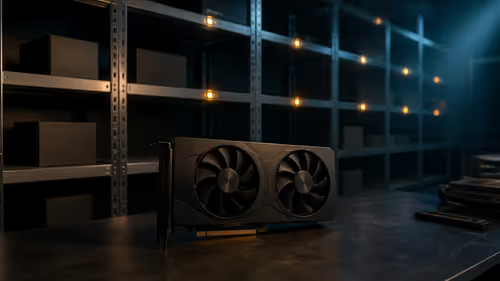
PC Partner expects entry-level graphics-card shortages to worsen in the second half of 2026. Current Evetech GPU listings started at R4,399 in our snapshot.

YouTube will count public views from the first frame across video formats from 24 August, while earnings and eligibility remain tied to engaged viewing.
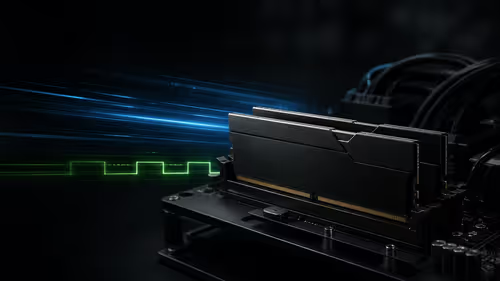
CXMT memory has been demonstrated at DDR5-9000 and DDR5-6000 CL28, but the results depend on tuned hardware and do not represent a broad retail specification.
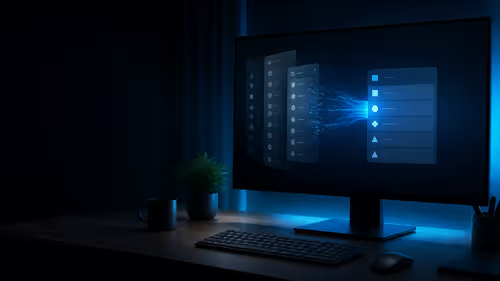
Microsoft is testing a simpler File Explorer context menu with controls for built-in commands, app extensions, icon labels and the position of Properties.
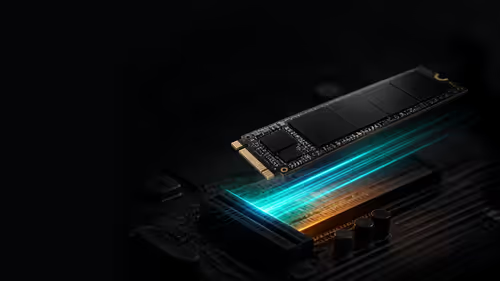
Lexar's THOR ULTRA is a DRAMless PCIe 5.0 SSD rated up to 11,000MB/s reads and 10,000MB/s writes, with capacities from 512GB to 4TB.