

Master the Art of Multi-Device Connectivity
Tired of the cable spaghetti on your desk? Switching between your gaming rig, work laptop, and tablet shouldn't be a mission. Modern tech allows you to jump between screens with a single tap. If you want to switch Bluetooth keyboard devices like a pro, this guide covers the essentials for local setups. Whether you are grinding in Apex Legends or finishing a report, multi-device connectivity is the ultimate workflow upgrade. ⚡
How to Switch Bluetooth Keyboard Devices Seamlessly
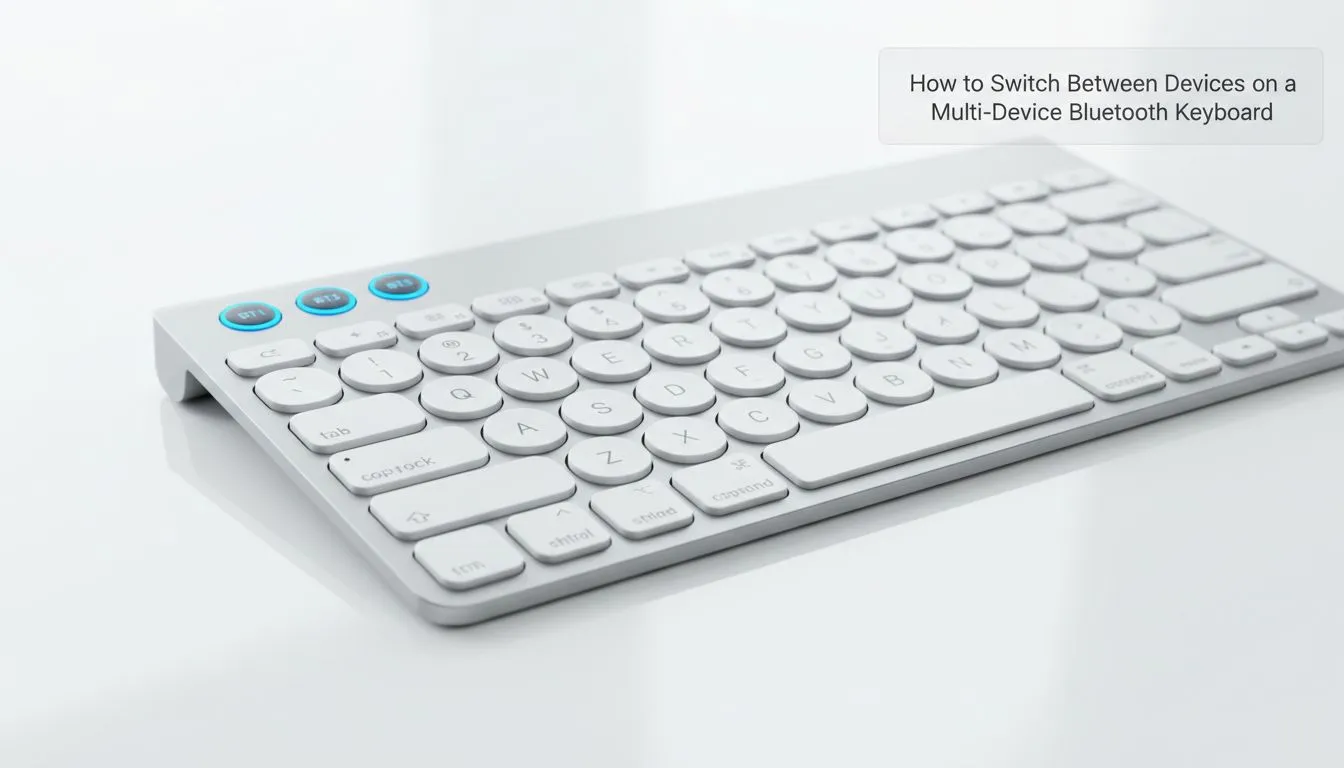
Most modern wireless peripherals use a combination of Bluetooth and 2.4GHz wireless technology. To switch Bluetooth keyboard devices, you usually rely on a dedicated "Easy-Switch" button or a Function (FN) key combination. For example, holding FN and 1 might pair your primary PC, while FN and 2 connects to your iPad. If you are looking for a hardware upgrade to support this, checking out the best gaming keyboard deals is a great place to start.
Once paired, the transition is nearly instant. You can type a Discord message on your phone and immediately jump back to your main screen without unplugging a single cable. It is about reclaiming your desk space and keeping your focus where it matters most.
Bluetooth Stability Tip ⚡
If you experience lag while switching devices, ensure your keyboard firmware is updated. Bluetooth interference can often be solved by moving your router slightly further away from your desk or using a USB extender for your 2.4GHz dongle to get it closer to the peripheral.
Why Multi-Device Support Matters for SA Gamers
We have all been there... you are in the middle of a session and your phone pings with a work emergency. Instead of fumbling with a tiny touch screen, a multi-device setup lets you reply using your full mechanical deck. You do not need to spend a fortune to get this functionality either. You can find the cheapest gaming keyboard in South Africa that still offers reliable wireless switching.
Choosing the Right Connectivity for Your Setup
While Bluetooth is fantastic for productivity, some gamers still prefer the absolute reliability of a physical connection. If you are a competitive player, you might lean towards wired options to eliminate any hint of input lag. However, for most users, the latest wireless keyboards offer performance that is virtually indistinguishable from their wired counterparts. 🔧
If you are starting your setup from scratch, consider looking at keyboard and mouse combos. These often use a single receiver for both devices, saving you precious USB ports on your laptop or PC.
Quick Troubleshooting for Device Switching
If your device refuses to switch Bluetooth keyboard devices correctly, try these three steps:
- Toggle the Bluetooth power on your host device.
- Ensure the keyboard is not still "captured" by a previous device in the room.
- Check your battery levels... low power often causes Bluetooth discovery issues. ✨
Managing multiple devices has never been easier or more affordable in ZAR. By choosing the right gear, you can turn your desk into a streamlined command centre. 🚀
Ready to Find Your Perfect Match? The multi-device lifestyle is all about efficiency and speed. Whether you need a mechanical beast for gaming or a slim deck for travel, we have the right tech for you. Explore our massive range of keyboard specials and find the perfect machine to conquer your world.











