


650W PSU Planning for RTX 5090 Builds in SA
650W for RTX 5090 needs a full-build check, not a simple yes. Review GPU guidance, CPU draw, transient load, connectors, PSU quality, and upgrade plans before deciding.
Read moreWhy Is My Motherboard Audio Connector Dead. Hand-picked gift ideas at every budget tier. SA pricing & Evetech availability included.
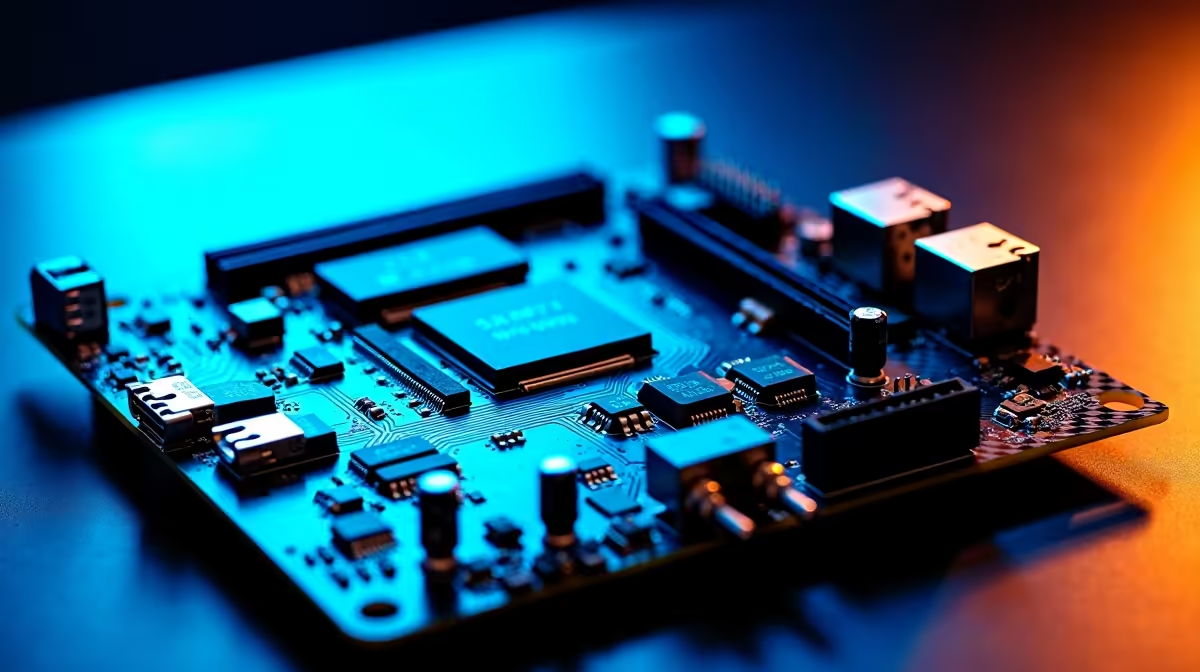
A dead motherboard audio connector is almost always caused by one of three things: a disabled onboard audio controller in BIOS, missing or corrupted audio drivers, or physical damage to the audio header or codec chip. Most cases are software-fixable without replacing the board.
Motherboards can have onboard audio disabled in UEFI BIOS, and this is the first thing to verify because it takes two minutes and costs nothing. Restart the system and enter BIOS setup. Navigate to the Advanced or Integrated Peripherals section and look for an option called HD Audio Controller, Onboard Audio, or Realtek Audio Controller depending on your board brand. Make sure it is set to Enabled. Some boards also have separate front panel audio and rear audio controls. Save and exit, then test audio again. This alone resolves the issue in a surprising number of cases, particularly after a BIOS reset or CMOS clear.
If audio is enabled in BIOS but the connector is still dead, the driver is the next suspect. Open Device Manager and expand the Sound, Video and Game Controllers section. A yellow exclamation mark on the audio device confirms a driver problem. Even if no warning icon appears, uninstall the existing Realtek or relevant audio driver completely and download the latest version directly from your motherboard manufacturer's support page rather than from generic driver sites. Install it, restart, and test all rear audio ports individually, as individual jacks can fail while others work. Also check the Windows Sound settings to confirm the correct playback device is selected and not muted at the system level.
If BIOS shows audio enabled and fresh drivers make no difference, the audio codec chip or the 3.5mm jack itself may be physically damaged. This can happen from inserting plugs at an angle under force, static discharge, or liquid contact. Inspect the rear audio jacks for bent pins or debris. If the codec chip on the PCB is damaged, the onboard audio is effectively dead. The practical fix is to add a dedicated sound card or a USB audio adapter, which costs far less than a new motherboard and often delivers better audio quality than onboard solutions anyway. For gamers and content creators this is actually an upgrade rather than a compromise.
My front panel audio works but the rear connector is dead. Why? Front panel and rear audio are often routed through separate paths. A failed rear jack can coexist with working front panel audio. Try a different rear port if your board has multiple, then follow the driver reinstallation steps focused on the rear audio output.
Can a Windows update kill my audio connector? Yes. Windows updates occasionally replace manufacturer audio drivers with generic Microsoft drivers that do not support all features. If audio died after a recent update, roll back the audio driver in Device Manager or reinstall the manufacturer driver manually.
Do I need to replace the motherboard if onboard audio fails? Rarely. A USB audio adapter or PCIe sound card is a cost-effective solution that bypasses failed onboard audio entirely. This is often the fastest fix and can be installed without opening the case beyond plugging a USB device in.
Ready to Find Your Perfect Match? Find your next motherboard at Evetech with the right audio features built in, backed by local warranty support across South Africa.
Why Is My Motherboard Audio Connector De available at Evetech.co.za with local warranty and fast delivery.
Why Is My Motherboard Audio Connector De - check Evetech for latest stock and SA pricing.
Depends on your use case. Why Is My Motherboard Audio Co offers good value at current Rand pricing.
650W for RTX 5090 needs a full-build check, not a simple yes. Review GPU guidance, CPU draw, transient load, connectors, PSU quality, and upgrade plans before deciding.
Read more
How to fix FPS drops Windows 11 RX 9070 XT starts with GPU drivers, overlays, power plans, and frame pacing checks. For SA gaming PCs, verify chipset updates, HAGS, refresh rate, thermals, and per-game graphics settings.
Read more
How to fix FPS drops on X870E motherboard starts with BIOS, chipset drivers, PCIe settings, and memory stability. SA gamers can check EXPO, resize BAR, thermals, display refresh, and background apps before replacing components.
Read more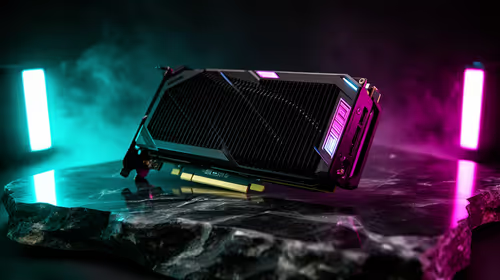
RTX 5060 is popular with SA students because it can fit gaming, coursework, and creative app needs in one setup. Compare total system price, cooling, RAM, storage, and screen quality before picking a desktop or laptop.
Read more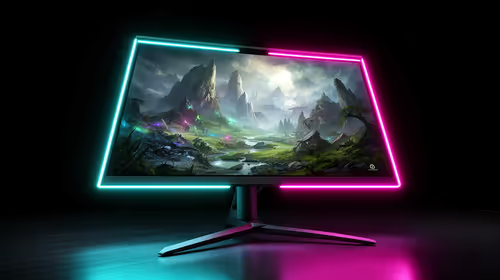
1440p is the sweet spot for SA gamers because it balances sharp visuals, high frame rates, and GPU cost better than 4K. It is a practical monitor target for players who want smoother upgrades without the heavier hardware demands of 4K.
Read more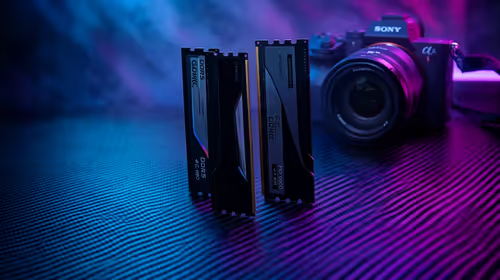
RAM pricing for Midrand gamers can shift with exchange rates, supply, specs, and model tier. Treat the title as a buying prompt, then compare SA warranty, timing, and build priorities.
Read more
From 1 October 2026, WhatsApp Business Platform service replies in South Africa are expected to cost about $0.0076, or 12 cents, per delivered message.
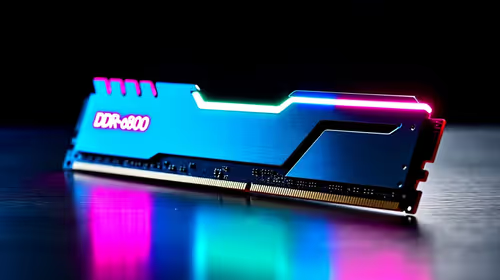
DDR5-8000 RAM Kits pros and cons depend on the build, budget, and workload. Weigh gaming needs, platform fit, power, cooling, warranty support, and South African pricing context before shortlisting it.

Wi-Fi 6E vs Wi-Fi 6 depends on AAA single-player gaming needs, platform limits, and budget fit. Compare compatibility, latency, upgrade path, and real setup constraints before choosing for an SA build.

Ryzen 9 9950X3D dead pixel checks should isolate the panel first. Run colour fills, inspect the monitor menu, test another cable or input, and capture proof before linking it to the SA CPU upgrade.

YouTube will count public views from the first frame across video formats from 24 August, while earnings and eligibility remain tied to engaged viewing.

Canonical expects Ubuntu on WSL users to outnumber native Ubuntu desktop users before the end of 2026. The software is open source and runs inside supported Windows PCs.

Telkom's daily bundles pair WhatsApp access with 10 all-network voice minutes. The R15 option includes 300MB, while the R17 option uses a fair-use threshold.

A 10,000-hour test found similar image retention across older and newer OLED TVs, while newer panels were brighter and more efficient. Local OLED monitors started at R9,999.

Windows 11 update KB5121003 is linked to crashes in several multiplayer games on versions 24H2 and 25H2. Check the build, report the fault and avoid risky file or update changes unless the problem is confirmed on your PC.

Comsol's standalone 5G network covers about one million Gauteng homes and starts commercial ISP service in September. Early packages range from R275 to R875 a month, but coverage and fair-use rules still decide the real value.

Sennheiser's Momentum True Wireless 5 adds user-replaceable batteries, 12-hour playback and a $299.95 launch price. There is no confirmed South African date, so compare longevity with live earbuds from R199 to R2,999.

AVerMedia's GC531 and GC535 are professional HDMI capture devices for continuous streaming, with RGB24 capture up to 2K30 and 4K30. South African creators should compare them with live 4K capture cards from R2,099.