Wired Xbox Controller on PC Without Drivers: The Quick Fix for SA Gamers 🎮
If your Xbox controller is sitting in the cupboard and you just want it working on PC… today’s your day. In South Africa, fast “plug and play” wins. No driver hunts. No mystery software. Just connect it and get back to gaming.
The good news? You can use a wired Xbox controller on PC without drivers in most cases. And when it doesn’t “just work”, it’s usually a simple Windows setting or cable issue. Let’s get you sorted.
Wired Xbox Controller on PC Without Drivers: How It Works (and why it usually works) 🔌
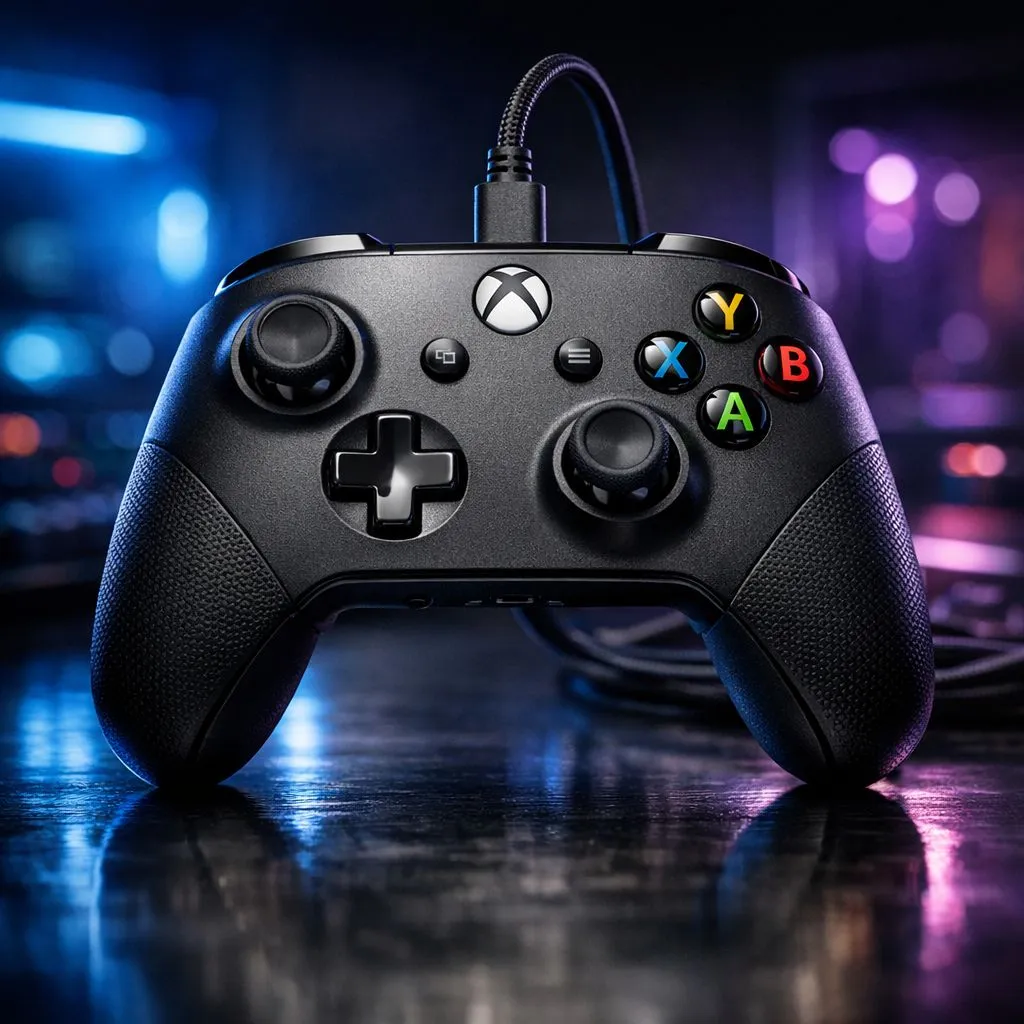
Wired Xbox controllers normally behave like standard USB game controllers. Windows recognises the hardware and installs the right support automatically.
What to do:
- Plug the controller into the PC via a USB cable.
- Wait for Windows to detect the device.
- Open Settings → Bluetooth & devices → Controllers & devices.
- Confirm the controller shows up and responds.
If you’re aiming for clean, low-latency play, a wired connection can feel more consistent than Bluetooth. Less “wobble” during fast inputs. Perfect for shooters and racing games.
Cable matters more than you think ⚡
Not all USB cables are equal. Some are charge-only, and those won’t carry input data.
Quick test: If the controller powers on but doesn’t respond in-game, swap to a known data cable.
Controller Connectivity Pro Tip 🔧
easiest way to avoid USB cable heartbreak: use the original controller cable (or another cable you’ve confirmed transfers files). Then verify input in Windows by opening the “Controllers & devices” screen before launching a game. This takes 30 seconds and saves you a whole evening.
Wired Xbox Controller on PC Without Drivers: If Windows doesn’t recognise it 🚀
If your controller doesn’t register, don’t panic. Try these steps in order:
- Restart the controller connection: unplug, wait 5 seconds, plug back in.
- Try a different USB port: front ports sometimes behave oddly. Use a rear USB port if possible.
- Check device settings: in Device Manager, look for an “Xbox Controller” or a “Human Interface Device” entry.
- Avoid hub issues: if you’re using a USB hub, bypass it and plug directly into the PC.
For gamers who want a controller that’s built for wired reliability and comfort, the right hardware matters too. If you’re shopping, browse controller options here: Gaming controllers for PC.
If you’re specifically interested in Razer-branded options, check these picks: Raze gaming controllers.
And if you want something premium with a solid tournament-style focus, take a look at this deal: Razer Wolverine V3 Tournament Edition 8K (best deal).
Wired Xbox Controller on PC Without Drivers: In-game setup (so it feels right) ✨
Even when Windows detects the controller, games can still expect the right input mapping.
Before you jump into ranked:
- Open the game’s Controller / Input settings.
- Set Controller as the input method.
- Confirm button layout: A/B/X/Y should match Xbox defaults.
- Test the triggers and sticks in the in-game calibration screen (if available).
A small habit that helps: adjust deadzones early. Too high and you’ll miss micro-movements. Too low and you may get drift. Tune until your aim feels predictable.
Ready to Find Your Perfect Wired Setup? 🎮
Ready to Find Your Perfect Match? Wired or wireless, the right controller makes a real difference on PC. If you’re building a setup that feels smooth and reliable across South African conditions, shop smarter with Evetech. Explore our massive range of gaming controllers and get the gear that matches your play style.