

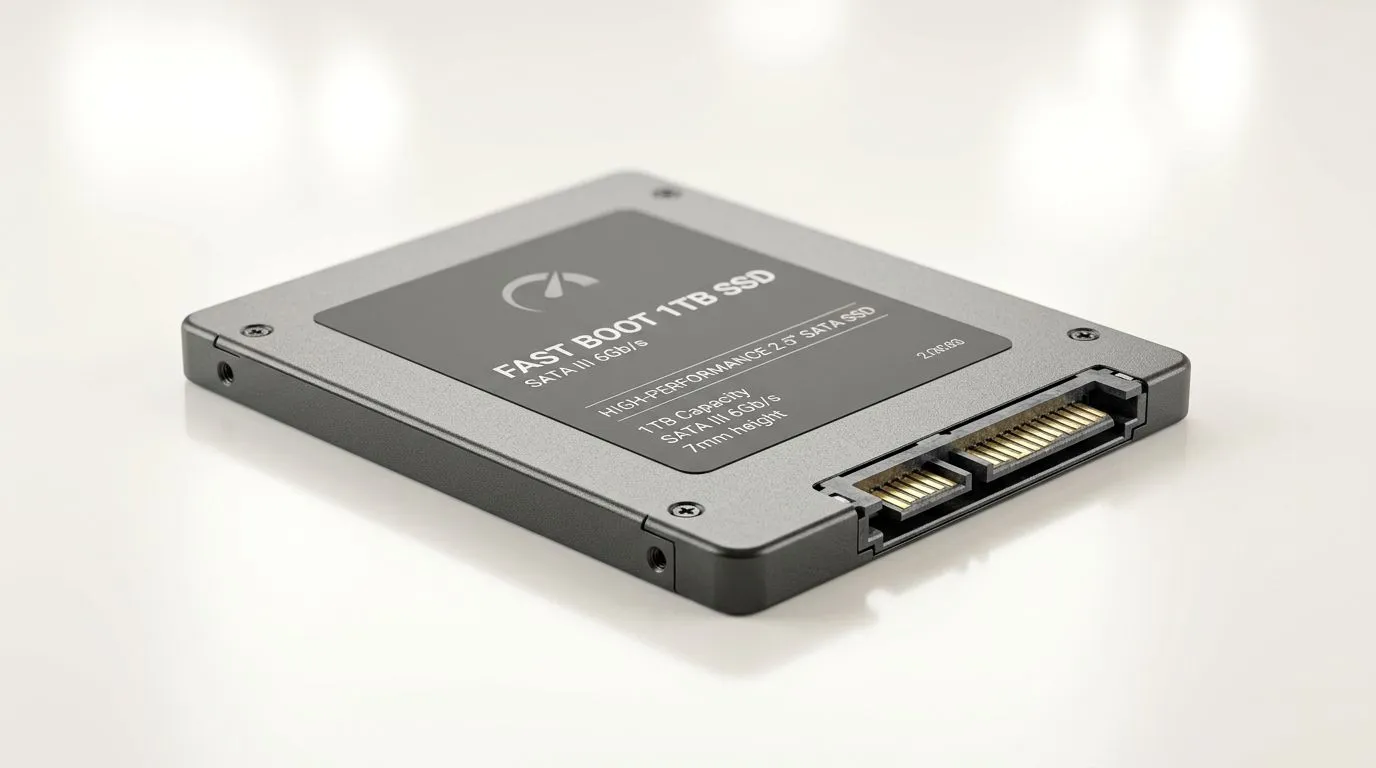
2.5-Inch SATA SSD Upgrade Guide for Faster Boot Speeds: Why South African PC gamers feel the difference
Booting into a match shouldn’t feel like waiting for a game to “load… any minute now.” If your PC still spins up a hard drive, a 2.5-Inch SATA SSD Upgrade Guide for Faster Boot Speeds is one of the most cost-effective ways to make Windows feel snappier. 🔧 In South Africa, where electricity and system downtime are real concerns, faster start-ups can also mean less time staring at a black screen. Let’s make the upgrade straightforward.
Planning your upgrade: the 2.5-inch SATA SSD basics (and what to double-check)
A 2.5-inch SATA SSD is designed to connect via the SATA interface and fit in the standard 2.5-inch drive bay used by many laptops and desktops. Most modern PCs have SATA power/data connectors, but you should confirm before you buy.
Check these three things first
- Space / mounting: Do you have a 2.5-inch bay, or will you need an adapter/caddy?
- Connection type: You need a SATA data cable and SATA power.
- Your OS and files: If you move Windows to the SSD, you’ll want a clean migration plan. (Always back up first.)
If you’re also considering brands, Evetech stocks popular options worth comparing by capacity and value, including ADATA and Kingston.
2.5-Inch SATA SSD upgrade steps for faster boot speeds (Windows-focused) ⚡
There’s a reason this guide is popular in local upgrade threads: the process is repeatable. Here’s the clean flow.
Step 1: Pick your SSD (capacity matters)
For most gaming PCs, at least 500GB is the sweet spot to reduce juggling installs. If you run big game libraries, consider 1TB+.
You can browse SSD options here:
- https://www.evetech.co.za/PC-Components/buy-solid-state-drives-83
- https://www.evetech.co.za/PC-Components/buy-solid-state-drives-83?brands=ADATA
- https://www.evetech.co.za/PC-Components/buy-solid-state-drives-83?brands=Kingston
Step 2: Backup and prep your migration
Before you swap drives:
- Back up important files (cloud, external drive, or both).
- If you have BitLocker enabled, make sure you know how to recover keys.
Step 3: Clone or install fresh
You have two paths:
- Clone: Keep your current Windows setup and apps. Great if you want speed with minimal setup.
- Fresh install: Cleaner system, sometimes faster long-term, but takes longer.
Step 4: Change boot order
After installing:
- Enter BIOS/UEFI
- Set the SSD as the boot device
- Save and exit
Step 5: Confirm Windows is using the SSD
Open Task Manager → Performance → Disk and check your drive activity. If games are still stuttering on load, verify the game library isn’t still on the old drive.
Productivity Pro Tip ⚡
In Windows, you can speed up the “first launch” feeling by enabling Fast Startup and keeping only essential startup apps. Open Task Manager, go to Startup Apps, and disable anything you don’t need every day. It’s a simple win that pairs perfectly with your new SSD."
Common pitfalls: SATA vs M.2 confusion (and why it matters) ✨
People often search for SATA SSDs, then accidentally buy an M.2 drive. Different slot, different mounting, different compatibility.
If you’re actually shopping for M.2 options instead, start here:
And if you’re comparing interface generations, double-check the listing details:
Stick to your goal: a 2.5-inch SATA SSD for that reliable upgrade path.
2.5-Inch SATA SSD Upgrade Guide for Faster Boot Speeds: What results to expect
A SATA SSD won’t turn your PC into a rocket, but it can absolutely cut boot times and reduce “game launch waiting.” The most noticeable improvements are:
- faster Windows login
- quicker app switching
- smoother loading into matches
To keep performance consistent, leave around 10–20% free space on the SSD when possible. It helps with background management and long-term health.
Ready to upgrade? Here’s the fastest route to the right drive for your build
Before you order, match the SSD to your system bay and SATA support. If you want a quick, safe selection in South Africa, use Evetech’s solid-state drive listings to compare capacity and compatibility, then lock it in.
Ready to Find Your Perfect Match? The Mac vs Windows debate is complex, but for maximum power, choice, and value in South Africa, Windows is hard to beat. Explore our massive range of laptop specials and find the perfect machine to conquer your world.











