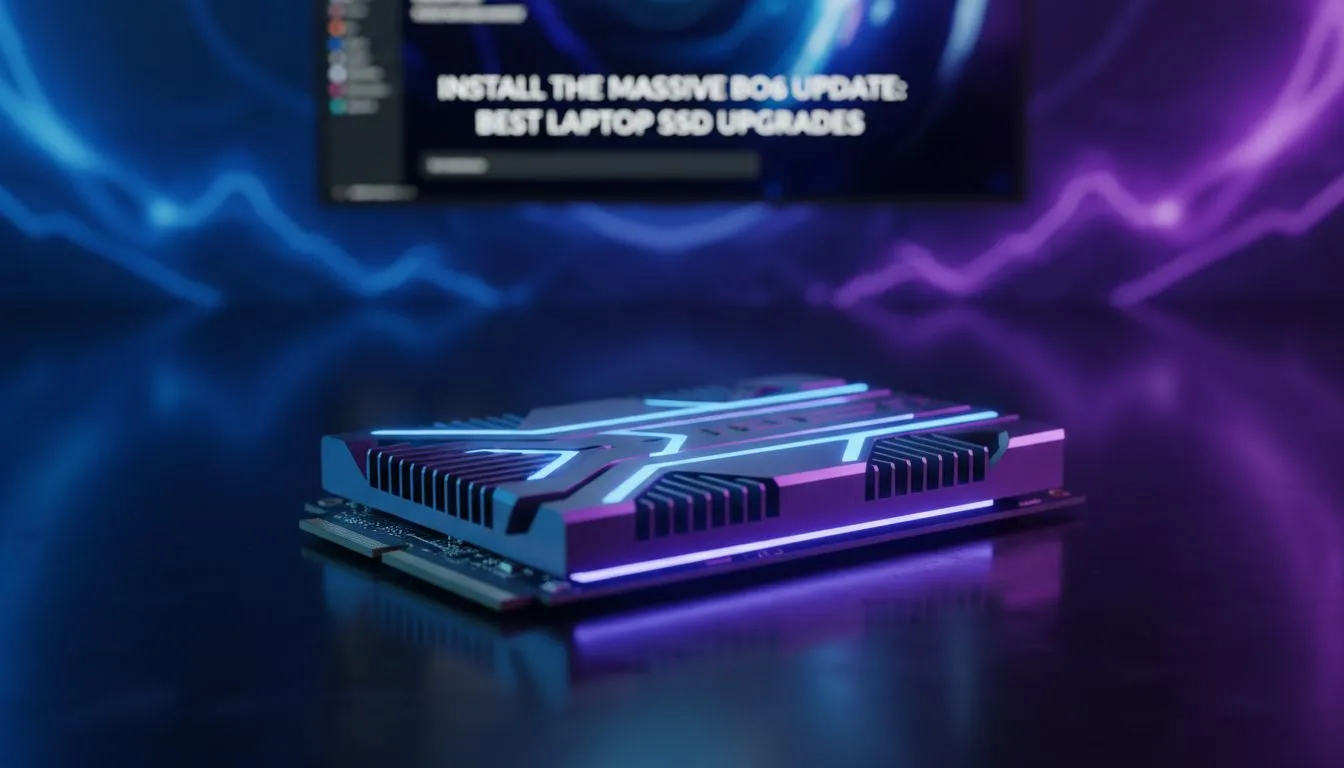
Tired of staring at loading screens while your mates are already in the lobby? A sluggish drive is the ultimate vibe killer for any South African gamer. Whether you are rocking one of our Intel laptops on special or an older workstation, the best laptop SSD upgrade is the most cost-effective way to boost performance and storage capacity instantly. 🔧
Choosing the Best Laptop SSD Upgrade for Your Rig
Before you grab the first drive you see, you need to identify what your motherboard supports. Most modern machines found in our Ryzen laptop deals utilise M.2 NVMe slots. These drives are roughly the size of a stick of gum and offer speeds that leave traditional hard drives in the dust. If you have an older laptop, you might be looking for a 2.5-inch SATA SSD instead.
When hunting for the best laptop SSD upgrade, speed and endurance are your two main metrics. For gamers, a drive with high random read speeds ensures that open-world games load assets seamlessly... preventing those annoying stutters during intense firefights. Many of the best gaming laptop deals currently feature Gen4 NVMe support, which can reach speeds upwards of 7,000MB/s.
Installation Safety Tip ⚡
Before opening your laptop, always touch a grounded metal object to discharge static electricity. Even better, use an anti-static wrist strap. Small static shocks that you cannot even feel are enough to fry sensitive components like your RAM or the new SSD you just bought.
How to Install Your New SSD
Installing a new drive is less intimidating than it sounds. Most manufacturers make the storage bays easily accessible. If you decided to buy gaming laptops under R20k, you will likely find an extra M.2 slot specifically designed for easy expansion.
- Prepare your tools: You usually only need a small Phillips head screwdriver.
- Power down: Ensure the laptop is off and unplugged.
- Open the chassis: Remove the bottom screws and gently pry the cover off.
- Locate the slot: Find the M.2 or SATA bay.
- Insert and secure: Slide the SSD in at a 30-degree angle and secure it with the mounting screw.
Optimising Performance Post-Installation
Once the hardware is in, you need to decide between cloning your old drive or starting fresh with a clean Windows installation. A clean install is often better as it removes years of "digital gunk" and bloatware. For those running high-end GeForce RTX gaming laptops on special, ensuring your firmware is updated via the manufacturer's software is vital to hitting those advertised peak speeds. 🚀
Remember to check your BIOS settings to ensure the laptop recognises the new drive in the correct mode. If you are using an NVMe drive, make sure "AHCI" or "NVMe" mode is enabled to get the full bandwidth you paid for.
Ready to Find Your Perfect Match? The best laptop SSD upgrade starts with the right hardware. Whether you are looking for a drive upgrade or a brand-new machine to conquer the latest titles, we have the best tech in South Africa. Explore our massive range of laptop specials and find the perfect machine to conquer your world.