

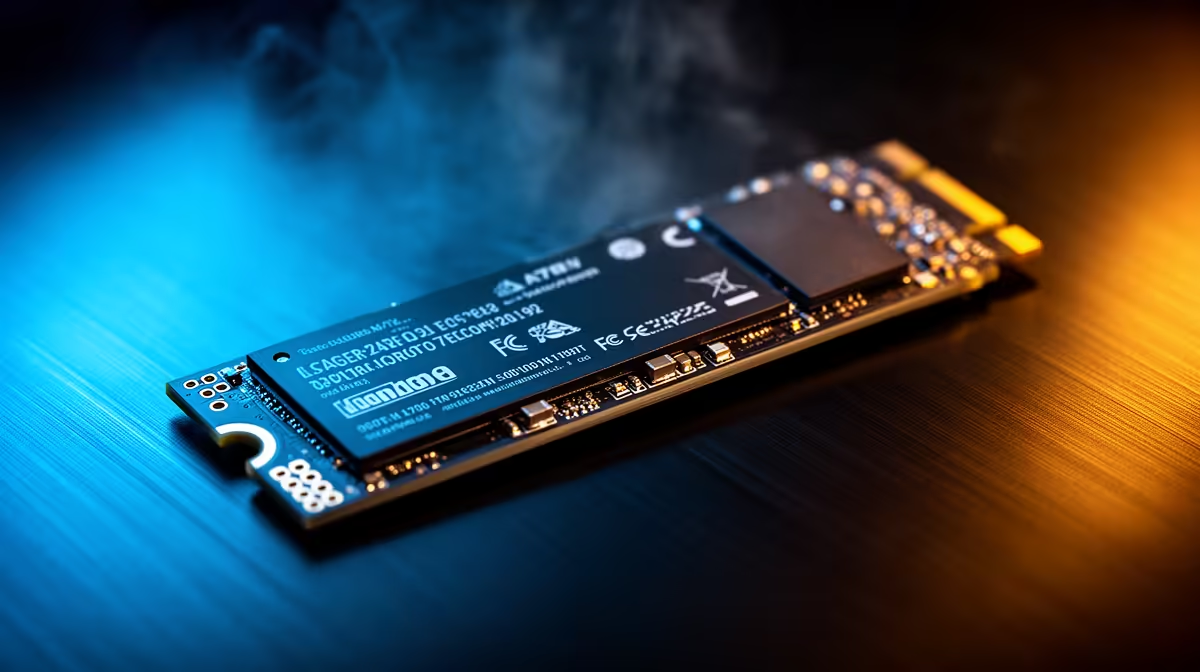
Running out of space for the latest 100GB+ AAA game releases? You are certainly not alone. Many South African gamers hit a frustrating wall when their drive turns red. You want to install the new Call of Duty... but you cannot delete your favourite RPGs to make room.
The big question on everyone's mind is: can you upgrade storage in a laptop? Yes... you absolutely can. Swapping out a sluggish old drive for a lightning-fast SSD is the smartest way to revive your machine. It saves you thousands of Rands compared to buying a brand new system.
Why an SSD Swap Makes Sense 🚀
When you upgrade storage in a laptop, you do much more than just make room for massive updates. An SSD swap drastically cuts down those painful loading screens. If your system is still running a clunky mechanical hard drive, the jump in speed feels incredible. Boot times drop from minutes to seconds.
Even moving from a smaller SATA SSD to a high-capacity NVMe drive offers a brilliant performance boost. Need the raw hardware to get started? Check out our massive range of solid-state drives to find the perfect fit for your specific rig.
Checking Your Laptop Compatibility ✨
Before you grab a screwdriver, you must verify what your machine actually supports. Most modern notebooks and laptops feature easily accessible M.2 NVMe slots. Older or budget models might still rely on standard 2.5-inch SATA drives.
Compatibility Pro Tip 🔧
Always check your laptop manufacturer manual or use a system scanner tool before buying an SSD. Some ultra-thin models have soldered storage that you simply cannot remove or upgrade.
Step-by-Step SSD Swap Guide
Let us break down the basic SSD swap process. It is genuinely easier than you might think.
First, you need to back up your data. You can clone your current drive using free software. Alternatively, simply copy your essential files to an external drive. Next, power down your machine and unplug the charger. Remove the bottom panel screws carefully... keeping track of which screw goes where.
Locate the storage bay or M.2 slot on the motherboard. Unscrew the tiny fastener holding the old drive. Slide it out, and gently insert your new SSD. Secure it, close the panel, and reinstall Windows.
If opening up a laptop chassis feels a bit too risky, you might prefer a completely fresh start. Sometimes it makes more sense to explore pre-built PC deals instead of tearing apart an aging, out-of-warranty notebook.
Maximising Your ZAR Value ⚡
Upgrading your storage is highly cost-effective right now. A blazing fast 1TB NVMe drive often costs well under R1500. That is a remarkably small price to pay for such a massive daily performance gain.
However, you must be realistic. If your laptop processor and RAM are severely outdated, an SSD swap will only speed up loading times. It will not magically increase your gaming frame rates. In that scenario, you might want to consider a complete hardware overhaul.
Browsing through our top-tier custom gaming PCs could finally give you the performance you actually crave. And if you are always hunting for a bargain, keep a close eye on our daily tech specials to stretch your hard-earned ZAR even further.
Ready to Expand Your Gaming Library? Upgrading your storage is a brilliant way to boost performance. However, sometimes you just need a completely new machine to handle modern titles. Explore our massive range of laptop specials and find the perfect hardware to conquer your world.











